Special Offer



How to Install SketchUp 3D on Ubuntu 20.04 (Wine Method)



Install SketchUp 3D on Ubuntu 20.04 is usually one of the first things people search for after switching to Linux. Especially if they’ve been using SketchUp on Windows for years and don’t really want to replace it with something heavier or more complicated.
SketchUp is still popular for a simple reason: it does what you need without slowing you down. Interior layouts, booth designs, basic industrial models, architectural drafts you can get them done quickly without spending hours setting things up. If your workflow already includes AutoCAD, SketchUp feels familiar almost immediately and doesn’t force you to rethink how you work.
In this article, we’ll walk through a working way to install SketchUp 3D on Ubuntu 20.04. Nothing theoretical just the method that actually runs SketchUp properly. The same steps apply whether you’re installing it on a local machine or on an Ubuntu VPS. Some users even prefer running it on a VPS, especially when they want a clean environment or remote access without touching their main system.
Sketchup 3D software features:
SketchUp is mostly used because it stays out of your way. The interface is simple, the program is light, and you don’t need much time to get comfortable with it. Even basic models can be built without digging through menus.
Another useful part is the built-in 3D library. Many common objects are already available, so you don’t have to model everything from zero every time.
Navigation is also fast. Using the middle mouse button to move around the model feels natural after a while and saves a lot of small, repetitive actions.
SketchUp isn’t limited to rough shapes either. You can define heights, dimensions, and layouts clearly enough to prepare drafts or explain an idea visually.
When precision matters, SketchUp can handle that too. Measurements are accurate, so you’re not guessing sizes while working on a model.
Install Sketchup 3D on Ubuntu 20.04 | Ubuntu 18.04
We plan to install Sketchup on Ubuntu 20.04 using Wine. Wine is a free, open-source compatibility software that allows users to run Windows applications on macOS and Linux. So you can start the installation process using the following commands:
wget https://dl.winehq.org/wine-builds/Release.key
sudo apt-key add Release.key
Now you need to download and add the wine repository key using the following command:
sudo mkdir -pm755 /etc/apt/keyrings
sudo wget -O /etc/apt/keyrings/winehq-archive.key https://dl.winehq.org/wine-builds/winehq.key
Note: If you encounter an error at this stage, you can fix it by executing the following commands:
wget -nc https://dl.winehq.org/wine-builds/winehq.key
sudo apt-key add winehq.key
sudo apt update
You can download the wineHQ sources file by entering the following command:
sudo wget -NP /etc/apt/sources.list.d/ https://dl.winehq.org/wine-builds/ubuntu/dists/focal/winehq-focal.sources
After completing the above steps, you can now install Wine:
sudo apt-get update
sudo apt-get install --install-recommends wine-staging winehq-staging
Now you need to run the following command to configure Wine:
winecfg
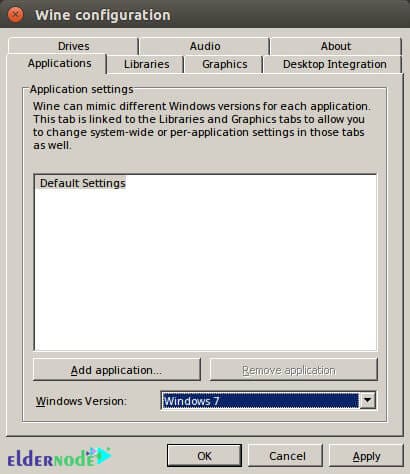
In the next step, you have to go to the Applications section.
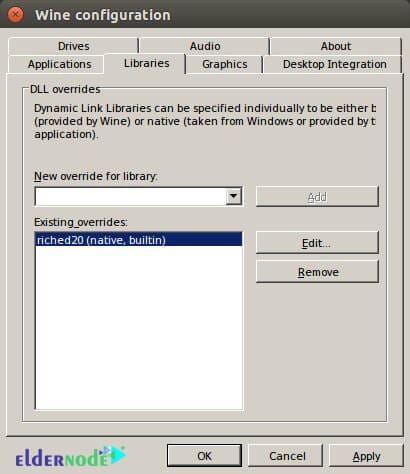
Then, go to the libraries tab and create a new library named ‘riched20.’
In the next step, you have to go to the downloads section. Then select the exe file and open the file with the first option selected in the list. Wait for the installation process to complete. Then click on Finish.
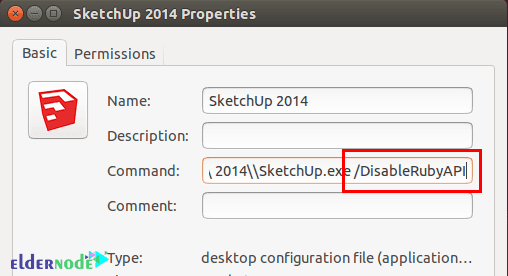
Now you need to right-click on the Sketchup launcher. Then go to Properties and attach “/DisableRubyAPI“.
At this point, you’ll need to manually add the mfc100u.dll file to your Wine setup so SketchUp can run correctly. Please Copy it and then move it to the Wine folder. Then press Ctrl + H together to activate the hidden folders in Nautilus. In the next step, you have to go to the Home folder, go to the .wine/drive_c/windows/system32/ folder and move it to this list.
By following the steps in this article correctly, you will see that SketchUp is successfully installed on your system.
Conclusion
SketchUp software is a 3D modeling software that has a variety of applications, including architecture, interior design, civil and mechanical engineering, filmmaking, and video game design. There is an online open-source library for free assembly models (such as windows, doors, cars) called 3D Warehouse where users can place their models. SketchUp software has the ability to drag layers and can render levels in different styles. In this article, we tried to introduce and present the features of Sketchup 3D software and then Tutorial Install Sketchup 3D on Ubuntu 20.04. If you are interested in Autodesk software, you can refer to the article How to Install Autodesk Maya 2020 on Ubuntu 20.04.