
How to Create FTP in XAMPP (Step-by-Step Guide)



A lot of people install XAMPP just for Apache or MySQL and never really pay attention to the fact that it also includes a small built-in FTP server. It’s easy to miss, but it’s actually one of the quickest ways to set up a simple FTP connection without installing anything extra. All you really do is start the FileZilla service, make a user, and point it to the folder you want to share.
When I need a quick FTP setup on a Windows machine or even a Windows VPS, this is pretty much the routine I follow. It doesn’t take long, but having the steps written out in order makes the whole thing easier to go through. So let’s walk through it from the beginning.
Starting the FTP Service in XAMPP
1. Open the xampp software.
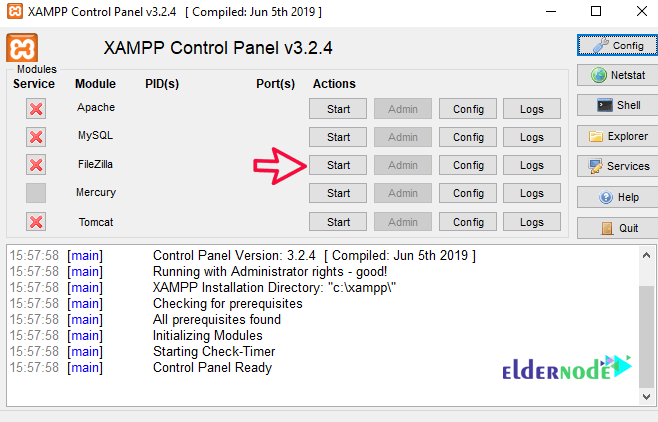
2. Click on the Start option next to filezilla to run the service.
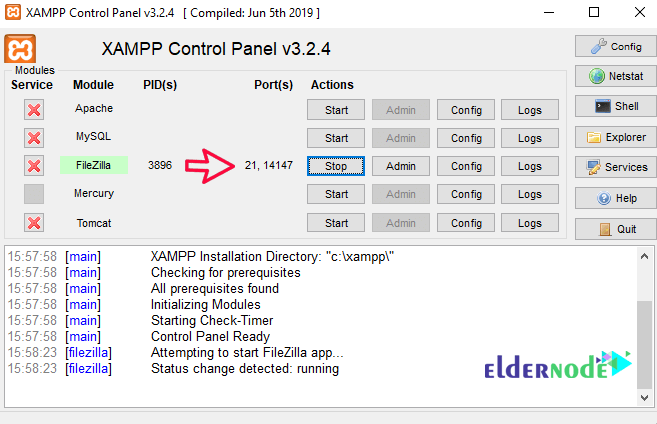
Note: After running the ftp service correctly, the ports are written next to the service name.
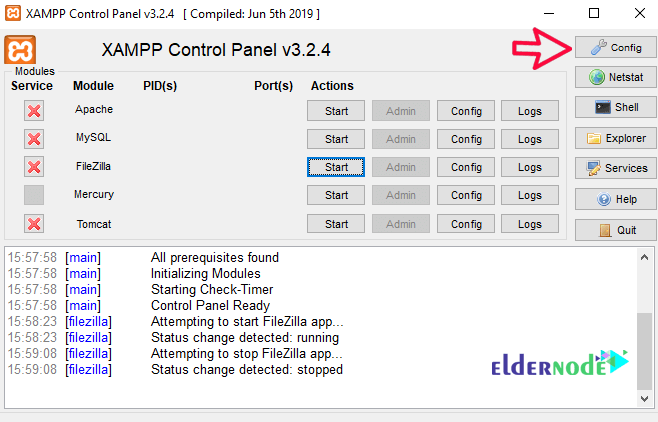
If you want the ftp service to run automatically after each Windows reboot, follow the steps below:
1. Click on the config option.
2. In the window that opens, select the filezilla service and click save.
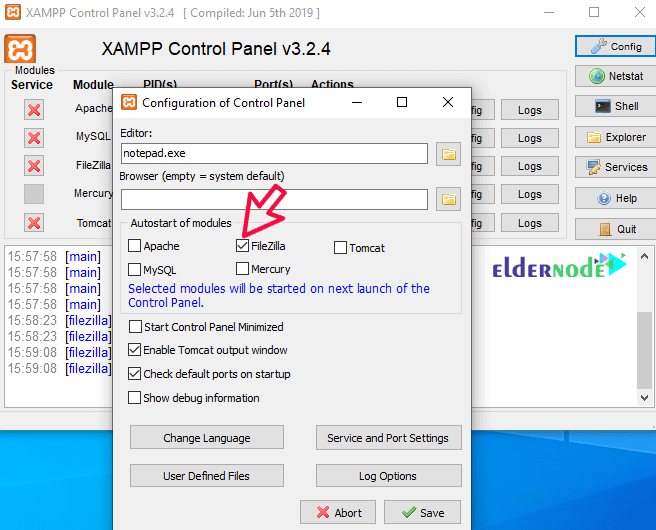
This is how easy it is for you to set up an ftp service by xampp.
Next, go to the ftp settings so that it can be used without any problems.
FTP Service settings in XAMPP Software
1. Click on the admin option in front of the filezilla name.
2. Choose a password for your admin user. (You can leave the password blank.)

3. Then click on ok.
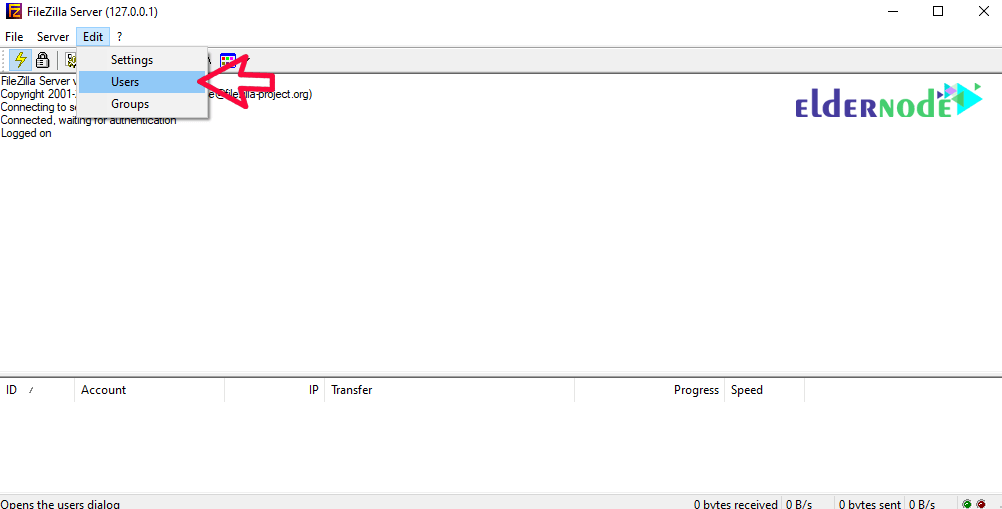
4. In the page that opens, select the Users option from the edit menu.
5. On the right side of the page, click on add and enter the name of the user to connect to ftp.
Note: In this tutorial, we entered the username Michael.
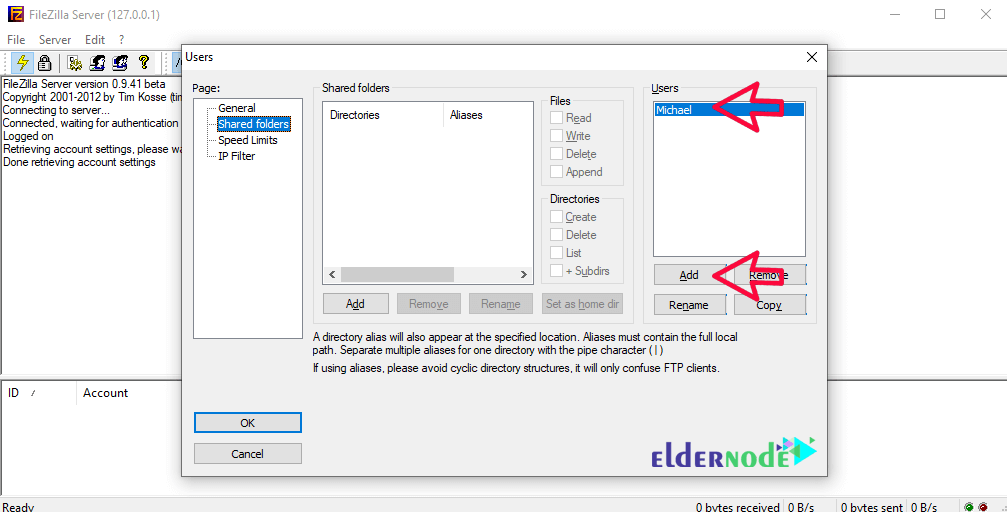
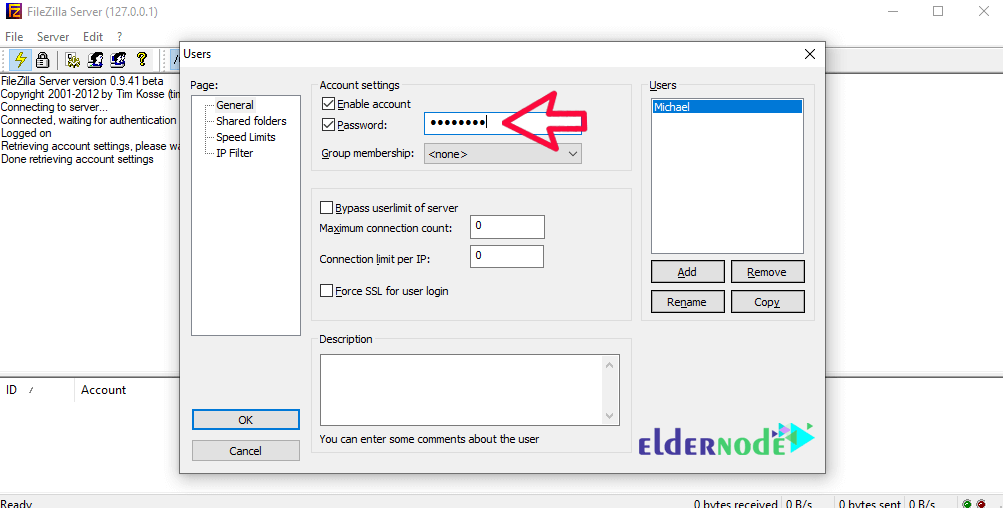
6. After adding the username in the General section, enter its password.
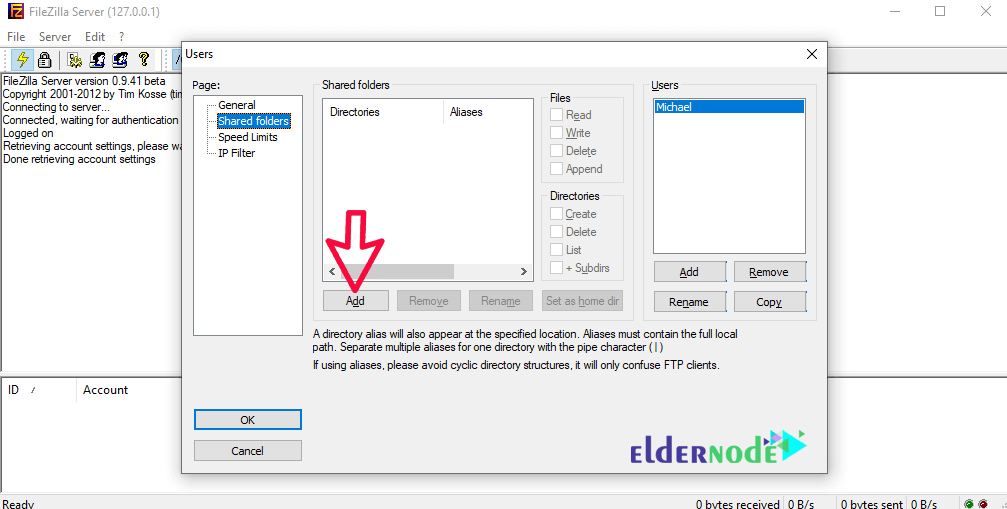
7. Now click on share folder from the left side of the page.
8. Click on the add option.
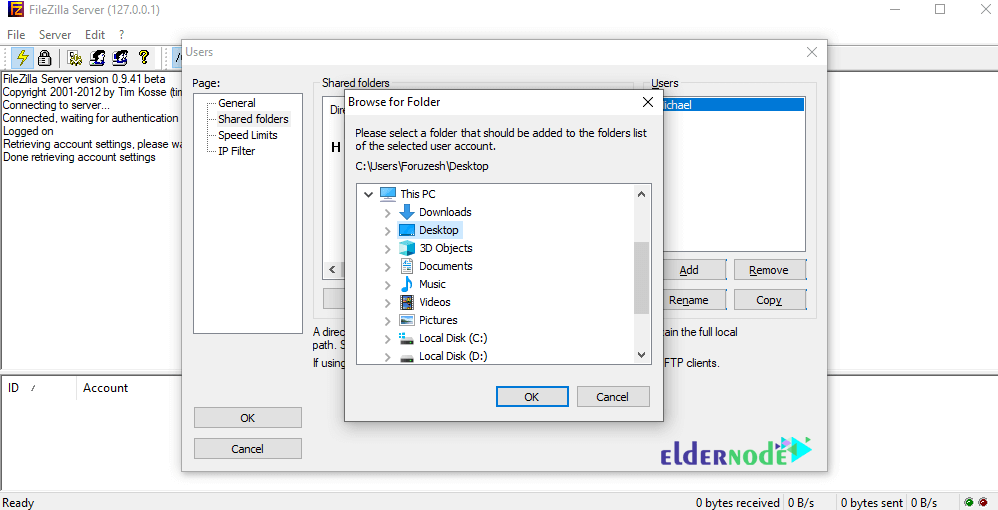
9. Select the desired folder for ftp space.
10. Finally, specify the permissions for ftp.
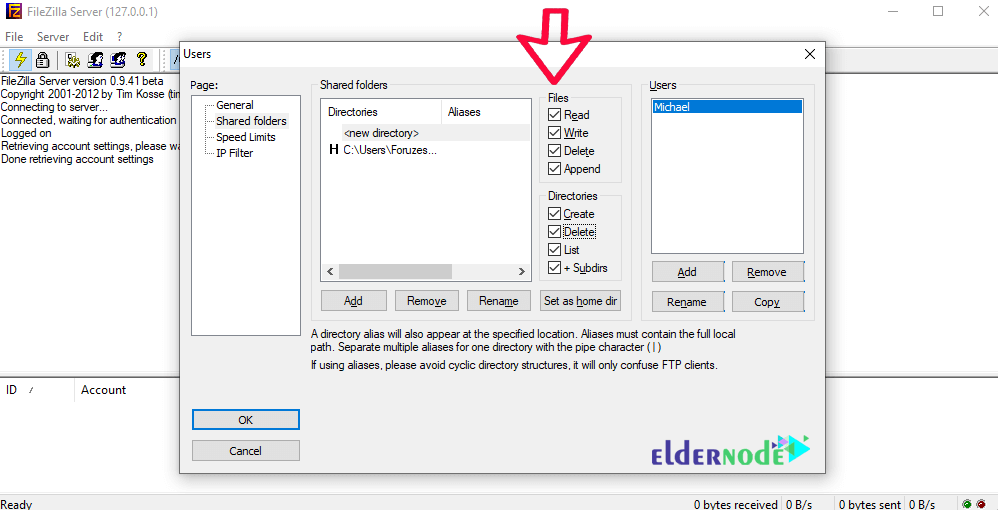
11. Click OK at the end.
This is where ftp settings come in, and you can connect to ftp with software like filezilla.
Troubleshooting
1) When the FTP service doesn’t run
If FileZilla refuses to start, it’s almost always a port issue. Another program is likely using port 21. Changing it to something like 2121 and restarting the service usually fixes the problem.
If you still can’t connect, check that the FileZilla service is actually running and that your firewall isn’t blocking the port.
2) When you can connect, but something still isn’t right
If the login fails, the password probably wasn’t saved properly just recreate the user and set the password again.
And if you log in but can’t see the folder you expected, it means the shared folder wasn’t added or permissions weren’t given. Re-select the folder and enable at least Read access.
Security Tips
When you set up FTP in XAMPP, it helps to tighten a few things so you don’t accidentally open more than you need.
Start with a proper password.
Leaving it blank or using something too simple might work for testing, but it’s not a great idea if anyone else can reach the server.
Keep the permissions small.
Most of the time you only need read or write access. There’s rarely a reason to give full control unless you really know why.
Use a folder made just for FTP.
Don’t share your whole drive. A small, separate folder makes things easier to manage and a lot safer.
If you plan to connect from outside, be careful.
FTP isn’t encrypted, so changing the default port and adding a simple firewall rule can make a big difference.
Conclusion
And that’s really all there is to getting FTP running inside XAMPP. Once you switch on the FileZilla service and set up a user with a folder, the whole thing is basically ready to use. I’ve done this same setup plenty of times when I just needed a quick FTP space, and it usually works right away.
If something doesn’t connect on the first try, it’s almost always a small detail you missed a permission box, a wrong folder path, or the service not actually running. A quick check usually fixes it.
Other than that, you’re good to go. And while you’re already inside XAMPP, it’s worth taking a look at the other tools it comes with; there’s more inside it than most people notice at first.