
How to Install and Use DVWA on Windows 10: Step-by-Step Guide



Getting into security or pentesting usually starts with the same question: “Okay… where do I actually practice this stuff?”
Most people don’t want to mess with real websites, so they look for something safe to play with and that’s exactly where DVWA comes in. It’s a small, intentionally vulnerable app that lets you try things out without worrying about breaking anything important.
In this guide, I’ll walk you through a couple of easy ways to get DVWA running on Windows 10 so you can start experimenting right away.
And if you’d rather run it on a remote Windows VPS instead of your own system, Eldernode has some solid options worth checking out.
Introduction to DVWA?
DVWA is pretty much a small demo website that’s been left intentionally “broken” on purpose so you can mess around with it. A lot of people who are getting into security or pentesting use it because it gives you something to experiment on without risking a real site. It runs on basic PHP and MySQL, nothing fancy, and it comes with a bunch of weaknesses you can flip between easy and harder levels. If you’re trying to understand how common web attacks actually behave, or you just want a safe place to try your tools, DVWA does the job without any stress.
1- Installing XAMPP on Windows 10
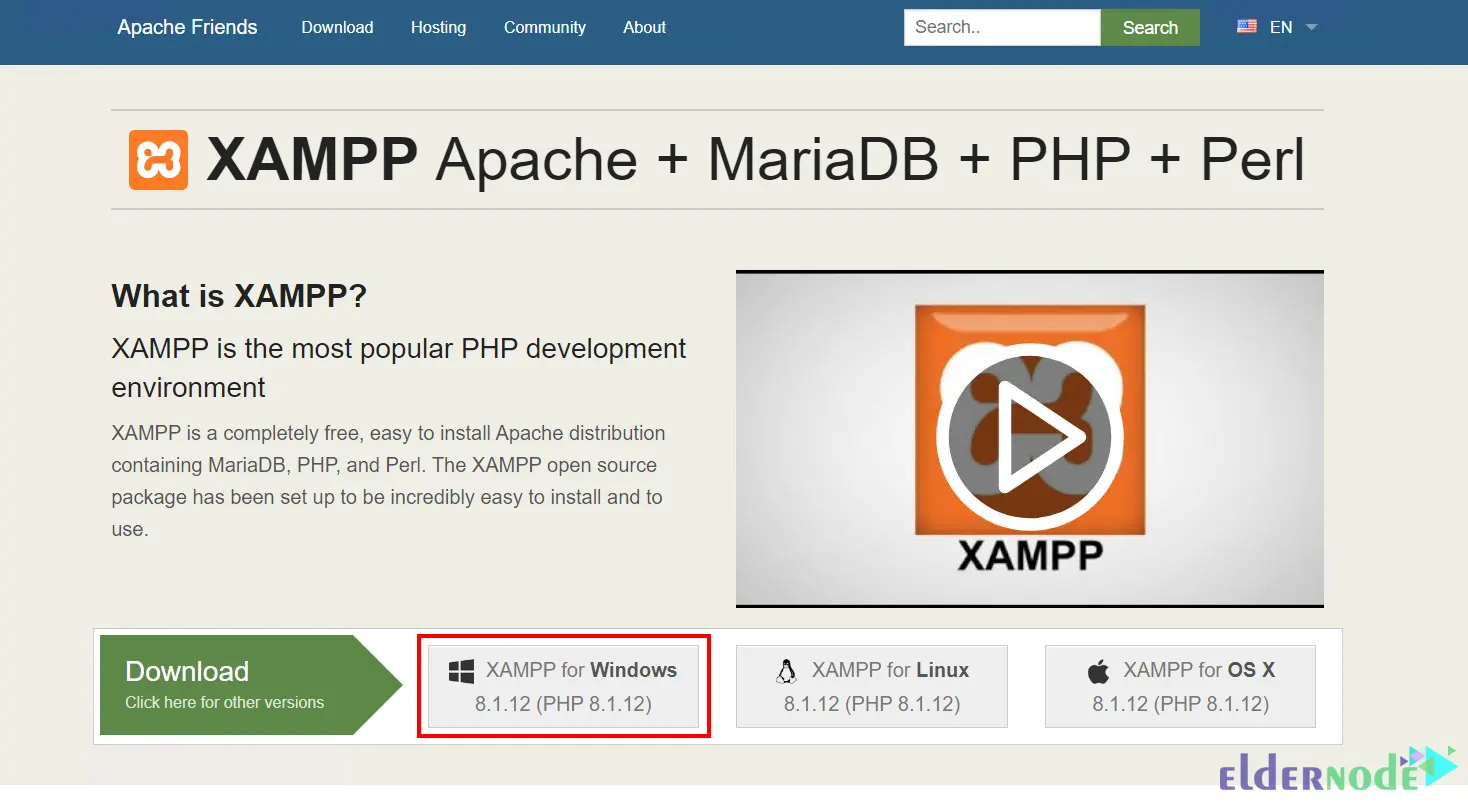
You need XAMPP to install DVWA on Windows 10. To do this, go to the XAMPP official website and choose XAMPP for Windows 10 to start the download:
Once the download is completed, go to the Downloads folder and double-click on the downloaded file to open it.
Then follow the installation instructions to install it.
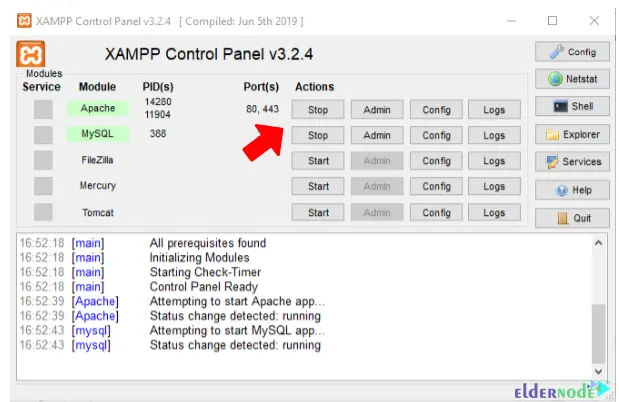
After the installation process, open the XAMPP control panel and start Apache and MySQL services:
2- Installing DVWA on Windows 10
It’s time to download DVWA on your Windows operating system. Firstly, go to the DVWA official website and download it.
So, extract the downloaded and move it to the htdocs folder inside the XAMPP folder.
There is a config.inc.php.dist file in the DVWA config folder, you should convert the file type to PHP.
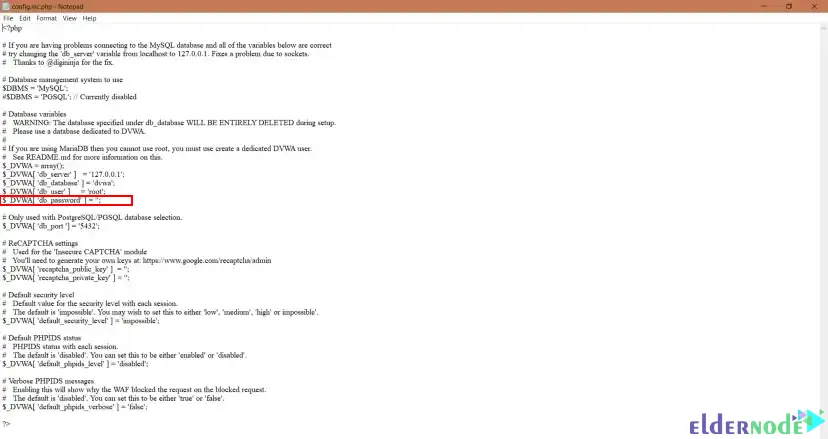
Then open the config.inc.php file with Notepad and find the following line:
$DVWA[‘db_password’]=’p@ssw0rd’;
Remove p@ssw0rd and make it blank As shown below:
$DVWA[‘db_password’]=’’;
Now open your web browser and go to the following URL:
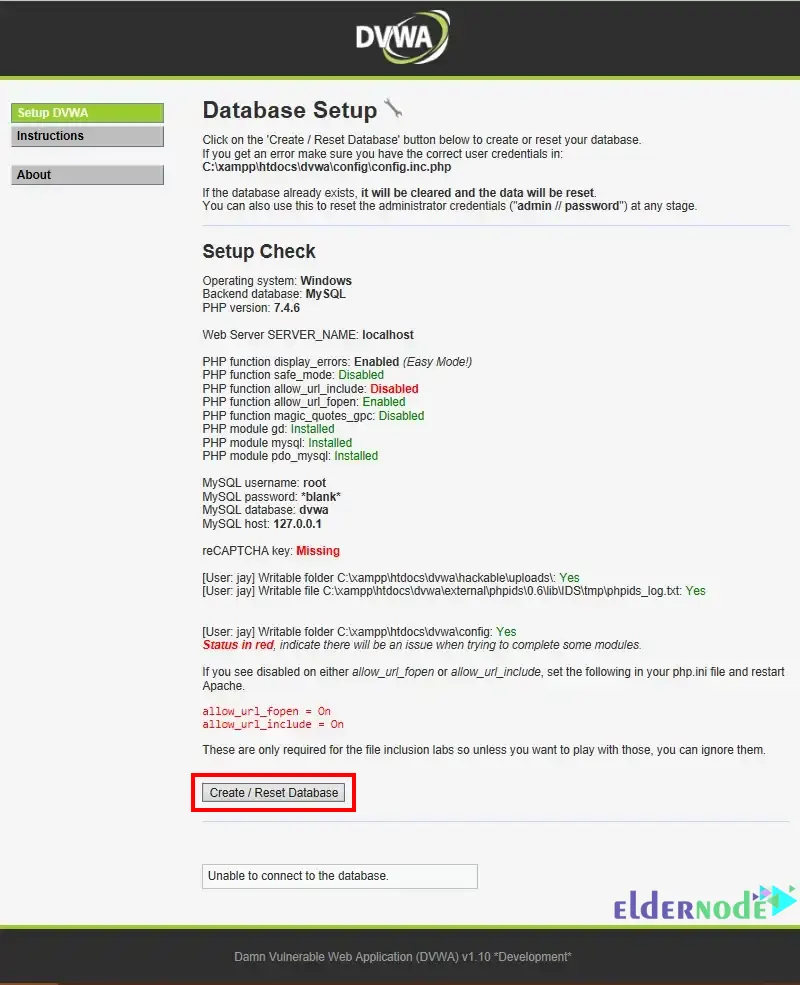
localhost/dvwa
You should see the following screen. Click on Create/Reset Database:
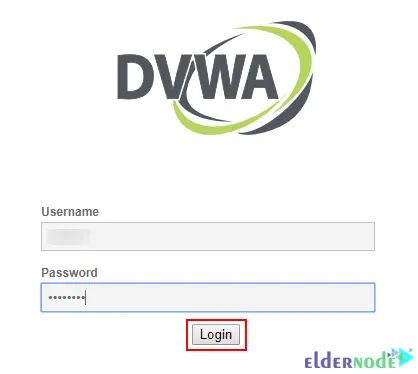
The DVWA login page will appear. Provide your username and password:
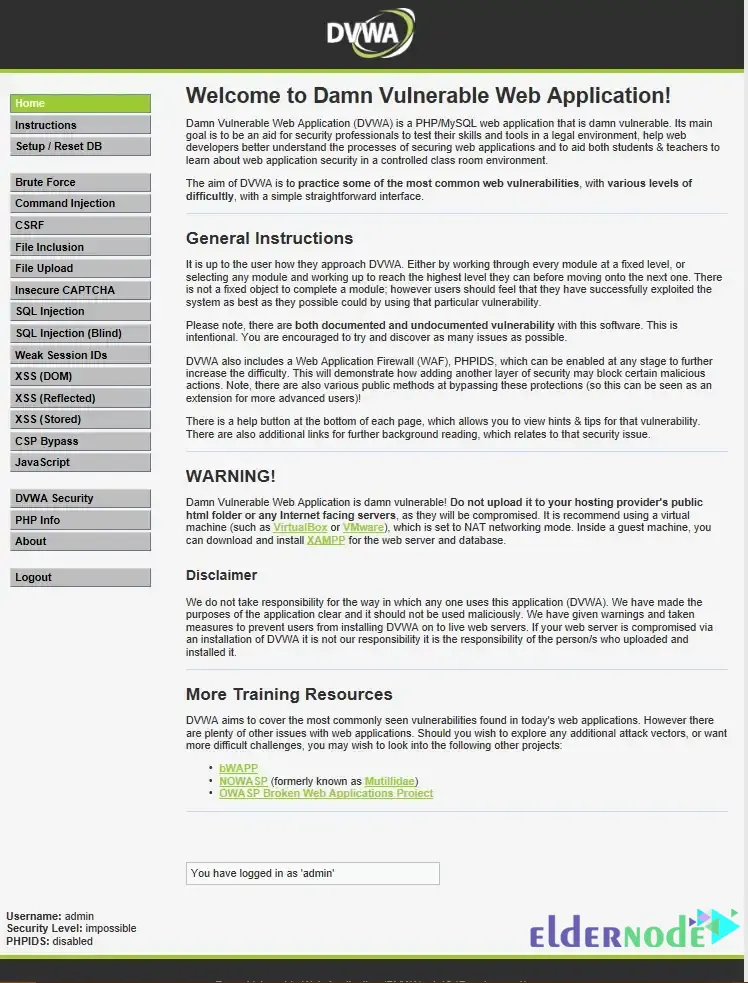
DVWA welcome screen:
How to Use DVWA on Windows 10
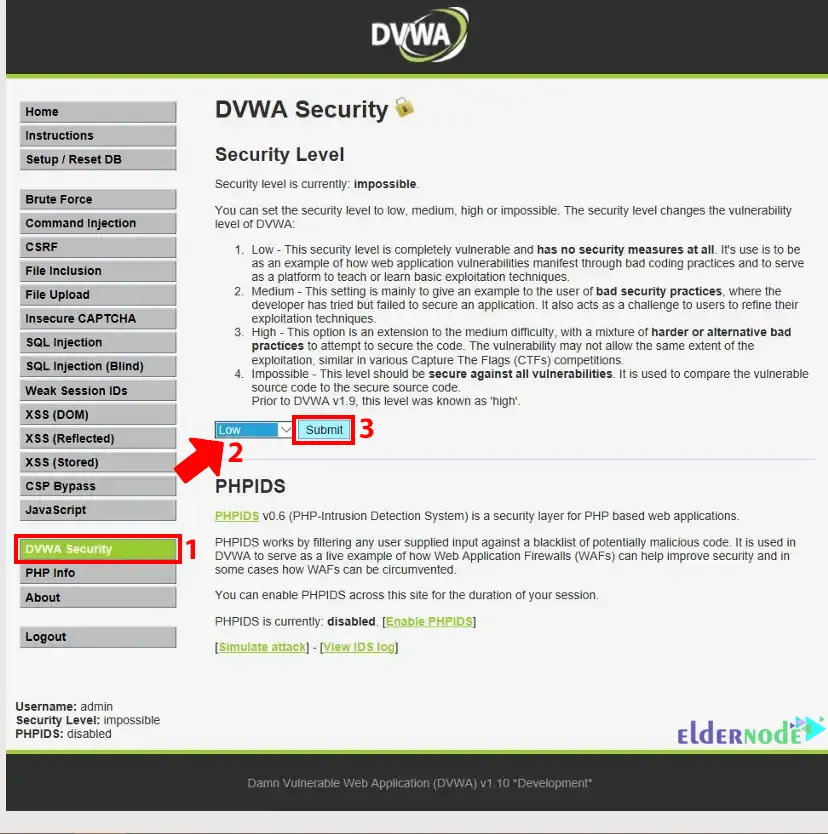
To start using DVWA on Windows 10, log in to the DVWA default page and choose the DVWA Security tab.
Choose your security level and click on Submit:
That’s it!
Conclusion
To be honest, DVWA is one of those tools that’s just handy to have around when you’re trying to understand how web security actually behaves in real life. Once you get it running on Windows, you can poke around, break things, fix them again, and slowly get the hang of what’s going on behind the scenes.
If any part of the setup gave you trouble or something didn’t look right on your system, just drop a comment and say what happened. Most issues are small things, and we can walk through them together.