Special Offer



How to Change Your Windows VPS Password




Changing the password on your Windows VPS is an essential part of keeping your server safe. Whether you’ve got a temporary password, you’re worried about unauthorized access, or you’re just practicing good security habits, this guide will walk you through how to change it. We’ll take you step-by-step through the process, both inside Windows itself and through your VPS control panel.
Step-by-Step Guide to Changing Your Windows VPS Password
To change the password of the vps server (windows) in which you have logged in, proceed as follows:
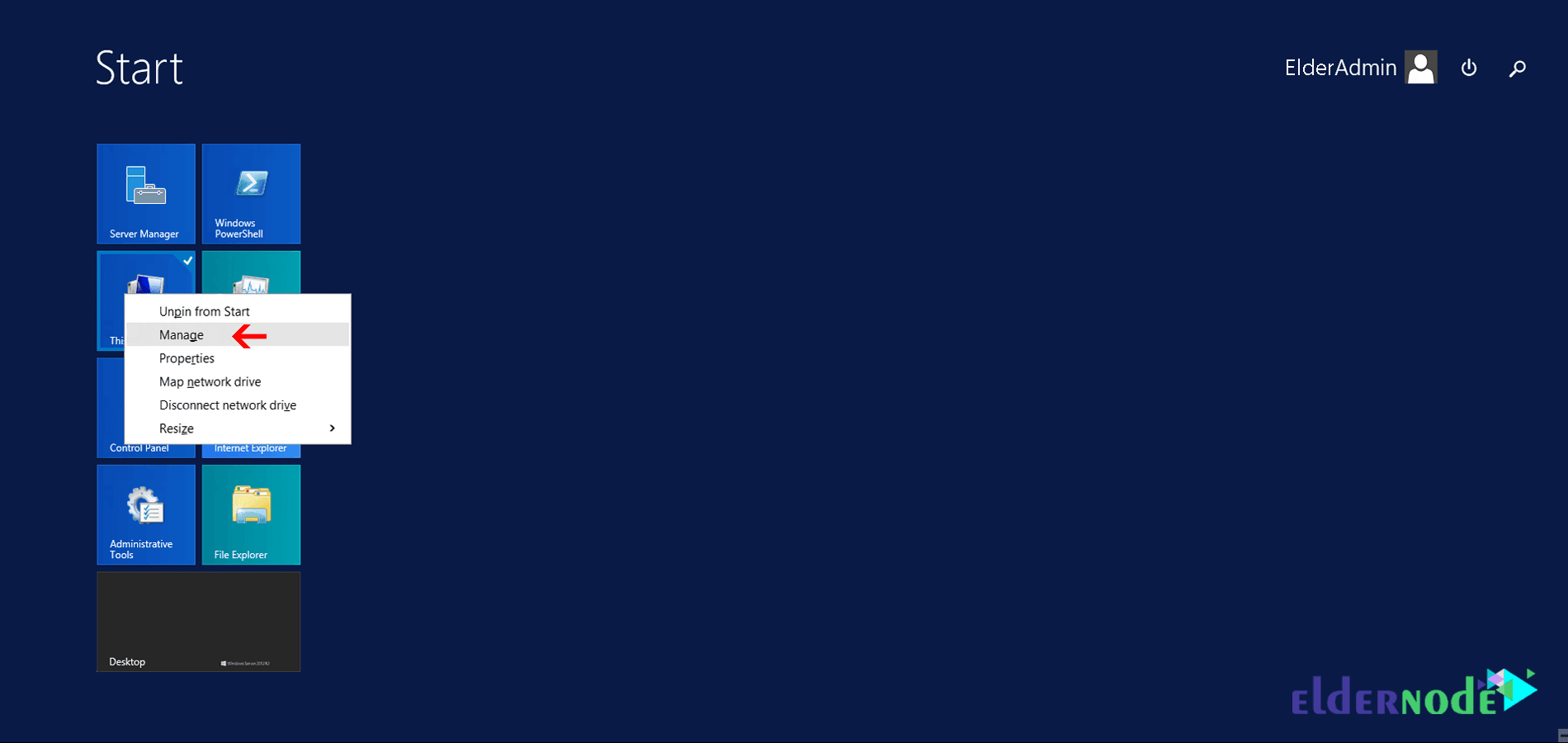
1. First, right-click My Computer.
2. Click Manage.
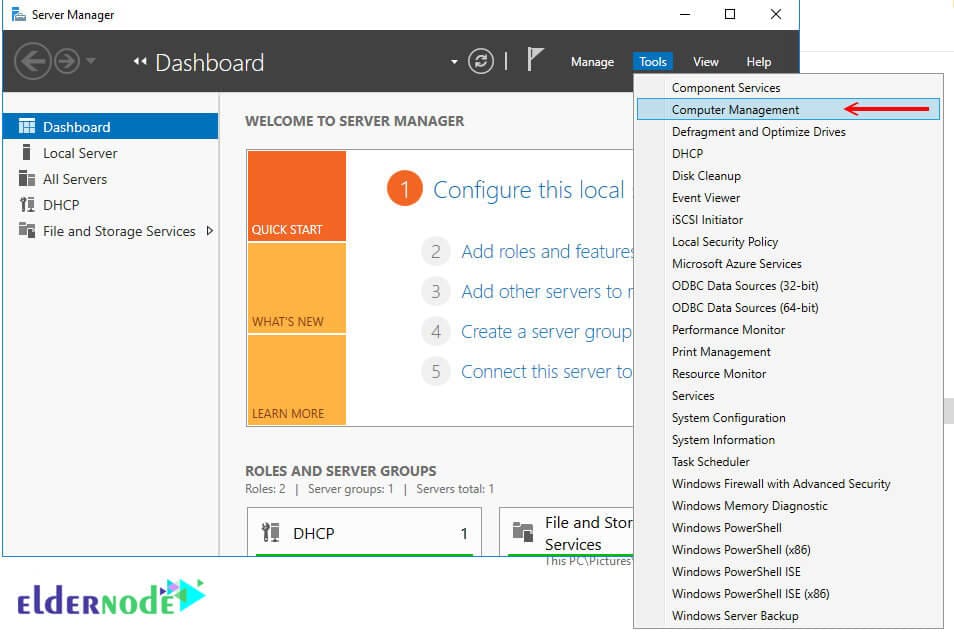
3. In the page that opens, select computer management from the tools menu.
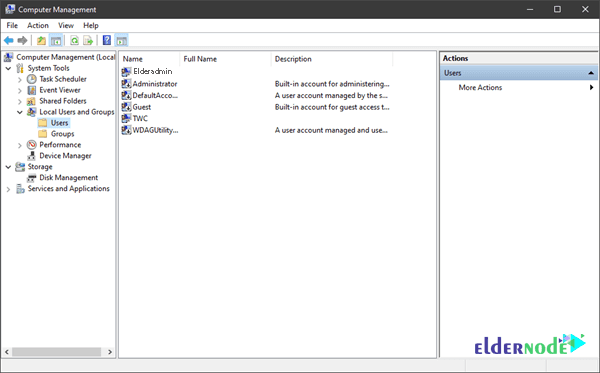
4. Then select the local users and groups option and the users folder.
5. Now right-click on Administrator and select set password.
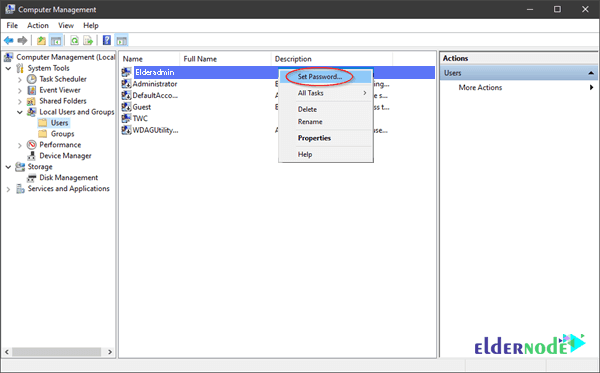
6. Click proceed and enter the new password twice.
If the password change is successful, you’ll see a message saying, “Password has been updated.
Additional Tips for Better Security:
A password manager makes life easier by creating and storing strong passwords for you, so you don’t have to stress about remembering every single one.
Turning on two-factor authentication (2FA) for your Windows VPS and other accounts adds extra security. It’s a small step that you can make a big difference.
Keep an eye on your server’s login attempts every now and then. If something feels off, it’s best to catch it early trust me, it’ll save you from bigger headaches later.
Conclusion
Changing your password might seem like a small thing, but it’s one از the best ways to keep your Windows VPS secure. It takes just a minute, and it can prevent problems down the road. A strong password does a lot for protecting your data. Change it every once in a while, and maybe set up two-factor authentication (2FA) for that extra layer of protection. The bottom line? Keeping your VPS safe starts with you don’t wait for trouble to act.