Special Offer



How to Install LDPlayer on Windows RDP



The digital landscape has really transformed lately. Honestly, those days of being tethered to a desk in front of a bulky, humming PC feel like a thing of the past, we’ve moved way beyond that now. These days, remote desktop gaming lets you tap into the power of a high-end machine from just about anywhere. Also, you can do this on almost any device you have handy. Whether you’re looking to automate mobile RPGs, get some Android app testing done, or just want to play your favorite games on a lightweight laptop, setting up a virtual environment gives you a ton of flexibility.
Lately, one of the most popular ways to do this is by running Android emulators on remote servers. If you’re trying to figure out how to get LDPlayer running on a Windows RDP (Remote Desktop Protocol) setup, and want to make sure the connection is smooth enough to actually enjoy, you’re in the right place. As a result, you will have a solid, reliable remote desktop gaming setup.
In this guide, we’ll dive into what makes LDPlayer a top-tier emulator and walk you through setting it up on a Windows RDP. Look, if you’re after that butter-smooth, lag-free experience, it really all comes down to the foundation you’re building on. I’d honestly suggest going with a high-performance, optimized Windows RDP, like the ones over at Eldernode, just to make sure everything hums along exactly like it should.
Preparing Your Server: Hardware and OS Setup
Before in, let’s make sure your machine has the power to keep up. Running an emulator like LDPlayer can be a bit of a workout for your system, so having a solid, reliable foundation is the real secret to keeping things feeling smooth, and avoiding those annoying little stutters later on. You should aim for at least a modern multi-core processor (an i5 or Ryzen 5 should do the trick), 8GB to 16GB of RAM, and a dedicated graphics card to keep things from stuttering.
Once the hardware is set, it’s time to get the environment ready. You’ll need to enable Remote Desktop in your Windows settings, nail down a static IP, and configure your router to handle the incoming traffic. Honestly, though, if you want a smoother, more secure experience, I’d highly recommend skipping the old-school port forwarding. Instead, using something like Tailscale or ZeroTier is a game-changer. It sets up a secure, private tunnel between your devices, keeping your connection stable and fast without having to worry about leaving your ports wide open to the internet.
Install LDPlayer on Windows RDP
Alright, let’s get your LDPlayer set up on your RDP server. It’s actually a pretty straightforward process if you just follow these steps:
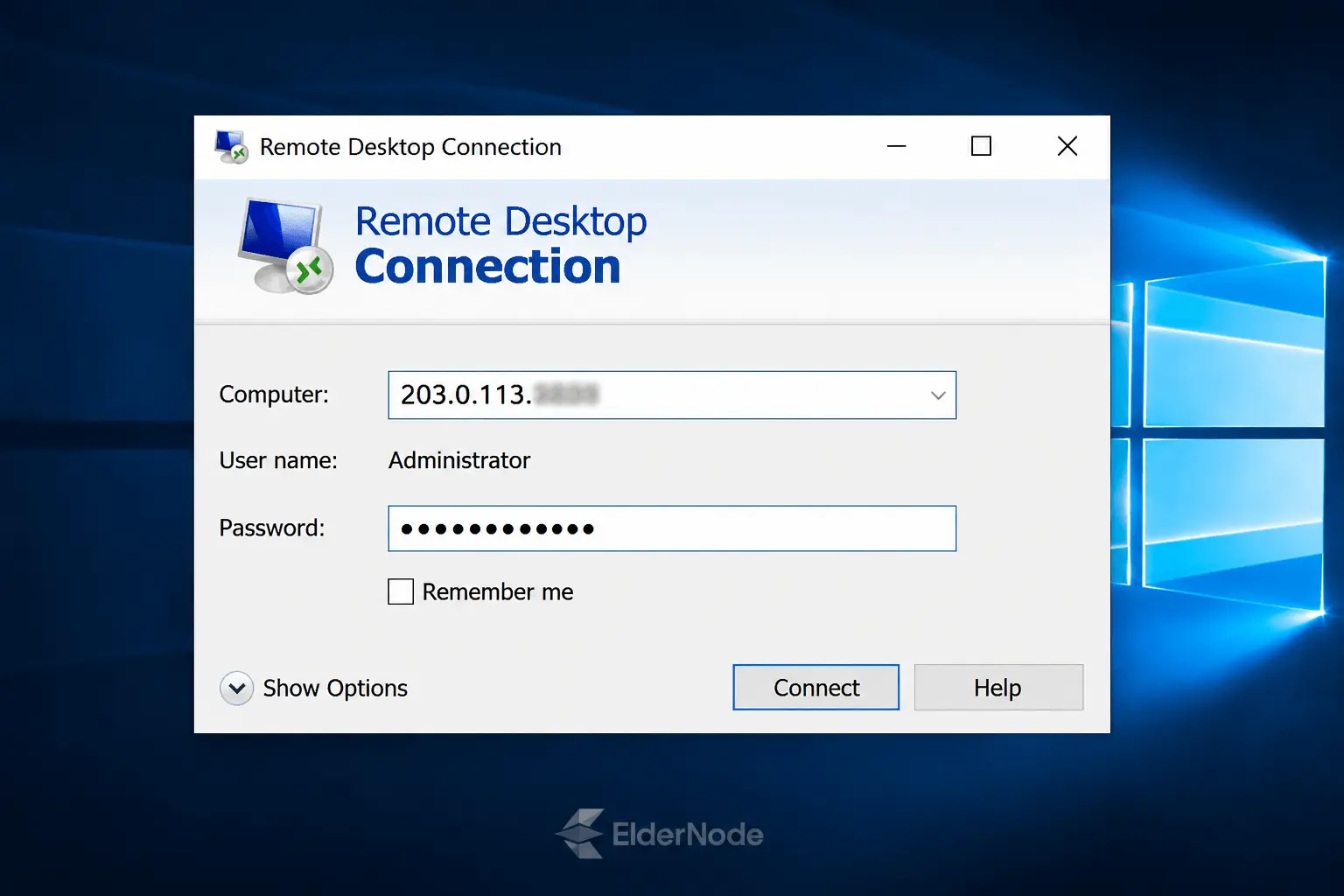
First things first, tap the Start button on your Windows machine, type “Remote Desktop” into the search bar, and fire up the app. Once that window pops up, just drop in your server’s IP address and your password. Next, give that Connect button a click, and just like that, you’ll be logged into your remote desktop and ready to kick off the installation.
After entering the Windows RDP environment, you must open one of the browsers you want. Then you have to download Ldplayer like the image below after entering the website.
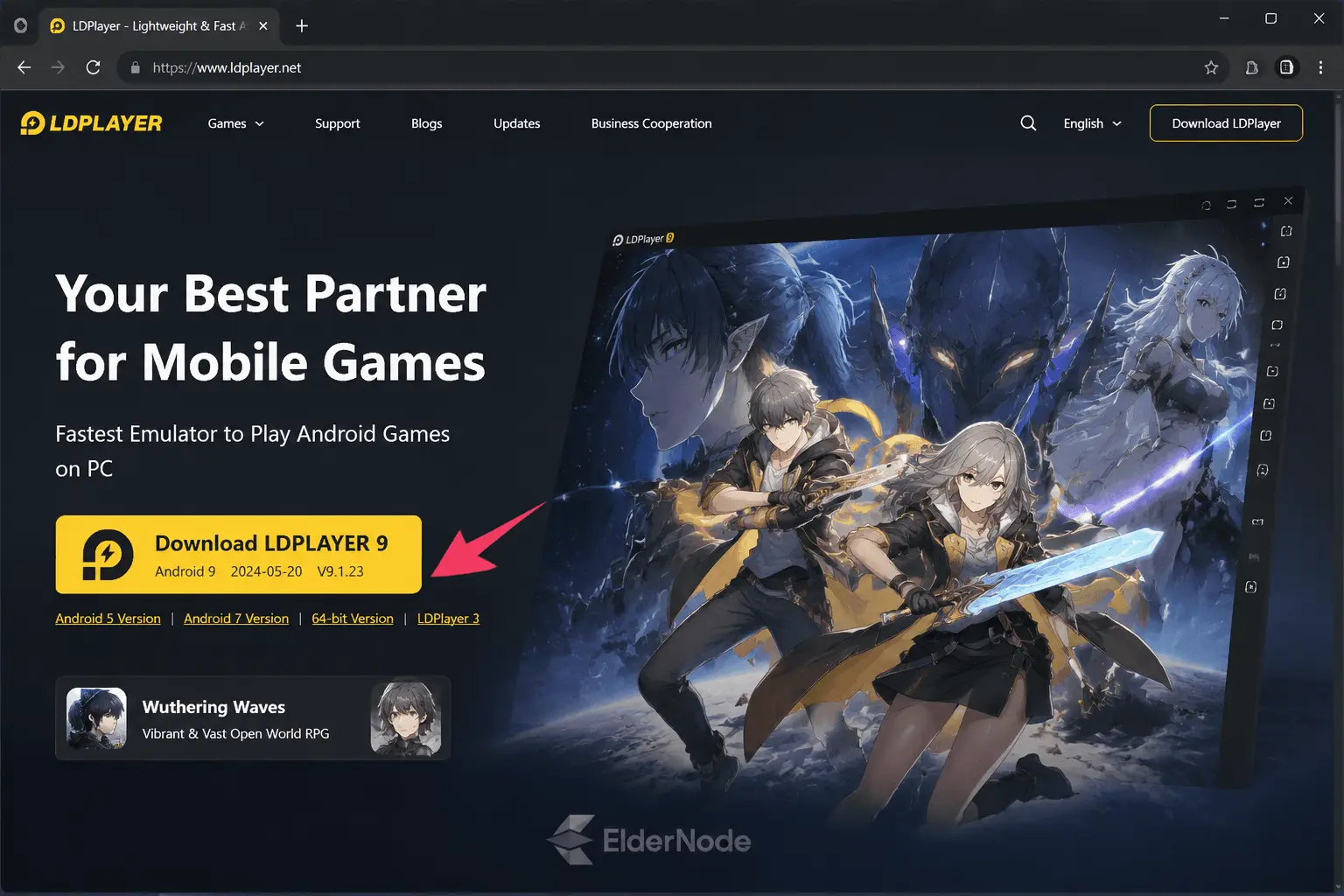
In the next step, you need to go to the place where you downloaded the file. Double-click the LDPlayer.exe file to begin the installation process.
In the window that opens, check the Read and agree with LDPlayer license option in the lower-left corner of the image. Then click Install.
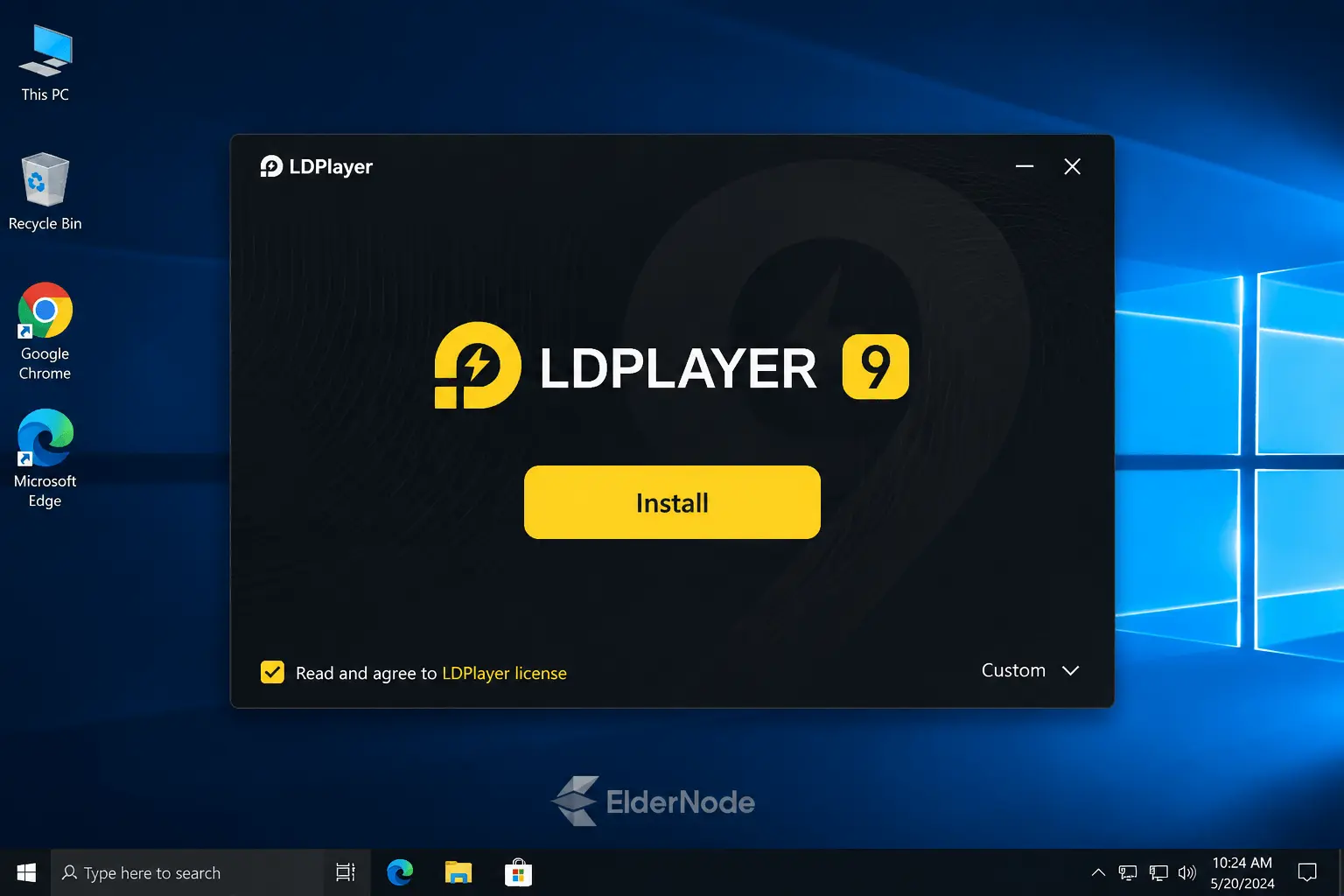
You have to wait a few seconds for the installation package to download.
Finally, by clicking on Start, the installation of LDPlayer will be completed.
How to Run LDPlayer on Windows RDP
You’ve made it through the installation, now it’s time for the fun part. Let’s get LDPlayer fired up and configured exactly how you want it.
Just head over to your Start menu, search for LDPlayer, and launch it. Once the emulator finishes its first-time load, you’ll be greeted by the home screen. I’ve dropped a screenshot below so you can see exactly what to expect!
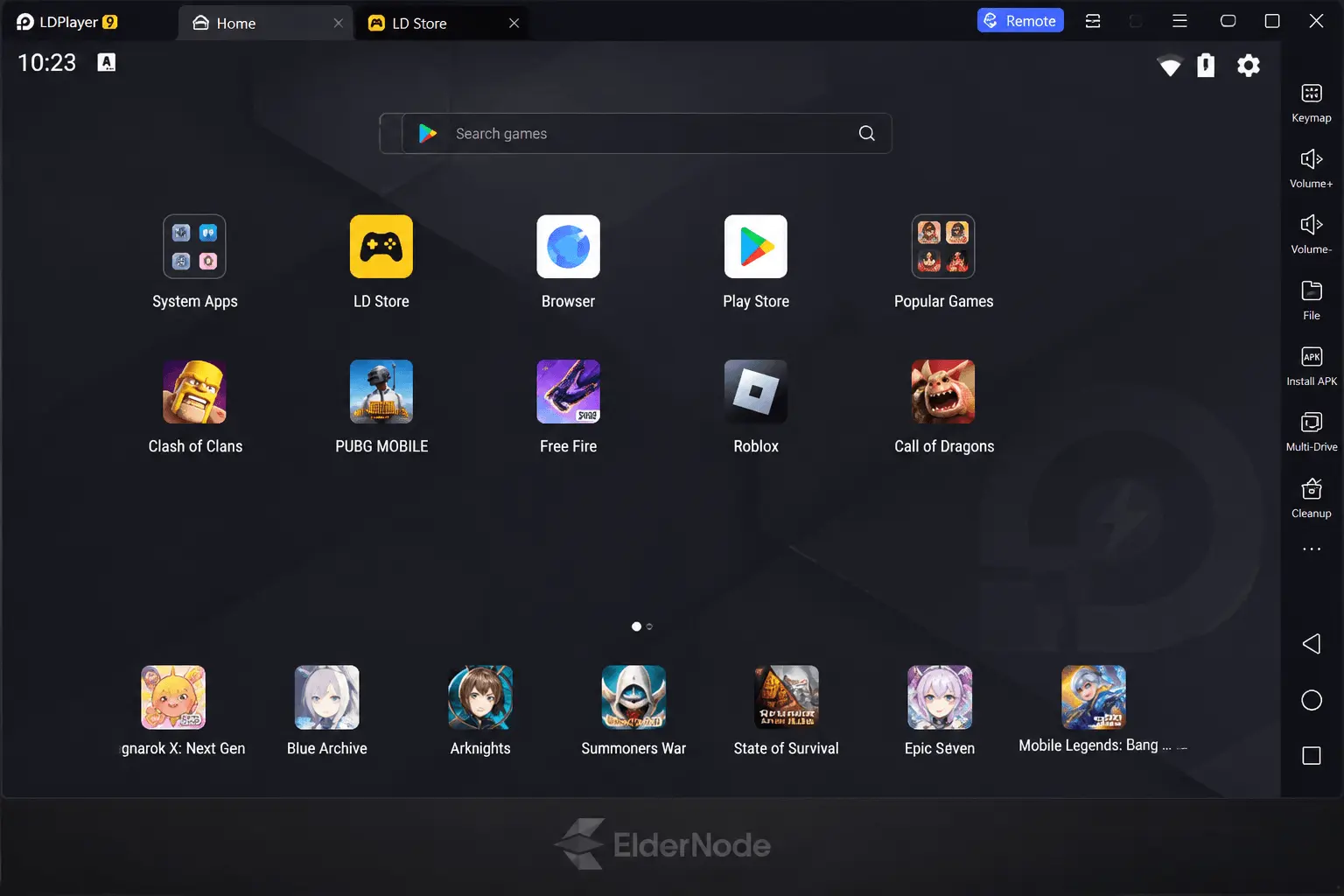
It is important to note that you must log in with your Google Account to be able to use this emulator. To register your Google Account, you must first enter your email address. Then click Next.
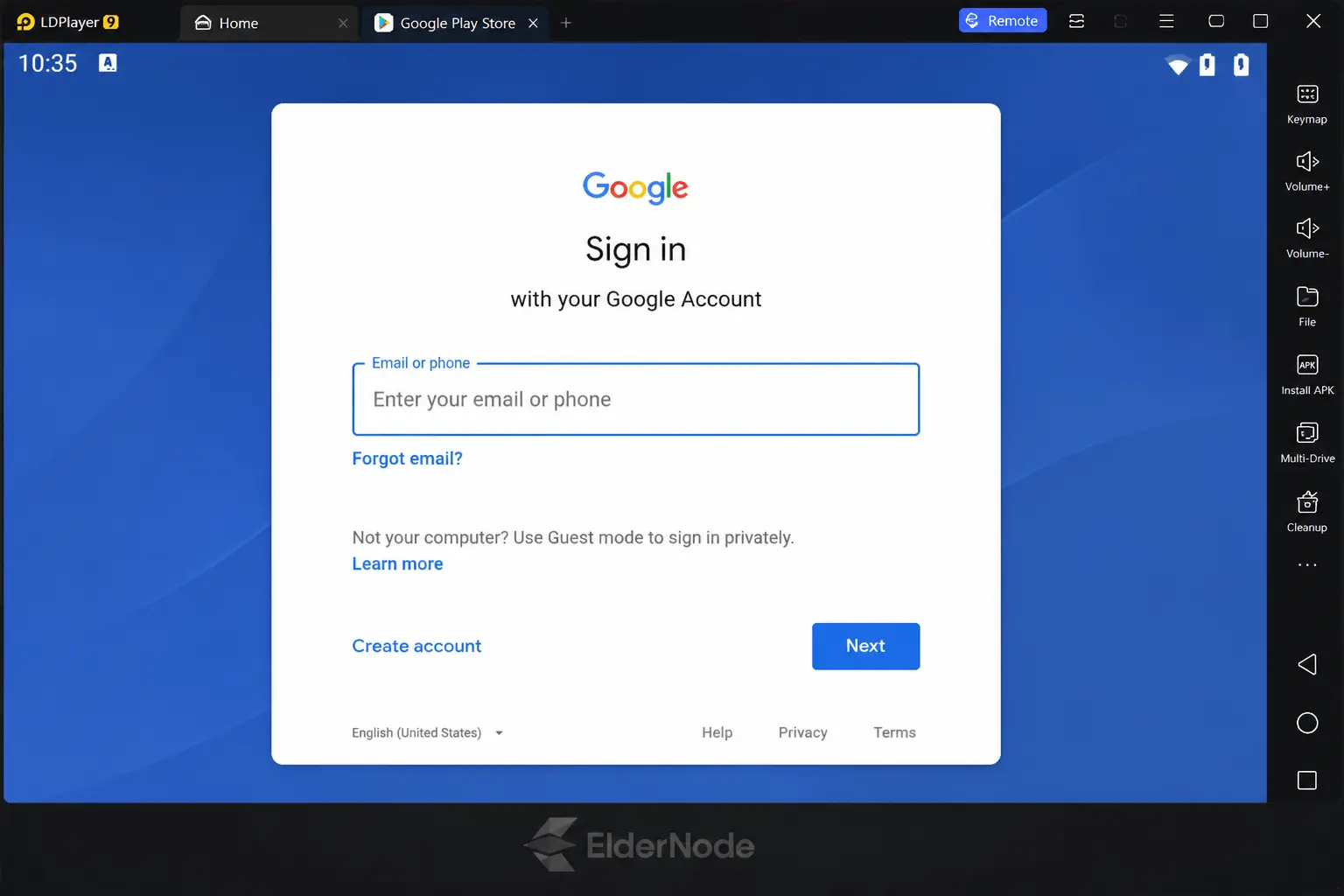
Now you need to enter the password for your Google account and click Next again.
In the next step, click Yes, I’m in.
Then, just go ahead and click “I agree” to move on.
Finally, click on ACCEPT to use LDPlayer.
Troubleshooting Stuttering in Remote Play
Even the most finely tuned setups hit a snag now and then. It’s usually just a matter of balancing the stream. Here is how I’d fixing those jitters:
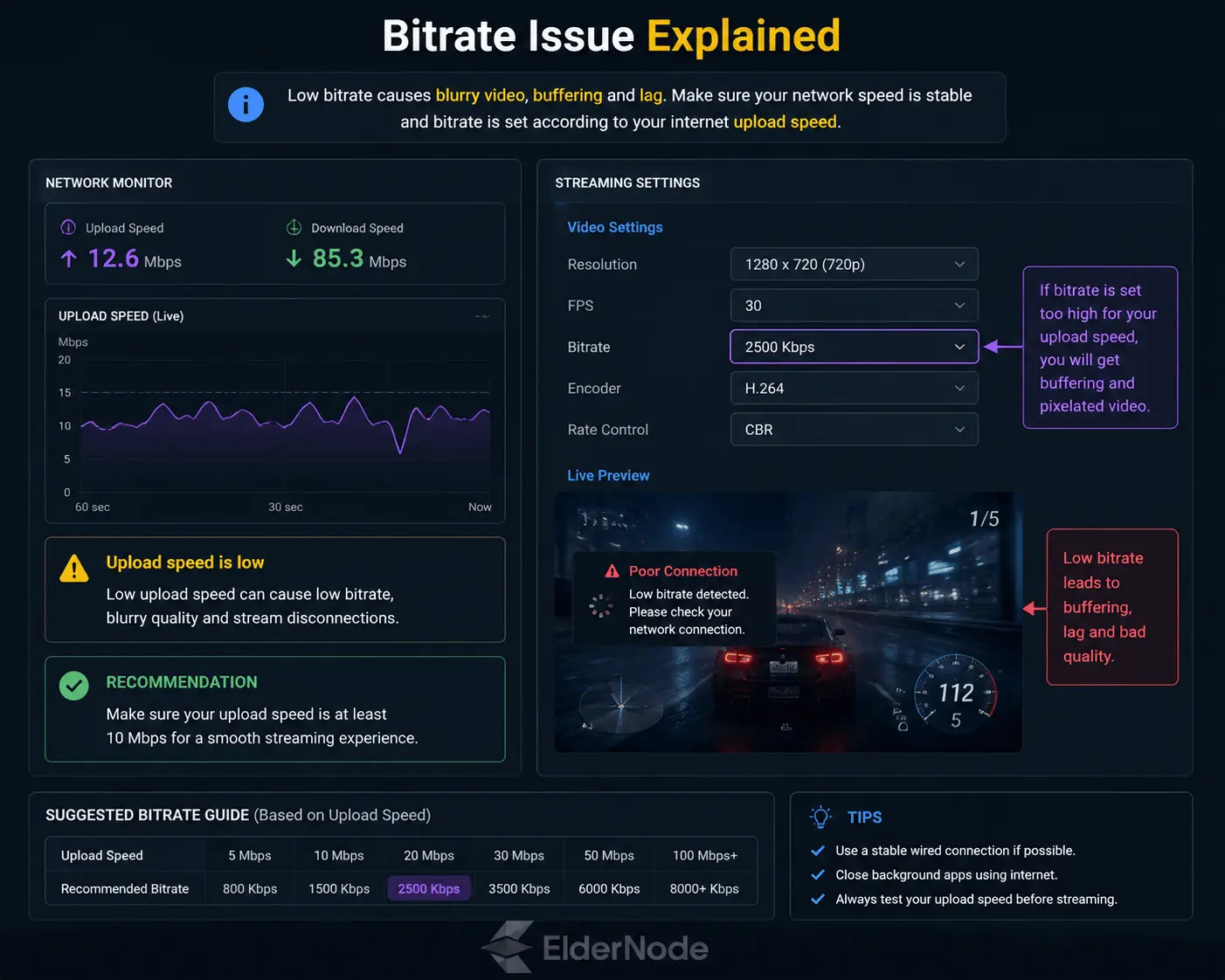
Tame your Bitrate: Think of your connection like a pipe. If it’s too full, data gets clogged. Try dialing your stream bitrate down by 5–10 Mbps. You’ll barely notice the difference in visual quality, but your network will thank you, and that annoying packet loss should vanish.
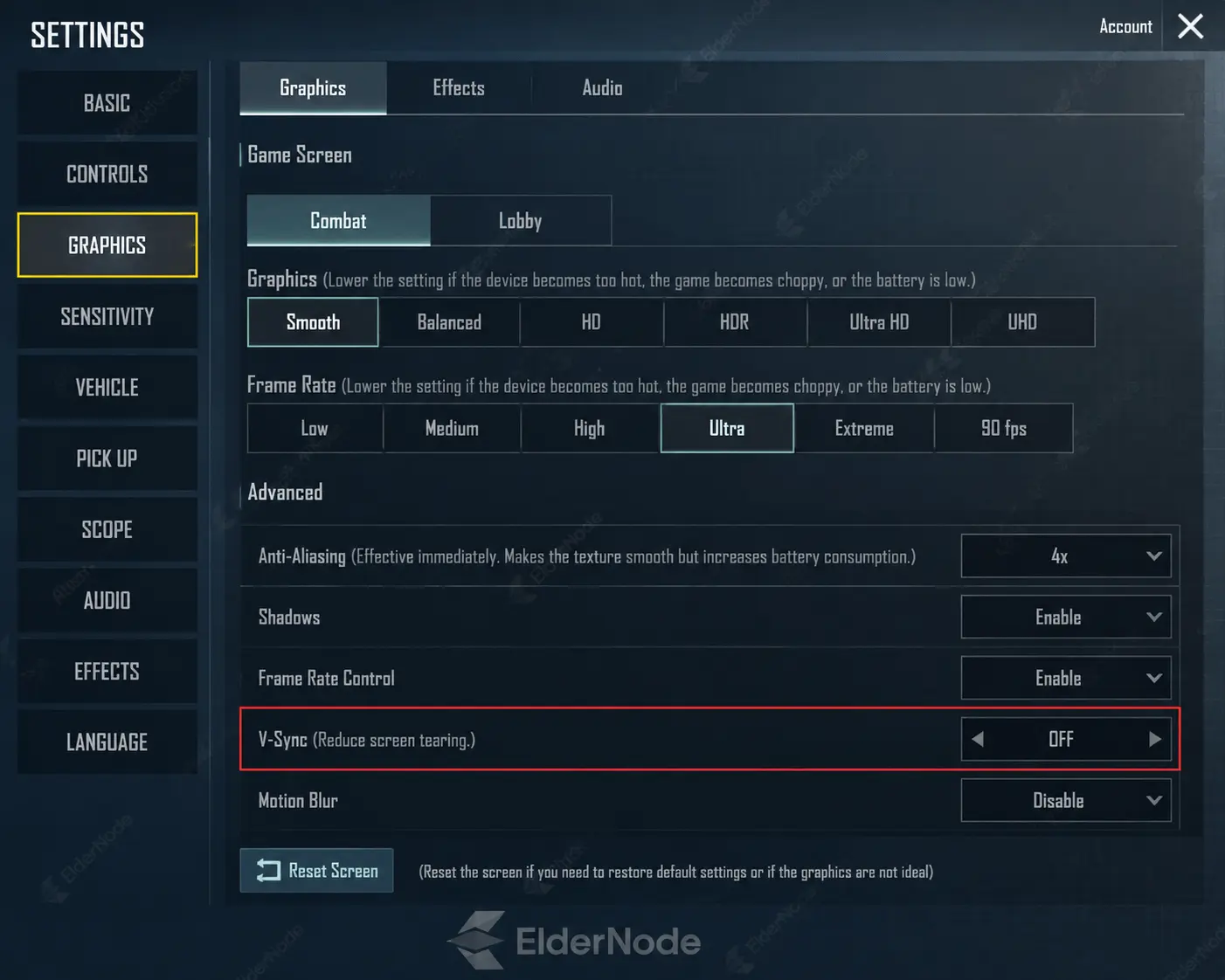
The V-Sync Trap: It feels like the right thing to do, but keeping V-Sync on for both the game and the streaming app is a recipe for a “tug-of-war” that causes stuttering. Turn it off inside the game’s settings and let your streaming software handle the synchronization.
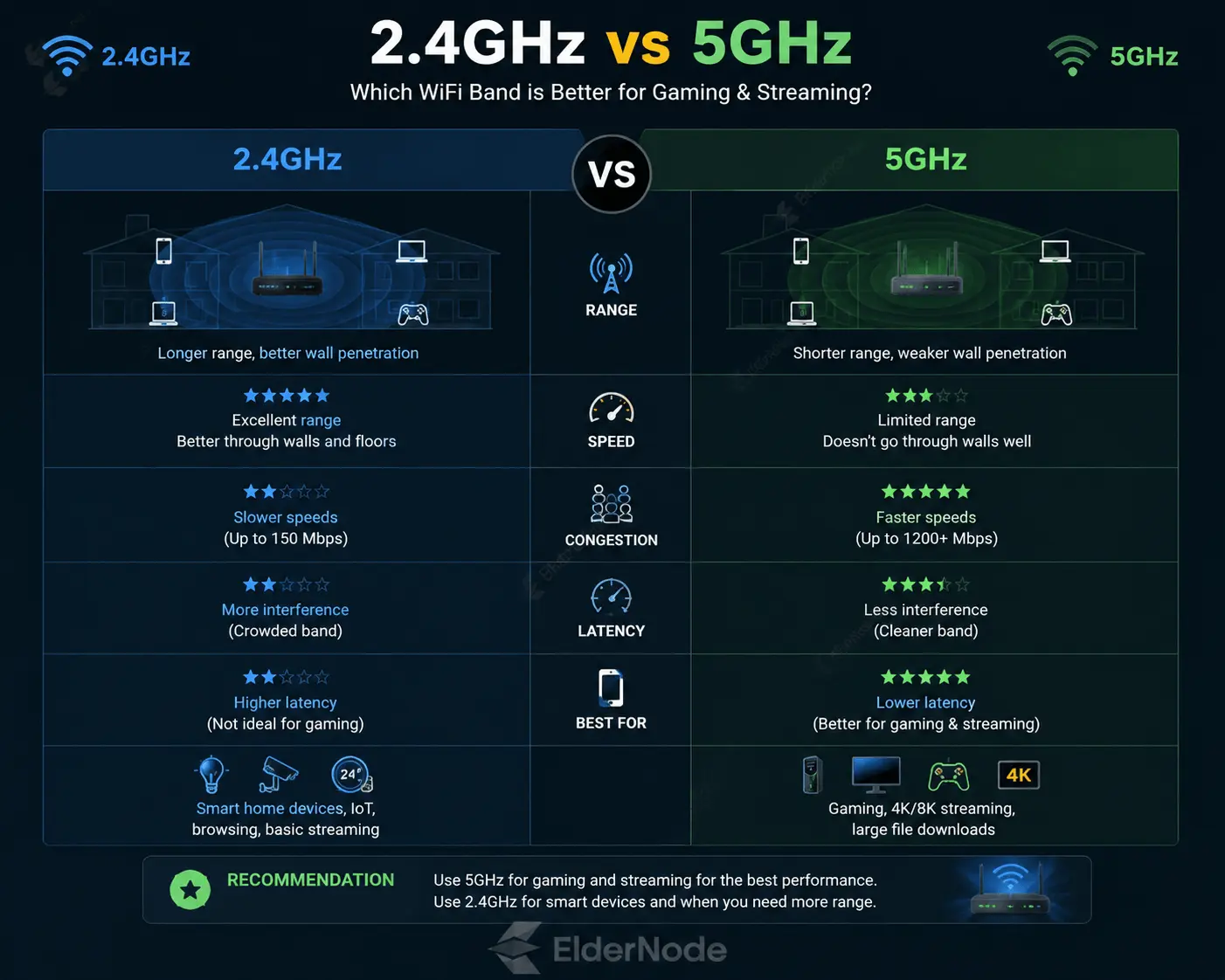
Ditch the 2.4GHz Band: If you’re gaming over Wi-Fi, 2.4GHz is basically a crowded highway during rush hour. Switch to 5GHz, it’s much cleaner, faster, and way more reliable for real-time traffic.
Refine the Emulator Engine: If LDPlayer is giving you trouble, don’t just accept the default settings. Try dropping the internal resolution slightly. Also, toggle your rendering mode, flipping from DirectX to OpenGL (or vice versa) is often the secret sauce that stops the stuttering cold.
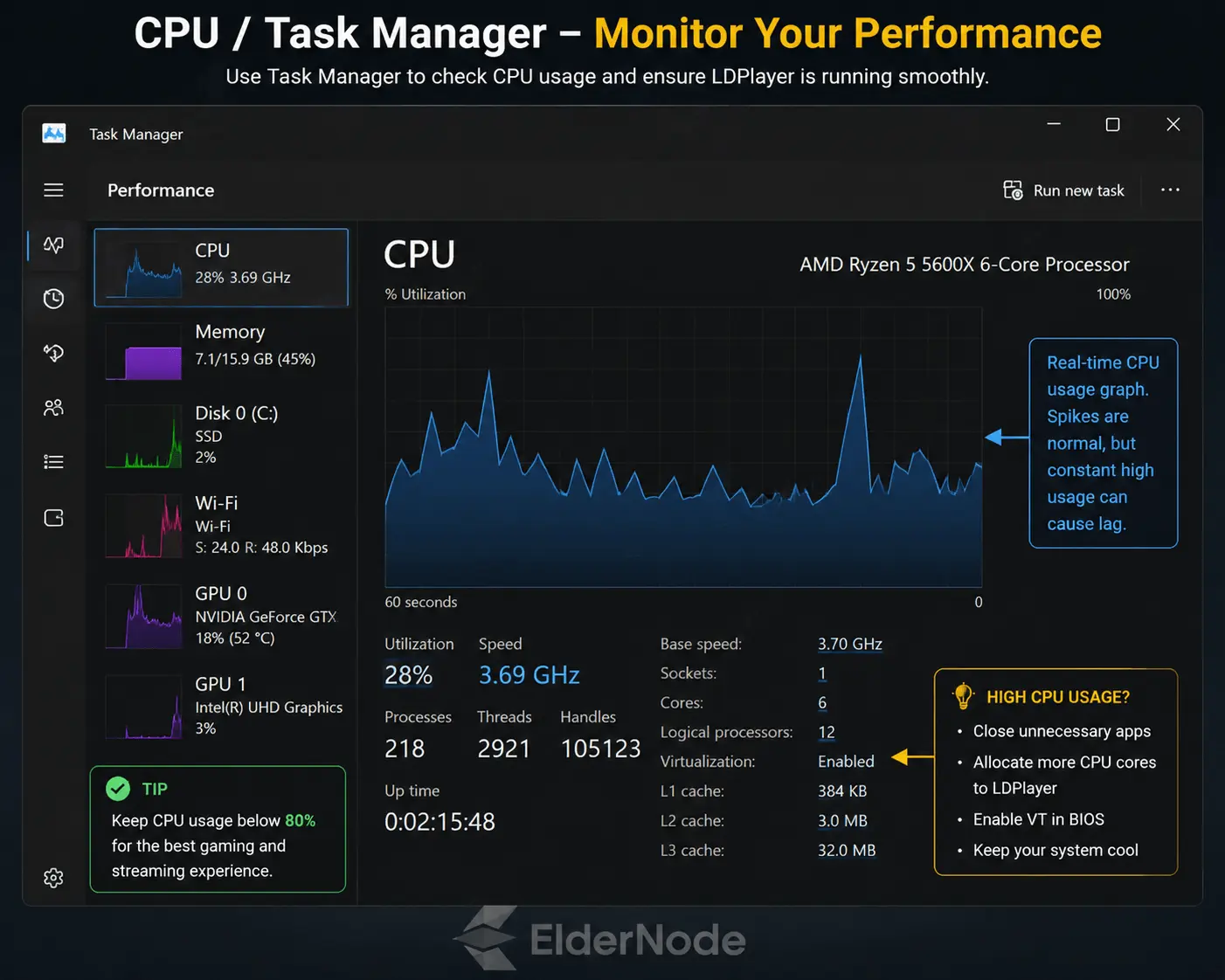
Pro-Tip: If you’re still feeling some lag, peek at your Task Manager on the host machine. If you see your CPU or Disk usage hitting the red, try capping the in-game frame rate to 60 (or even 30).
Conclusion
Honestly, LDPlayer is hands down one of the best Android emulators you’ll find these days. It’s totally free, doesn’t bog down your system, and honestly, it just makes running Android apps on your PC feel smooth and natural. It’s pretty much like having a virtual smartphone or tablet sitting right on your desktop, which makes gaming or running apps super convenient. Hopefully, this guide made the whole process of getting it up and running on your Windows RDP simple and stress-free!