Special Offer




How to Add a New Resolution in Ubuntu 26.04 LTS
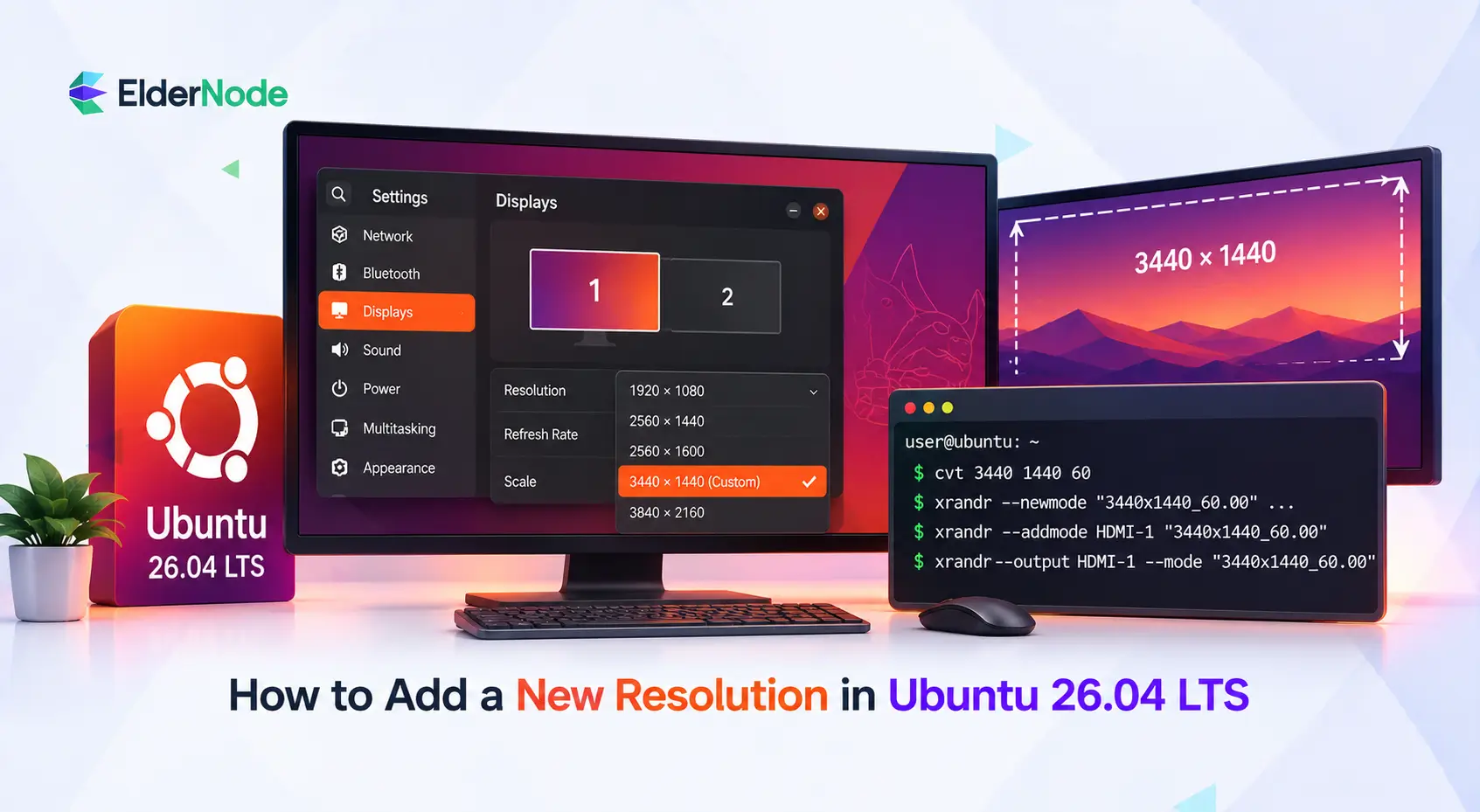



If Ubuntu is showing the wrong screen size, you can usually fix it first from ubuntu display settings, then use xrandr to add a temporary custom mode when the resolution is missing. The steps below focus on safe, reversible ways to add a custom resolution ubuntu users commonly need, then make it easier to reapply after login.
What should you check before adding a custom resolution?
Before running commands, confirm that Ubuntu truly lacks the resolution you need. Head over to Settings > Displays and pick the monitor you want to adjust. From there, you can tweak the resolution, scale, refresh rate, and orientation to get things looking right. Ubuntu’s own help recommends using the display’s native resolution when possible because LCD pixels align best at that setting; choosing a mismatched aspect ratio may create black bars or visual distortion.
Also check your cable, adapter, docking station, and monitor input. A low-quality HDMI adapter, an older VGA connection, or a KVM switch can prevent Ubuntu from reading the monitor’s EDID data correctly.
1. Identify your current session and display output
Start by finding out whether you are using Xorg or Wayland. Press Ctrl + Alt + T to open Terminal, then run echo $XDG_SESSION_TYPE. If it says x11, the xrandr method below is usually the simplest way to test a custom resolution. If it says wayland, xrandr may only show limited compatibility output, so use the graphical settings first or log into an “Ubuntu on Xorg” session from the login screen when you need to test xrandr.
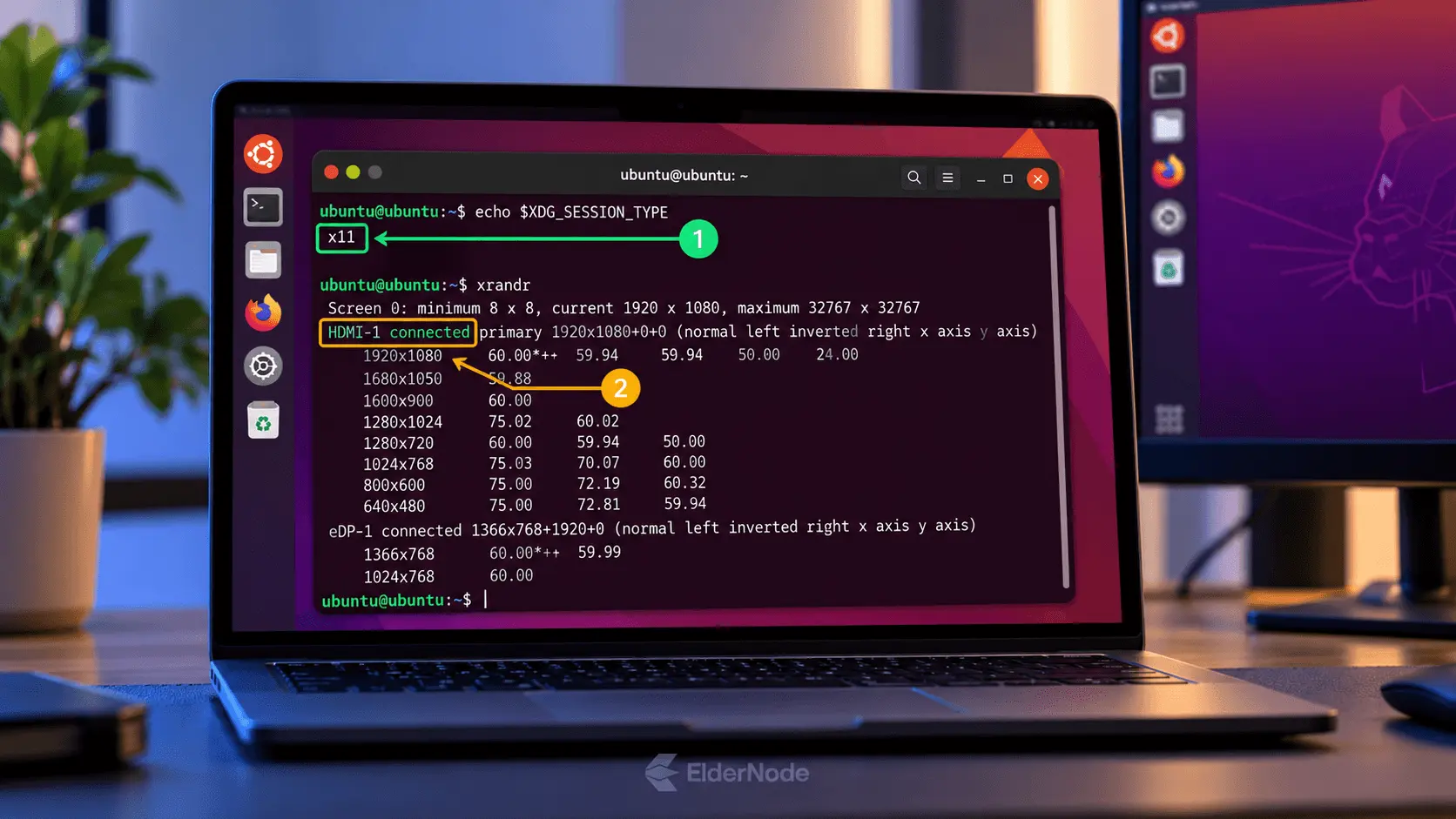
Run xrandr and find the line marked “connected”. The name at the start (like HDMI-1 or DP-1) is your output name.
Keep the exact output name handy. A common mistake is copying a command with HDMI-1 when your actual monitor is DP-2 or your laptop panel is eDP-1.
2. Generate a modeline for the resolution you want
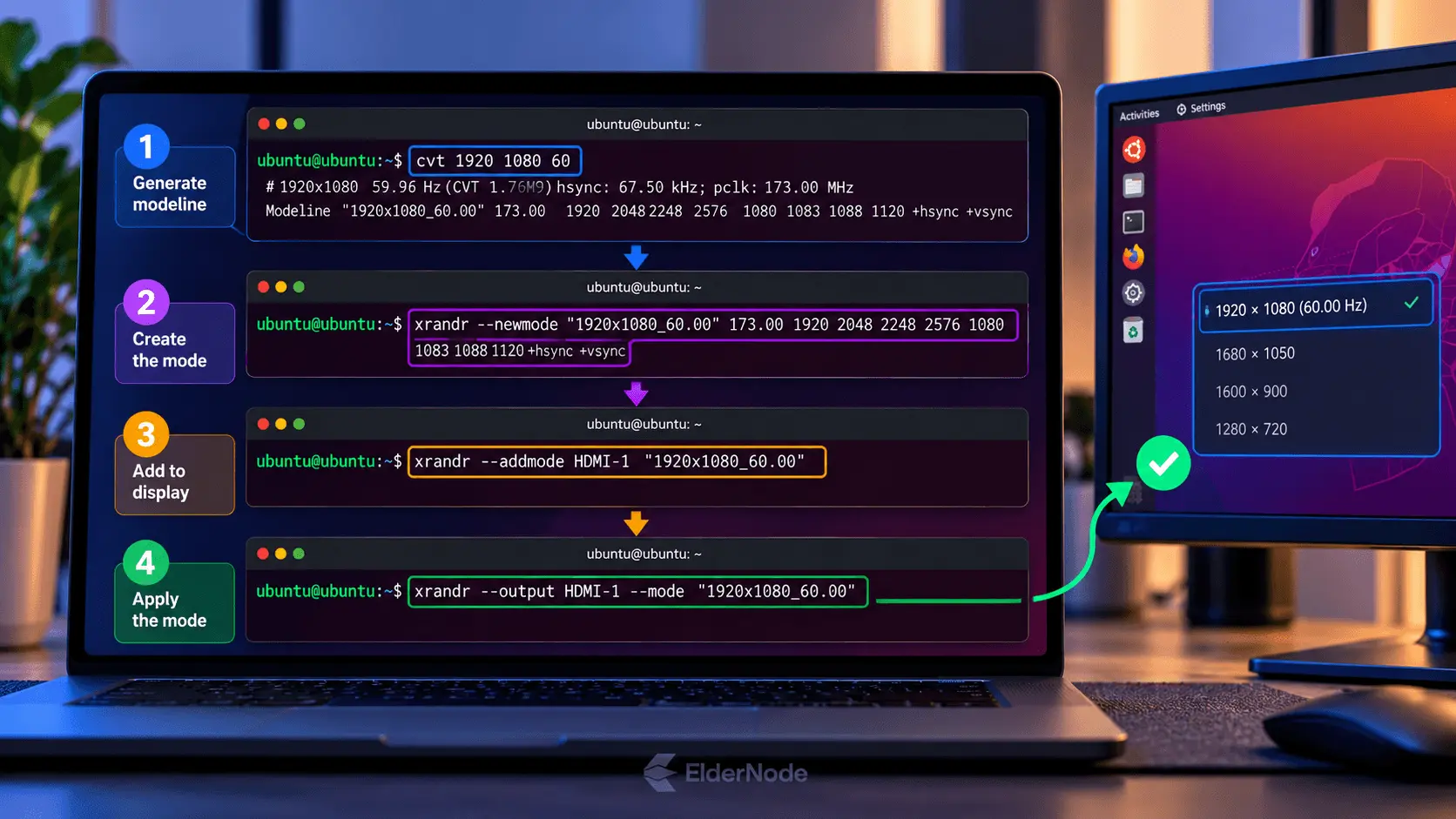
A modeline is a set of timing values that tells your system how to run a resolution at a given refresh rate. To make one, run cvt followed by the width, height, and refresh rate you’re after. For instance, if you want 1920×1080 at 60 Hz, just type cvt 1920 1080 60.
The output will include a line beginning with Modeline. Copy everything after the word Modeline, including the quoted mode name and the timing numbers. Stick with the modeline your own system generated, not one you found online.
If you are trying to adjust screen size for an ultrawide monitor, projector, TV, or virtual machine, use the exact resolution supported by the display when you know it. Avoid unrealistic refresh rates. A conservative 60 Hz test is safer than forcing a high refresh mode your monitor may reject.
3. Teach Ubuntu the new resolution
Okay, now for the fun part. Run xrandr –newmode “MODE_NAME” timing_values and paste in the numbers cvt gave you (everything after the mode name in that output). Ubuntu now knows the mode exists, but your monitor still isn’t using it. To fix that, run xrandr –addmode OUTPUT MODE_NAME, swapping in your actual display name (something like HDMI-1 or DP-1) and the mode name you just created.
For example, if your output is HDMI-1 and your generated mode is named 1920x1080_60.00, the second command would be xrandr –addmode HDMI-1 “1920x1080_60.00”. This does not permanently change your system yet; it only adds the option for the current session.
If you see BadName, the mode name may already exist. If you see cannot find output, recheck the display name from xrandr.
4. Apply the custom resolution
Run xrandr –output HDMI-1 –mode “1920x1080_60.00” with your own output and mode name. The screen should resize instantly. Nothing happened? The monitor or driver is likely rejecting it.
You can also return to ubuntu resolution settings in the Displays panel and check whether the new option appears there. A resolution that technically displays but looks stretched or cropped is not the right long-term setting.
For multi-monitor setups, apply the custom mode only to the target display. Changing every connected monitor at once makes troubleshooting harder.
5. Don’t lose it on restart
xrandr forgets everything when you log out, so your custom resolution won’t last. Copy the three commands that worked (–newmode, –addmode, and –output … –mode) into a small script, and set it to run at login. That’s it.
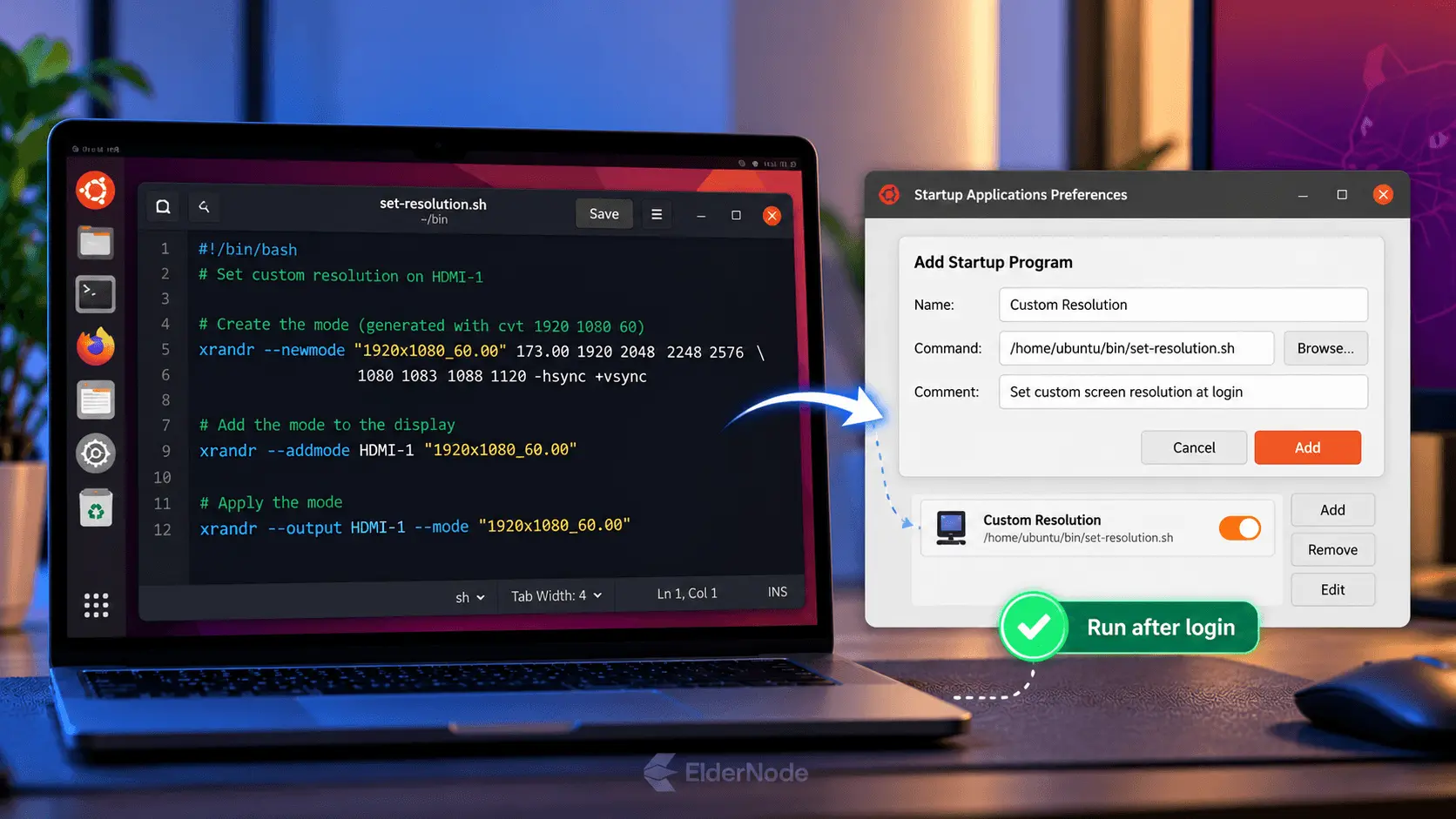
Then open Startup Applications, add a new entry, and point it to that script. This is safer than editing system display files because you can remove the startup item if the mode fails after a driver update.
What if it doesn’t work?
If it fails, it’s probably not on you. Wayland, the driver, a bad cable, or a monitor that doesn’t like the timing are the usual suspects. Try a restart, replug the monitor, swap the cable or port, and recheck Settings > Displays. If that fails, make sure your commands ran in order and the output name is right.
Use this quick checklist:
- echo $XDG_SESSION_TYPE says x11 before relying on xrandr.
- xrandr shows the monitor as connected.
- The mode name in –addmode exactly matches the name in –newmode.
- Make sure the refresh rate is something your display can actually handle.
- The monitor’s native resolution has been tried first.
- Graphics drivers are installed and active where required.
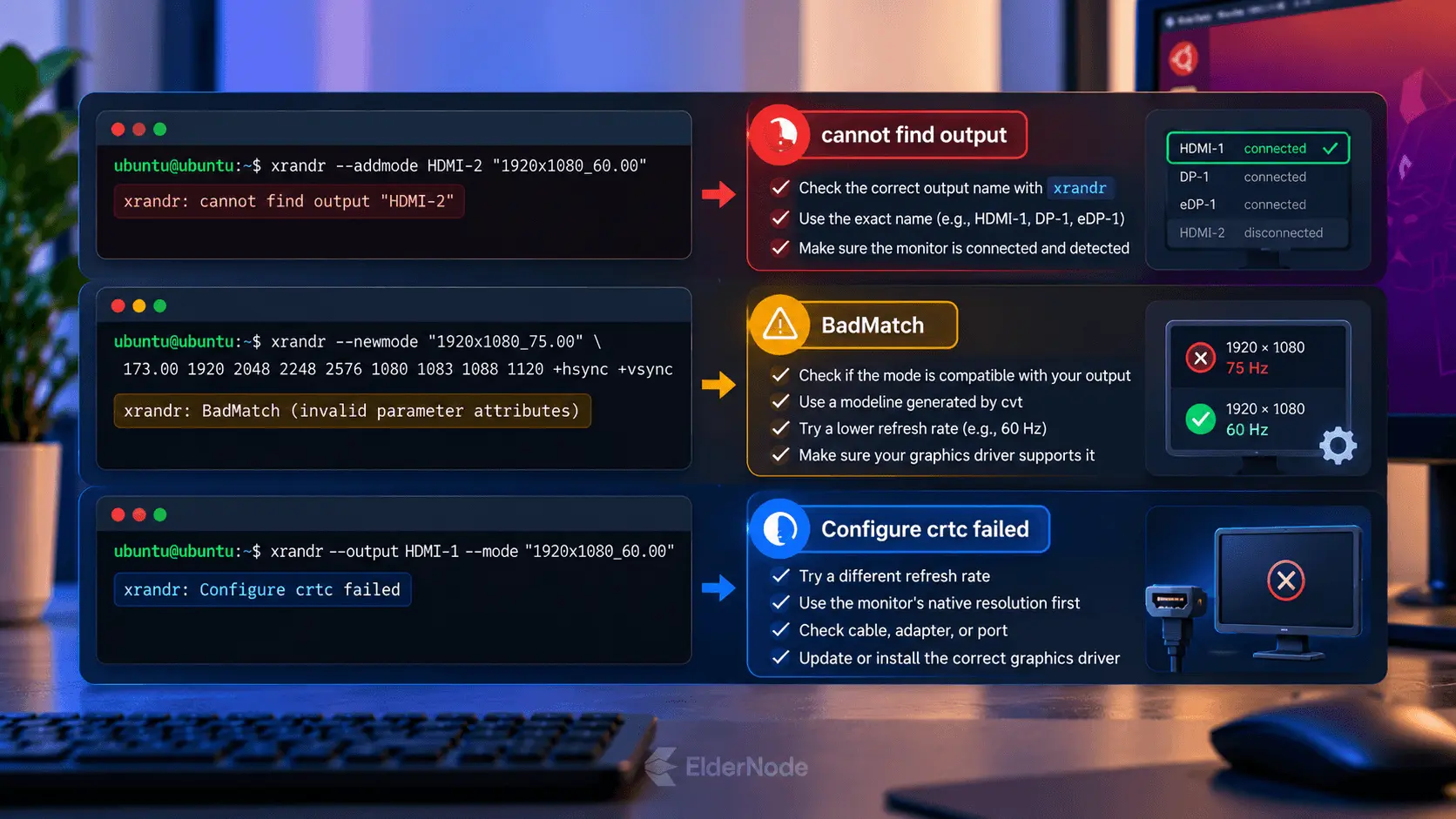
Some hardware needs driver-specific configuration rather than a generic custom mode.