 Special Offer




Best Android Emulators for Linux: Compare Your Options

 Study duration :
13 Minutes
 0 Comment
Running an Android app on Linux sounds straightforward until you start looking at the options. If you’re searching for Android Emulators for Linux, you’ll find that some tools are built for developers. Others bring Android apps onto your desktop. The right choice comes down to what you actually want to run.
If you are building an Android app, start with the Android Emulator included in Android Studio. If you want to use Android apps alongside your Linux applications, look at Waydroid. Genymotion Desktop is another option for developers who want a separate virtual-device environment.
This guide compares those three approaches, explains their limitations, and covers what to check before installing an Android emulator for Linux.
Which Android Emulator Should You Choose?
Start with your use case. Installing a development environment to run one app may be unnecessary, while a desktop Android container may not give you the testing workflow you need.
These tools are not interchangeable. Waydroid, in particular, is not a conventional emulator: it runs Android in a Linux container. That distinction matters when comparing setup requirements and deciding where to deploy it.
1. Android Studio Emulator
Our pick for Android app development.
If you are writing an Android app, the official emulator is a sensible place to start. It works within Android Studio, so you can build your project and test it on a virtual device without moving to a separate workflow.
A practical example is checking how your app behaves on different screen sizes or Android versions. Instead of relying on one phone, you can create virtual devices for the configurations you need.
Google’s [Android Emulator documentation] explains how virtual devices fit into that process.
What to check first
On Linux, the emulator uses KVM for virtual machine acceleration. Your processor needs the appropriate virtualization support, and your Linux user needs permission to use KVM.
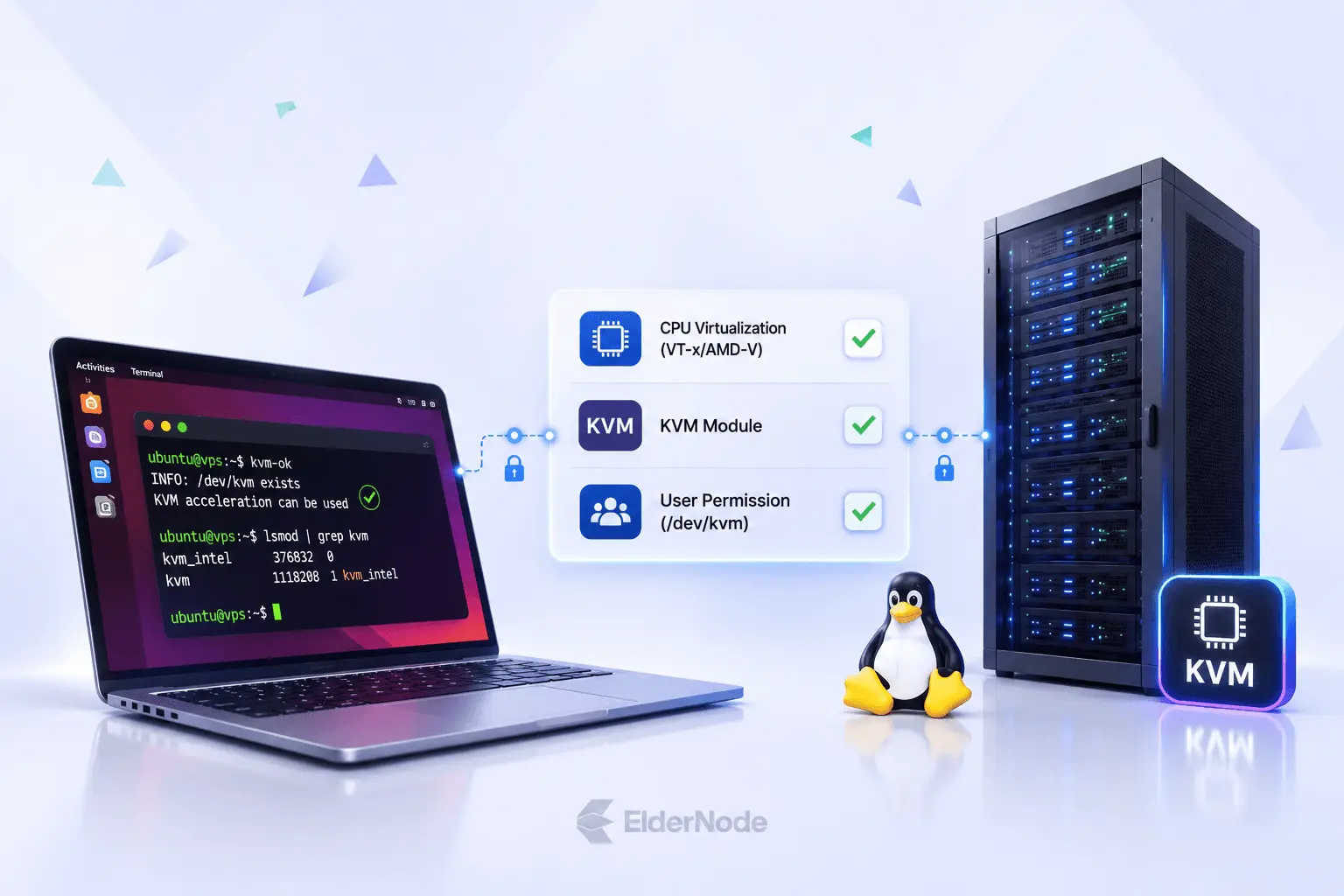
Check this early. A virtual device that struggles to start or runs slowly may have an acceleration problem rather than an insufficient RAM allocation. Google provides a dedicated [hardware acceleration guide] for checking the setup.
When it makes sense
Choose Android Studio Emulator when testing is part of your development work. For someone who only wants to open an occasional Android app, the additional development tools may be more than they need.
2. Waydroid
Our pick for using Android apps alongside Linux applications.
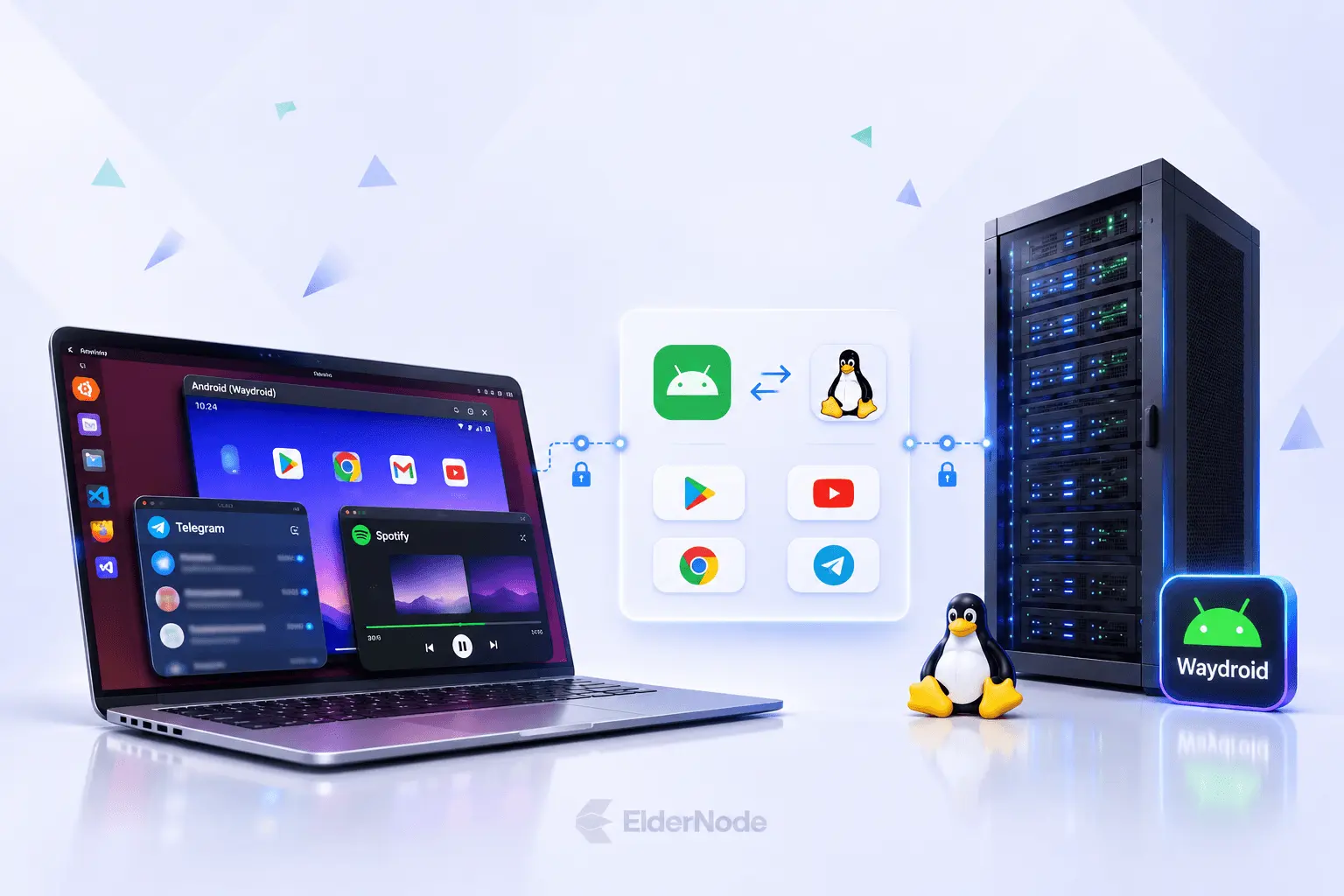
Waydroid takes a different approach. It runs a full Android environment in a container and integrates Android apps with your Linux desktop. You can use individual app windows or open the full Android interface.
It is free and open source, and its desktop integration makes it worth considering when your goal is everyday app access rather than software development.
What to check first
Check your desktop session and graphics hardware before installing it. Waydroid targets Wayland-based environments. Its project documentation also identifies graphics limitations and recommends software rendering for certain setups, including many NVIDIA configurations and virtual machines.
App architecture is another potential obstacle. An APK built only for ARM will not run directly in an x86_64 Waydroid environment. Finding a download for an app does not necessarily mean that build will work on your computer.
When it makes sense
Consider Waydroid if you want Android apps within your existing desktop workflow. Start by testing the specific app you need before spending time configuring the rest of the environment.
Follow the [official Waydroid installation instructions] for your distribution.
3. Genymotion Desktop
An alternative for developers who prefer a separate emulator application.
Genymotion Desktop provides local Android virtual devices outside the Android Studio interface. It is worth evaluating if a separate device-management workflow suits the way you work.
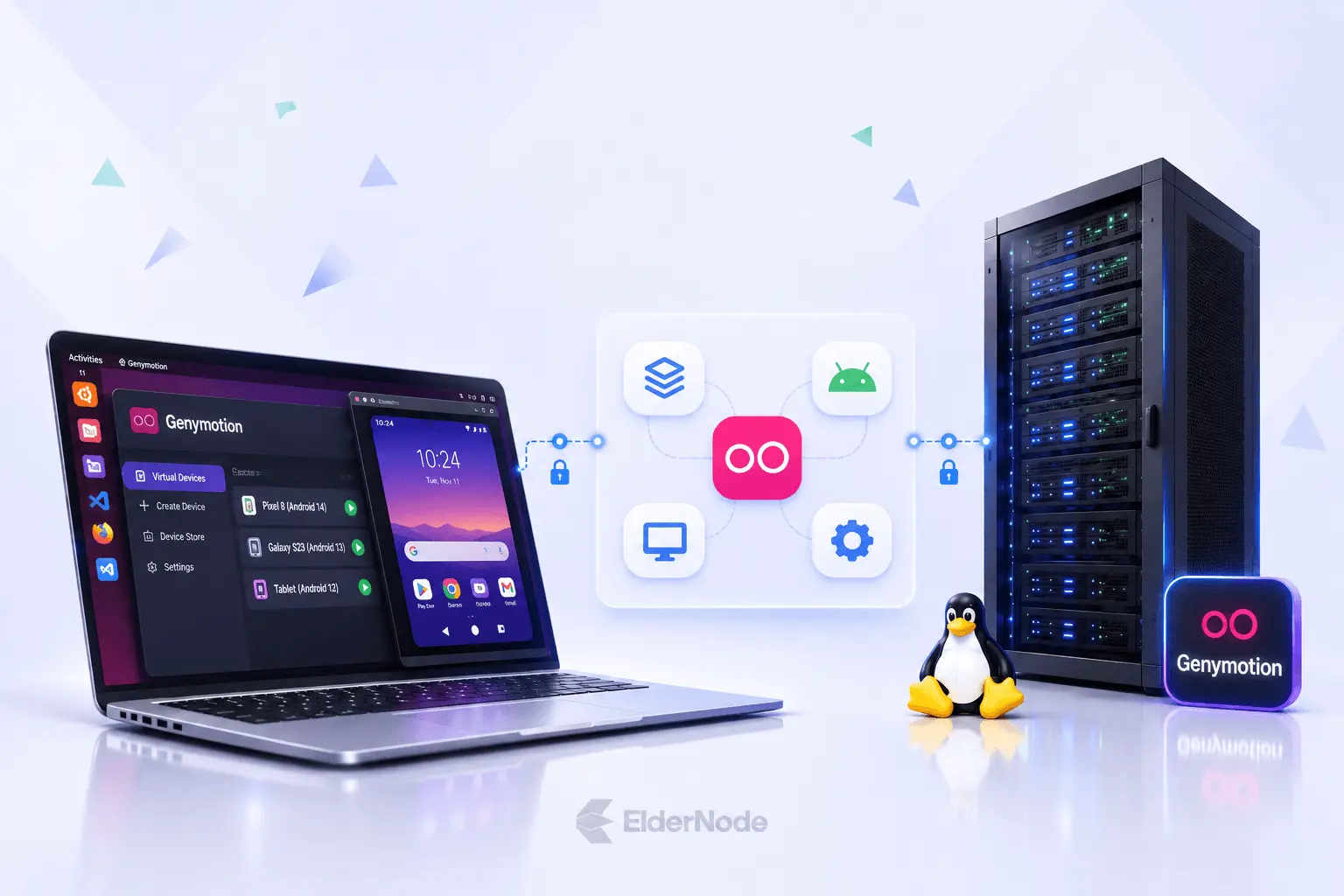
Its Linux support is specific. The official installation guide lists supported distributions and desktop environments, and its Linux release currently targets x86_64 systems. On Linux, QEMU is the default hypervisor; VirtualBox remains a legacy option.
What to check first
Check the [installation requirements] and the license applicable to your intended use.
Also check your app’s architecture. Genymotion’s documentation explains that ARM-only applications do not run out of the box on its x86 or x86_64 PC images.
When it makes sense
Evaluate Genymotion on a supported Linux workstation. Do not assume the Desktop edition is suitable for a hosted server: Genymotion explicitly says that virtual machines and cloud instances are unsupported for that product. It offers separate cloud solutions.
How Much RAM Do You Need?
There is no useful RAM figure that applies to every Linux Android emulator and every workload.
Google’s emulator guidance lists 16 GB of system RAM and 16 GB of disk space for a better experience with Android Studio and the emulator. Larger virtual devices and newer API levels can require more resources. These figures describe the host environment, not a recommendation to allocate all that memory to one Android device.
Think about everything you will run at the same time. A virtual device, an IDE, a browser, and a build process all compete for resources.
For a modest computer, begin with one virtual device and a configuration close to your actual testing needs. If you already own an Android phone, testing on that device is also worth considering.
Why an Android App Might Not Work
Getting Android to boot is only the first step. The app itself still needs to work in that environment.
One concrete example is CPU architecture. Both Waydroid and Genymotion document limitations when running ARM-only apps on x86_64 systems. Check the app build before assuming that changing emulator settings will solve the problem.
For any essential app, use a short acceptance test:
- Can you install and launch it?
- Can you sign in?
- Do its main features work?
- Does it remain usable after restarting the environment?
- If it is a game, are the controls and responsiveness acceptable?
An emulator is only useful if it supports the task you installed it for. Test that task before committing to a longer setup.
Can You Run an Android Emulator on a Linux VPS?
Treat this as a separate deployment decision. A tool that works on a Linux laptop is not automatically suitable for a Linux VPS.
For an emulator that relies on KVM, you need to establish whether usable hardware acceleration is available in the proposed environment. Root access alone does not prove that it is. You also need to check whether the emulator vendor supports that deployment.
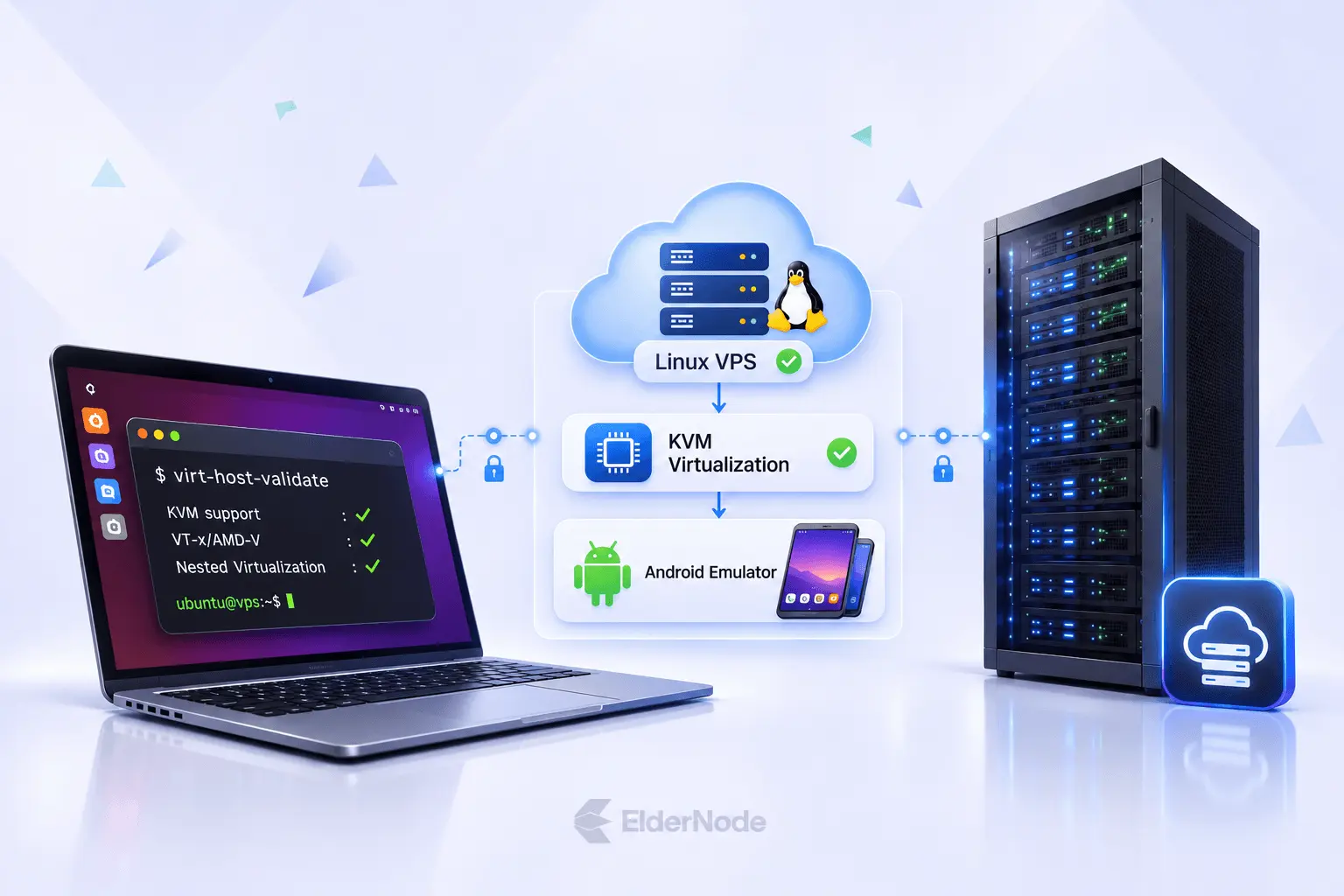
Genymotion Desktop is a clear example: its documentation excludes virtual machines and cloud instances. Installing a desktop environment on a VPS does not remove that restriction.
Before ordering a server, ask the hosting provider to confirm:
- Whether the intended Android workload is supported.
- Whether the required virtualization features are available.
- What graphics or rendering options the server provides.
- How you will access and control the Android environment.
- Whether you can test compatibility before you commit.
Before setting up a remote Android workload with [Eldernode], please share your emulator name, target apps, and the number of simultaneous instances you expect to run, so the team can recommend the right configuration.
Should You Still Use Anbox?
For a new desktop installation, we would leave the original Anbox project off the shortlist.
Its maintainers state that development has stopped and the existing repositories will receive no active maintenance. They point desktop users toward Waydroid. They also distinguish the original project from Canonical’s separate Anbox Cloud offering.
This is one reason to check project status before following an older installation tutorial. A guide can still appear in search results long after the software it describes has stopped receiving updates.
Start with one tool and one real task. A successful test of the app you need tells you more than a long feature list.


Our starting recommendation is Android Studio Emulator for development, Waydroid for desktop app use, and Genymotion Desktop as an alternative development environment. In the end, it comes down to your app, your hardware, and how you’re deploying.
Technically, it is a container-based Android environment. It belongs in this comparison because it addresses the same practical need: running Android applications on Linux.
Do not assume so. Architecture alone can prevent an app from running in a particular environment. Check compatibility with the exact app and build you intend to use.