Special Offer





How to Install HarmonyOS Command Line Tools on Linux
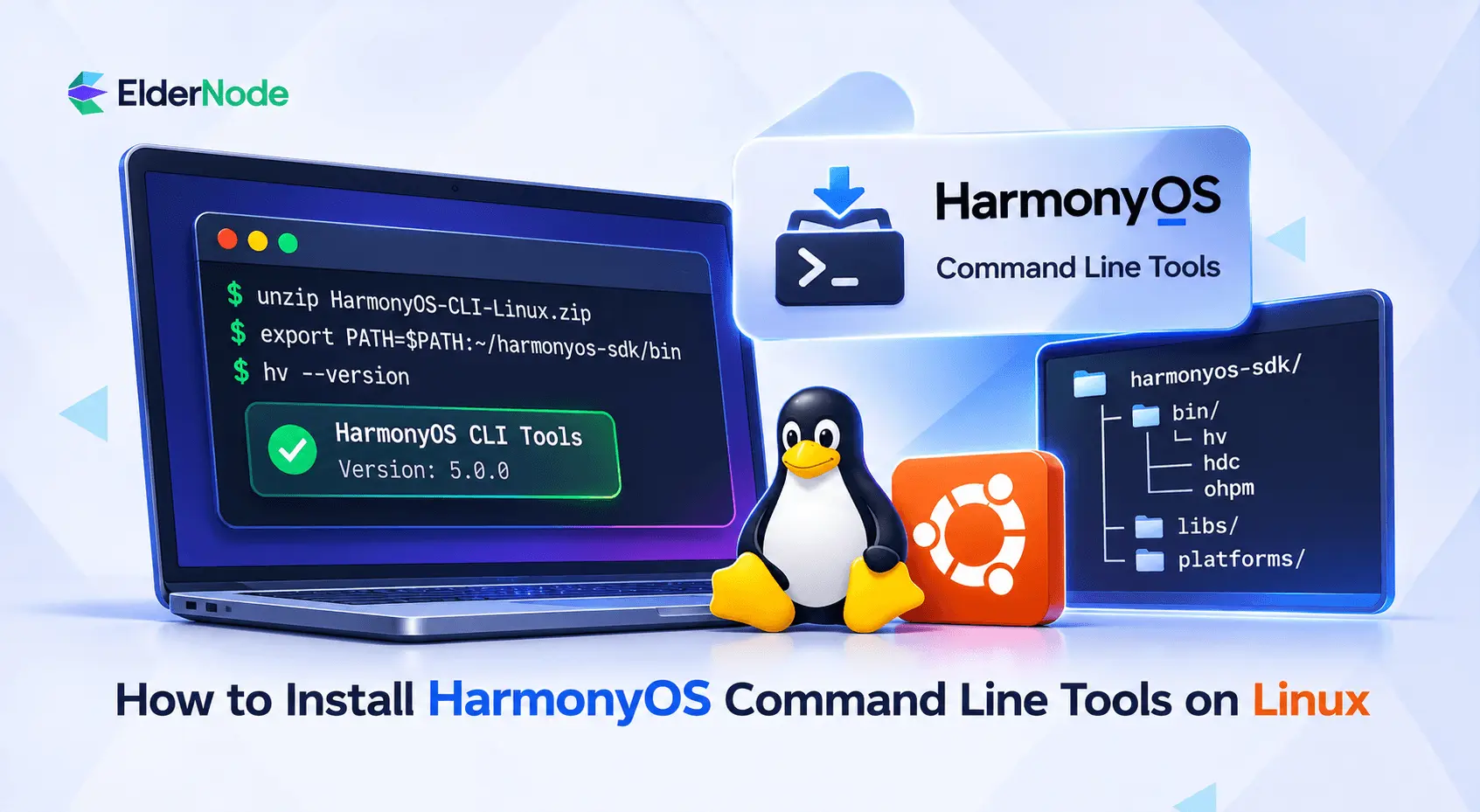



To install HarmonyOS command line tools on Linux, download Huawei’s Linux package, extract it, configure your shell, and verify that the tools run. You can then use the terminal for supported build and device workflows without installing the graphical IDE on that Linux machine. This article covers manual setup, environment checks, and considerations for headless servers.
How do you manually install HarmonyOS command line tools on Linux?
Prepare a compatible environment
Before downloading, check the selected release’s host requirements and your project’s toolchain requirements. In particular, distinguish the Linux host architecture from the architecture of the device you intend to target. A package labeled Linux x64 is a host package, not a promise that its executables run on every Linux VPS server.
Use this preparation checklist:
- Confirm that the package matches your host architecture.
- Reserve space for both the downloaded archive and extracted SDK.
- Make sure unzip and sha256sum are available before downloading the tools.
- Check the JDK requirements for your selected tool release.
- Choose a writable installation location, such as $HOME/HarmonyOS-SDK.
Download and verify the official archive
Open Huawei Developer’s download center and locate Command Line Tools for Linux. Select a release compatible with your project, and complete any required account sign-in. Avoid confusing the command-line package with the graphical DevEco Studio installer.
Huawei’s archive page also distinguishes HarmonyOS packages from OpenHarmony packages and publishes SHA-256 values for listed downloads. Match the package to your intended development workflow rather than assuming similarly named archives are interchangeable.
For a local checksum check, set a variable to your downloaded file:
ARCHIVE="/absolute/path/to/downloaded-linux-tools.zip"
Then run:
sha256sum "$ARCHIVE"
Compare the result with the checksum published for that exact filename. Do not compare against another release or platform’s checksum; each download has its own value.
Extract the package without rearranging it
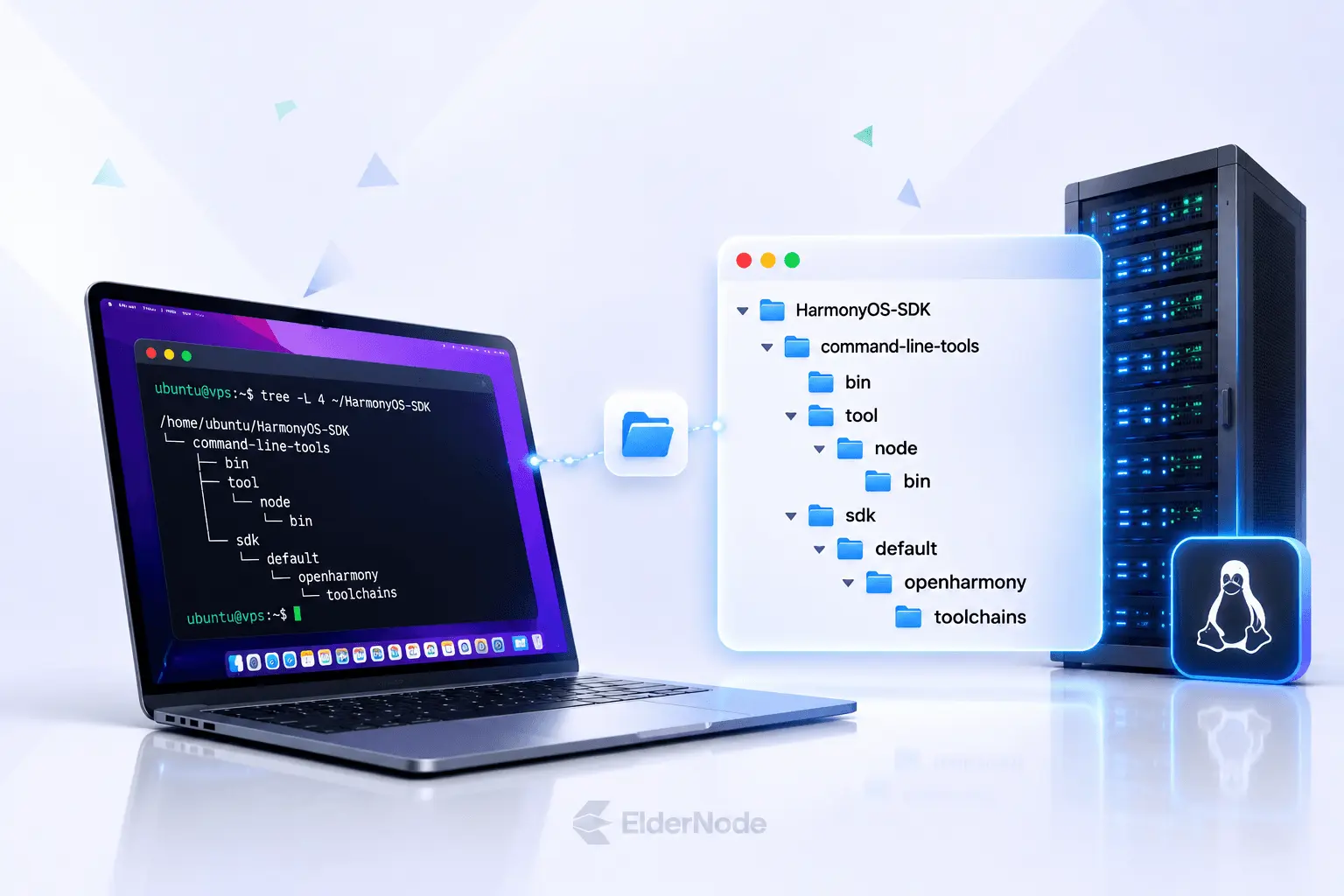
A user-owned directory makes an initial installation easier to inspect and replace. For example, use $HOME/HarmonyOS-SDK as the parent directory, keeping the archive’s command-line-tools folder underneath it.
Create the destination:
mkdir -p "$HOME/HarmonyOS-SDK"
Extract your selected ZIP archive:
unzip "$ARCHIVE" -d "$HOME/HarmonyOS-SDK"
Check the extracted files before setting up PATH:
ls -la "$HOME/HarmonyOS-SDK"
Locate the command-line-tools folder and make sure you know where it is. Sometimes the archive adds an extra parent folder when it’s extracted, so if that happened, use the real path to the folder in the next step. And don’t move or rename anything inside it. Leave the extracted folder structure exactly as it is.
Configure the command-line environment
Set the command-line tools directory:
export CLT="$HOME/HarmonyOS-SDK/command-line-tools"
Check that the expected directories exist:
ls "$CLT/bin"
ls "$CLT/tool/node/bin"
ls "$CLT/sdk/default/openharmony/toolchains"
If these directories match your extracted package, add them to PATH:
export PATH="$CLT/bin:$CLT/tool/node/bin:$CLT/sdk/default/openharmony/toolchains:$PATH"
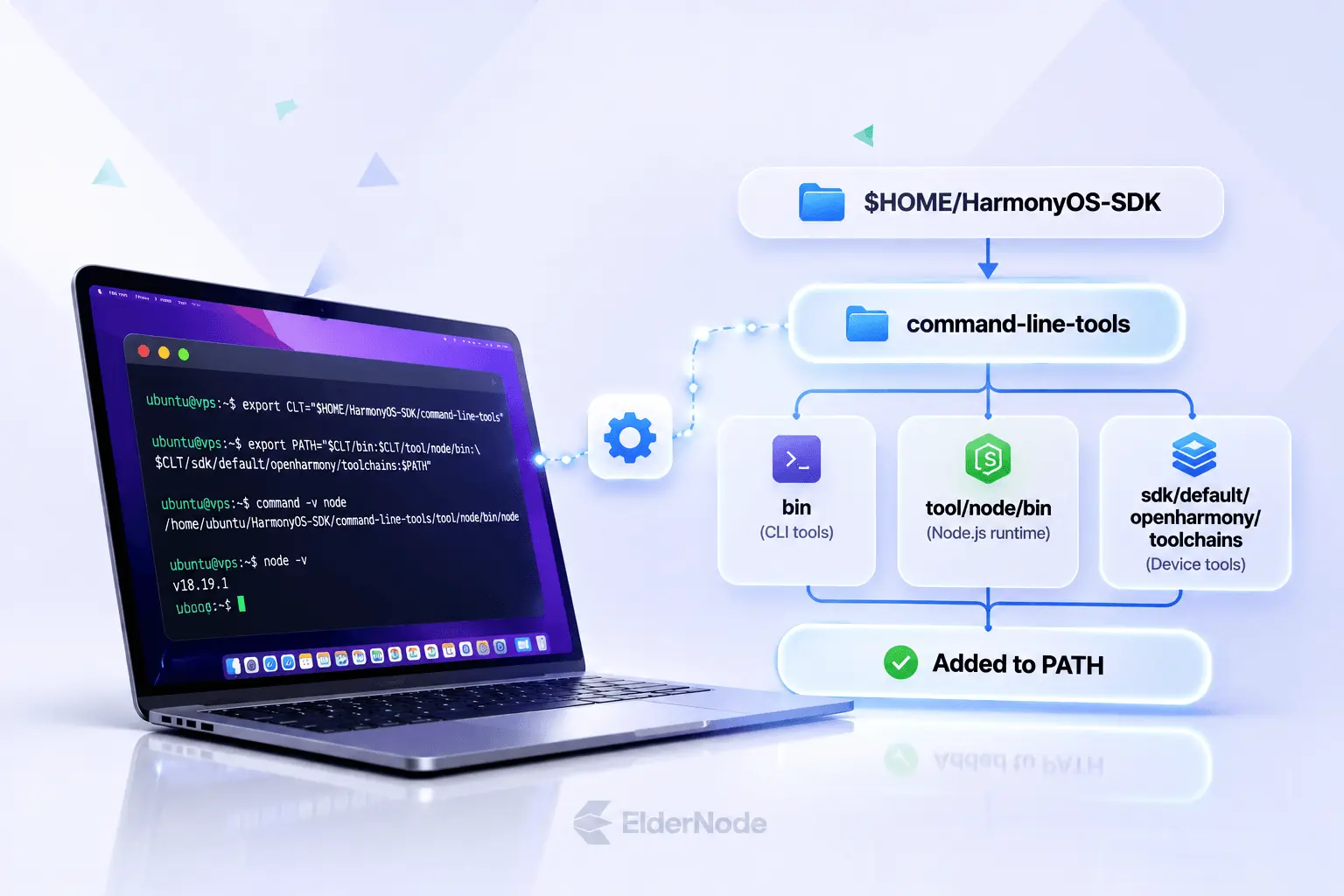
Check which Node.js executable is being used:
command -v node
node -v
Point your Node.js path at the runtime that came with the tools, not some other Node you happen to have installed. And if your version of the tools needs Java, set JAVA_HOME to the folder where a compatible JDK lives.
Save these environment variables in a shell configuration file so you don’t need to set them manually each time.
Verify the installation before building
Check whether Linux can find the installed command-line tools:
command -v ohpm
command -v hdc
Your ohpm and hdc commands should point to executables inside your HarmonyOS installation. hvigorw is a bit different: it’s often supplied by the project itself, so if the command isn’t found, look for it in the project folder instead.
Next, check the installed versions:
hvigorw -v
ohpm -v
hdc version
The commands should display version information without reporting missing executables or runtime errors.
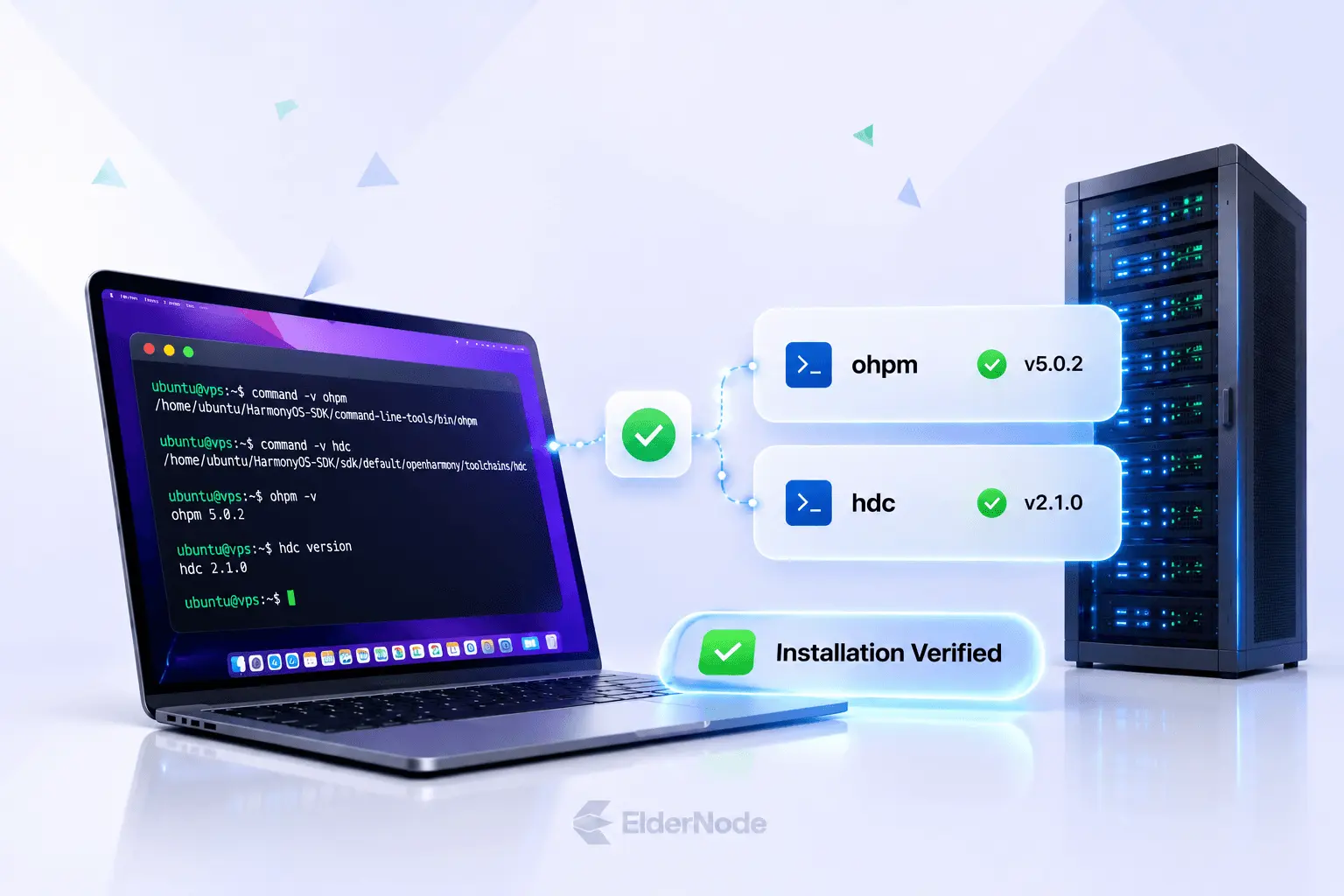
If a command comes back as “not found,” start by checking your PATH settings. Then make sure the matching executable is actually there in the package you extracted.
Can you install HarmonyOS command line tools on a Linux headless server?
Yes. A headless installation follows the same extraction and environment-configuration approach, with setup performed in a shell or pipeline rather than a graphical IDE. Huawei Developers describes Linux command-line tooling for automated build and signing workflows.
For a repeatable server setup, record the archive filename and checksum alongside your environment configuration. Make environment loading an explicit pipeline step. Also plan project configuration, dependency access, and signing separately: installing the tools alone does not provide an application’s certificates or provisioning configuration.
Common HarmonyOS CLI Installation Errors and Fixes
If the HarmonyOS command-line tools aren’t working, don’t rush to download the package again. Start with your environment settings. Nine times out of ten, the problem is a wrong path, a missing dependency, or an SDK version that doesn’t match.
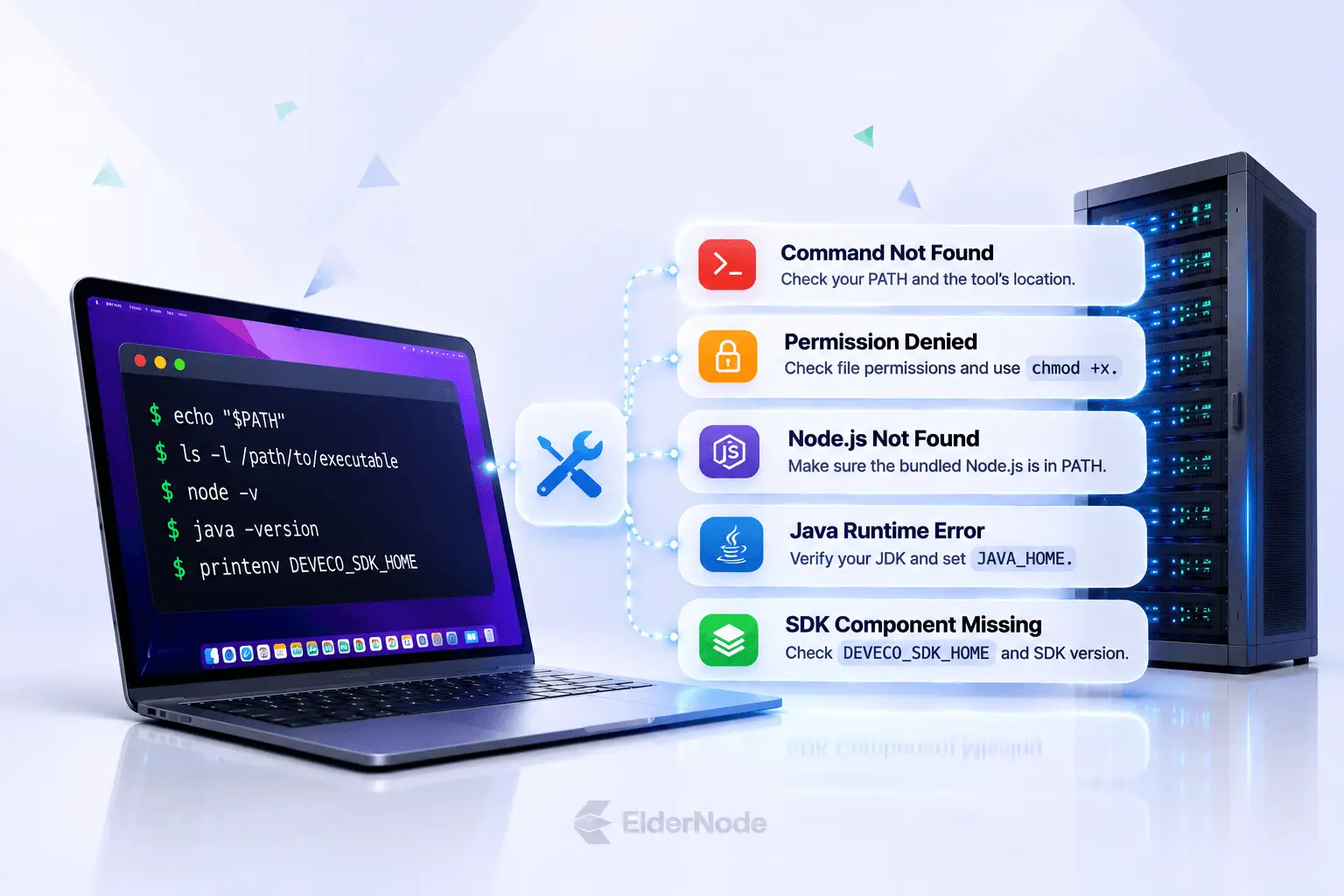
Command not found: If Linux cannot find ‘ohpm’, ‘hdc’, or another tool, check the PATH variable:
echo "$PATH"
Check that the folder containing the executable is actually on your PATH, and that the file is really there in the package you extracted.
Permission denied: If a launcher cannot execute, check its permissions:
ls -l /path/to/executable
If the file should be executable but lacks permission, use ‘chmod +x’ on that specific file.
Node.js not found: If a tool reports that Node.js is missing, check which version your shell uses:
command -v node
node -v
Quick thing to check: is the Node.js folder that came with the tools actually on your PATH? And if it is, make sure that Node version works with the release of the tool you’re running. A mismatch there is a pretty common culprit.
Java runtime errors: Check the installed Java version and the ‘JAVA_HOME’ variable:
java -version
echo "$JAVA_HOME"
If the required JDK is missing or incompatible, install a supported version and update ‘JAVA_HOME’.
Getting a “SDK component missing” error? Chances are your SDK is set up to use a different install than the one you actually need. Let’s see where it’s pointing right now:
printenv DEVECO_SDK_HOME
Make sure the SDK matches your command-line tools. If you’re using the bundled SDK, an external `DEVECO_SDK_HOME` override may not be necessary.
Once you’ve fixed your environment settings, just open a new terminal (or reload your shell config) and run that tool’s version command again. If it prints a version number, you’re good to go.