Special Offer




How to Install and Use Nano Text Editor on Linux




Sometimes you just need to open a file on your Linux server and change a line or two. That’s where the Nano text editor on Linux comes in. It runs in the terminal, works over SSH, and doesn’t make things complicated. You open a file, edit it, save, and exit. Done.
In this guide, we’ll install Nano if it’s not already available and then go through the basics of using it on Ubuntu or CentOS. On many systems Nano is already there, but if you type nano and get “command not found”, no problem installing it only takes a minute.
All you need before starting is access to a Linux machine and SSH login details. If you’re not logged in as root, make sure your user can run sudo.
Install Nano on Debian / Ubuntu
On Ubuntu or Debian, installing the Nano text editor is straightforward. Just run:
sudo apt install nano
Enter your password if asked, wait a few seconds, and that’s it. Once the installation finishes, you can open Nano by typing:
nano
If you’re already logged in as root, you don’t need sudo.
Install Nano Text editor on CentOS/RHEL Operating Systems:
To install Nano editor on Centos/Rhel operating systems, please use the following command:
yum install nano
This command starts the Nano Text Editor installation. Once the settings are complete, you can use it!
The subsequent command will open a Nano text editor page for you. Any text which has been modified will be saved to test.txt. The nano can be closed by using CTRL + X keys combination. After the prompt, the system will ask, do you want to save the file changes? Enter Y to confirm this operation then press enter.
nano test.txt
The following is the procedure to use the Nano Editor. In this, we shall study:
– How to open and close files and edit
– Nano Editor Tips and Tricks
– Search and replace text
– Check basic commands
How to open and close Nano text editor
To open a file with Nano, just type:
nano filename
Replace filename with the name of the file you want to edit.
If the file already exists, Nano opens it. If it doesn’t, Nano editor will create it when you save on linux.
For example:
nano test.txt
If the file is in another folder, you can use the full path:
nano /path/to/file/test.txt
Once Nano opens, you can move around with the arrow keys and start editing right away.
When you’re done:
- Press CTRL + O to save
- Press CTRL + X to exit
If you made changes, Nano will ask if you want to save before closing. Press Y to confirm, then hit Enter.
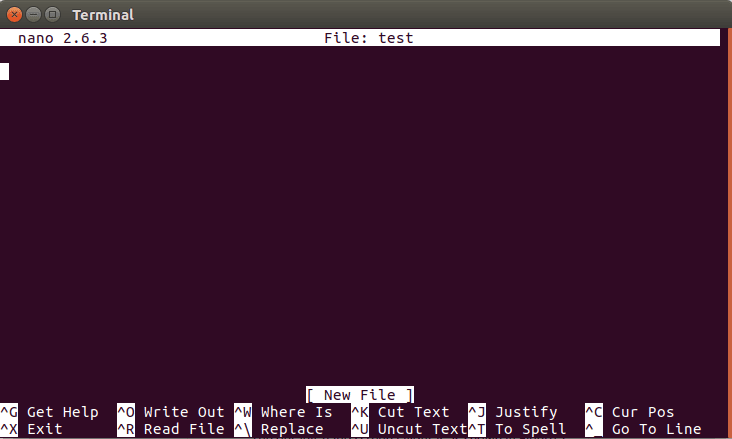
At the bottom of this window, there are some shortcuts which access facilities of the nano text editor. The ^ Symbol is used against any particular key and suggests both the command and its execution by pressing CTRL and the key concerned (CMD for MAC).
Press CTRL + O to save the changes to the file and continue editing.
Use CTRL + X to exit the editor. If any changes are made to the file that is currently open, it will ask you if you want to save it. If you want to save the changes, enter y and then press enter.
Take Note: Use the -w option for all subsequent opening of a configured file in Nano . By default it’s set in such a way that, if some text does not fit it gets converted so as to fit the screen. This could ruin some of the configured files and give many problems.
For example, to open a configured file, use the following command:
sudo nano -w /etc/apache2/apache2.conf
Editing SSH Configuration with Nano
sudo nano /etc/ssh/sshd_config
For example, if you want to change the SSH port on your VPS, you would edit the sshd_config file using Nano.
Nano Editor Tips and Tricks
To select the text, go to the beginning of the selected text and press the ALT + A keys. This will set a check mark to select.
Then scroll through the text to select the text with the arrow keys. This selects the text.
Use the ALT + 6 keys to copy the selected text.
Use CTRL + K to cut the text.
Press CTRL + U to paste the text.
If no text is selected before copying or pasting, it will copy or paste the entire line.
Search and replace text
To search for text in Nano, Please press CTRL + W.
Type the word or phrase you’re looking for and the please press Enter. Nano will jump to the first match.
To move to the next match, press ALT + W.
If you want to replace text, press CTRL + \.
Enter the text you want to find, then the replacement text. Nano will go through each match and ask whether you want to replace it or skip it.
Here is some basic nano commands used when editing text:
1. CTRL + A: Go to start line
2. CTRL + E: Go to the end of the line
3. CTRL + G: This command opens a help window that displays a list of all commands that can be used in Nano.
4. CTRL + O: The basic command to save. When used, you will be prompted to edit or confirm the file name and save your file by pressing Enter.
5. CTRL + W: It is one of the most useful nano commands out there. It is used for finding a particular phrased within your text which is very similar to the usual CTRL + F commands in other programs and operating systems. ALT + W is used to repeat the last command with similar text.
6. CTRL + K: Cuts the entire selected line and takes it to the cut buffer.
7. CTRL + U: Paste text from the cut buffer on the selected line.
8. CTRL + X: By using this command, the nano software can be closed. If there is any change in the text, a save message will appear immediately.
9. CTRL + \: Replace text inside the file.
Tip: If you ever forget a shortcut, just press CTRL + G inside Nano. It shows all available commands at the bottom of the screen.
Conclusion
Nano isn’t complicated. Once you’ve installed it, you can open a file, make your changes, and save in seconds. That’s usually all you need when working over SSH. If you’re managing a Linux server and just want a quick way to edit config files without dealing with a complex editor, Nano does the job.