Special Offer




why cant i connect to playit.gg servers



If you are hosting a game for your friends and suddenly find yourself asking, “Why can’t I connect to playit.gg servers?” you are definitely not alone. Many users end up searching for answers to the question “why cant i connect to playit.gg” when experiencing issues. Playit.gg is a fantastic, user-friendly tool that allows anyone to host local servers without the frustrating hassle of configuring router settings. It has become a go-to solution for low latency game server tunneling , but just like any piece of networking software, occasional server connection issues and connection problems can still pop up.
Whether you are dealing with a frustrating timeout, a stubbornly refused connection, or a local agent that simply won’t stay online, resolving these playit gg servers connection issues usually boils down to a few quick configuration checks. Here’s why these errors pop up, and the simple fixes that usually get your server running again.

How Playit.gg Actually Connects Your Games
Before diving into fixes, it helps to get a sense of what’s happening behind the scenes. Playit.gg doesn’t just fling your home network out onto the internet. Instead, it sets up a secure tunnel from your computer to their network of global proxy servers. When your friends try to join your game, they’re actually connecting to the proxy, which quietly passes the game data along to your machine.
Compared to ngrok, playit.gg often has the edge for gaming. You get static IPs and proper support for both UDP and TCP, which makes multiplayer games run smoother, and you don’t need a premium plan to get it. That said, your connection is making a little journey: any hiccup on your PC, in your home network, or even on the proxy side can stop the data flow and kick players off.
Keeping Your Playit.gg Agent in Check
Most connection hiccups aren’t the fault of the servers, they usually happen on your own computer. If your friends can’t join your game or the tunnel shows as offline, the local agent is often the culprit.
When the Agent Goes Offline
Sometimes the agent just stops running in the background, your PC dozes off, or your internet blips for a second. It’s annoying, but easy to fix.
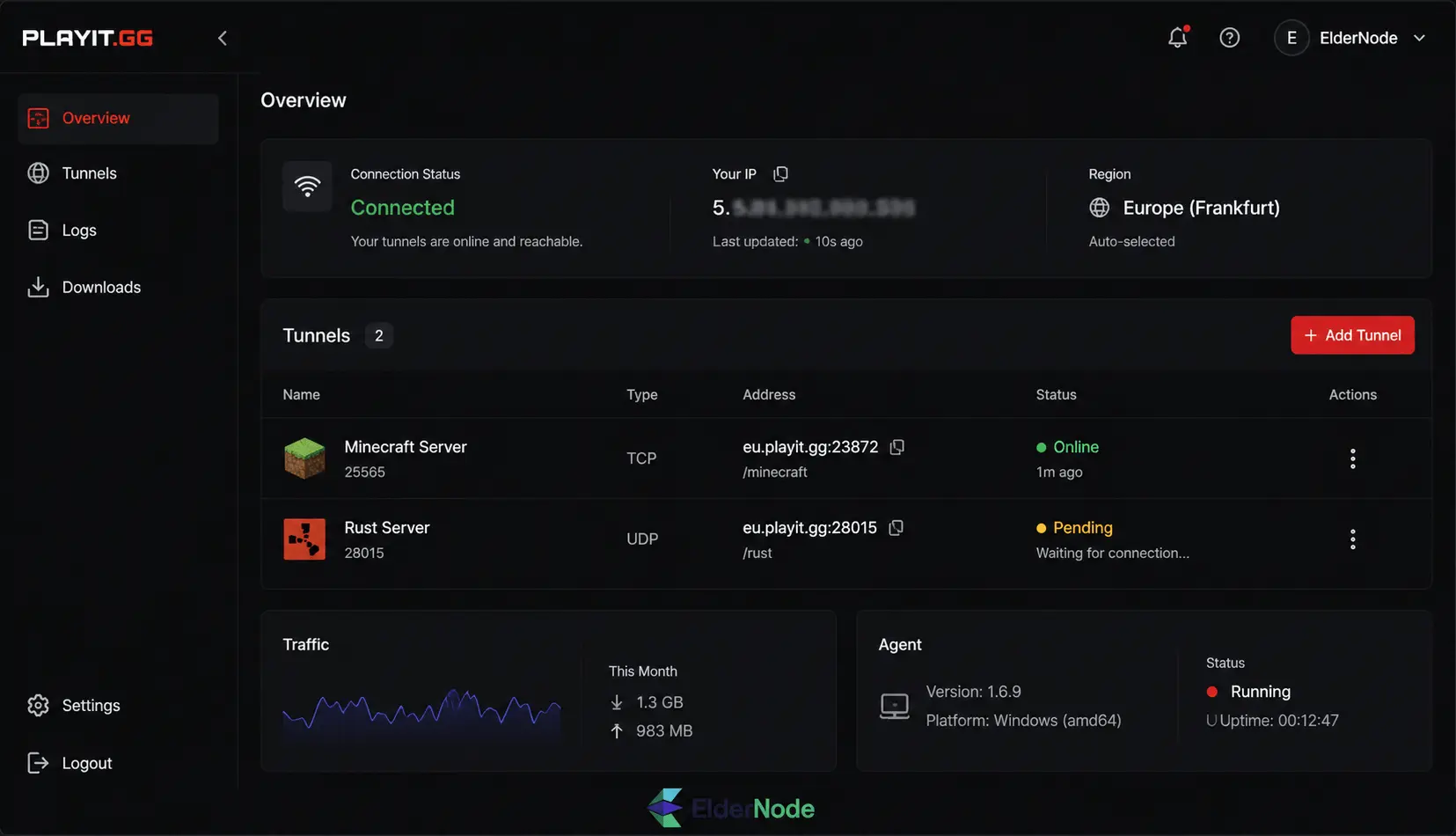
On Windows:
Simply close the playit.gg window completely, wait a few seconds, and start it again. If it’s running in the background, open Task Manager, end the playit.gg process, and relaunch the app. Nine times out of ten, this clears the problem.
On Linux:
A quick reboot of the service usually does the trick:
sudo systemctl restart playit
If your dashboard shows the tunnel as “Pending,” it usually just means the proxy is waiting for your agent to reconnect. Give it a minute, most of the time it fixes itself after a little while. If it hangs, a simple restart usually fixes it.
Keep Your Software Up to Date
Outdated agents can be picky. They sometimes refuse to talk to the proxy, or old configuration files can get corrupted. Download the latest version from the official site whenever you can. Occasionally, a full reinstall can save you hours of frustration and random disconnects.
Navigating Firewalls and Security Hurdles
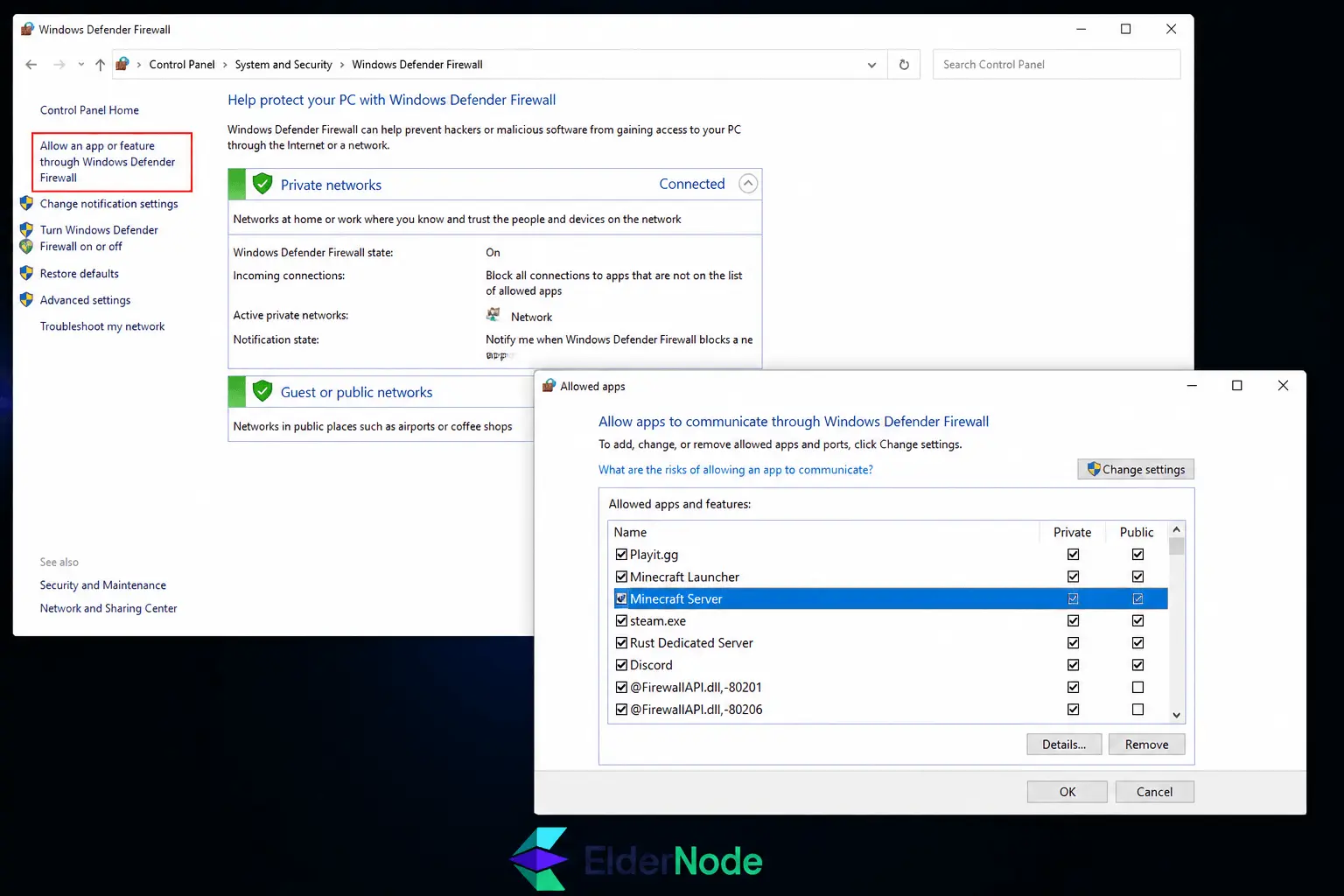
Ever had your friends suddenly get kicked from your game? Chances are, your firewall or antivirus is just being a bit too cautious. Windows Defender, or whatever antivirus you’re running, might block the ports your game uses. The simple fix: let both the playit.gg app and your game’s executable (like Minecraft Java) through the firewall.
Port Forwarding vs Playit.gg
A lot of people just open a port and call it a day. It works, but it also exposes your network to the internet. Playit.gg is safer because your PC connects outward to their proxy instead. Just make sure your firewall still allows the game traffic through.
Game-Specific Configurations
Every game talks to the internet in its own way, so picking the wrong tunnel type is basically a guaranteed way for your friends to get kicked out.
Fixing Minecraft Connection Issues
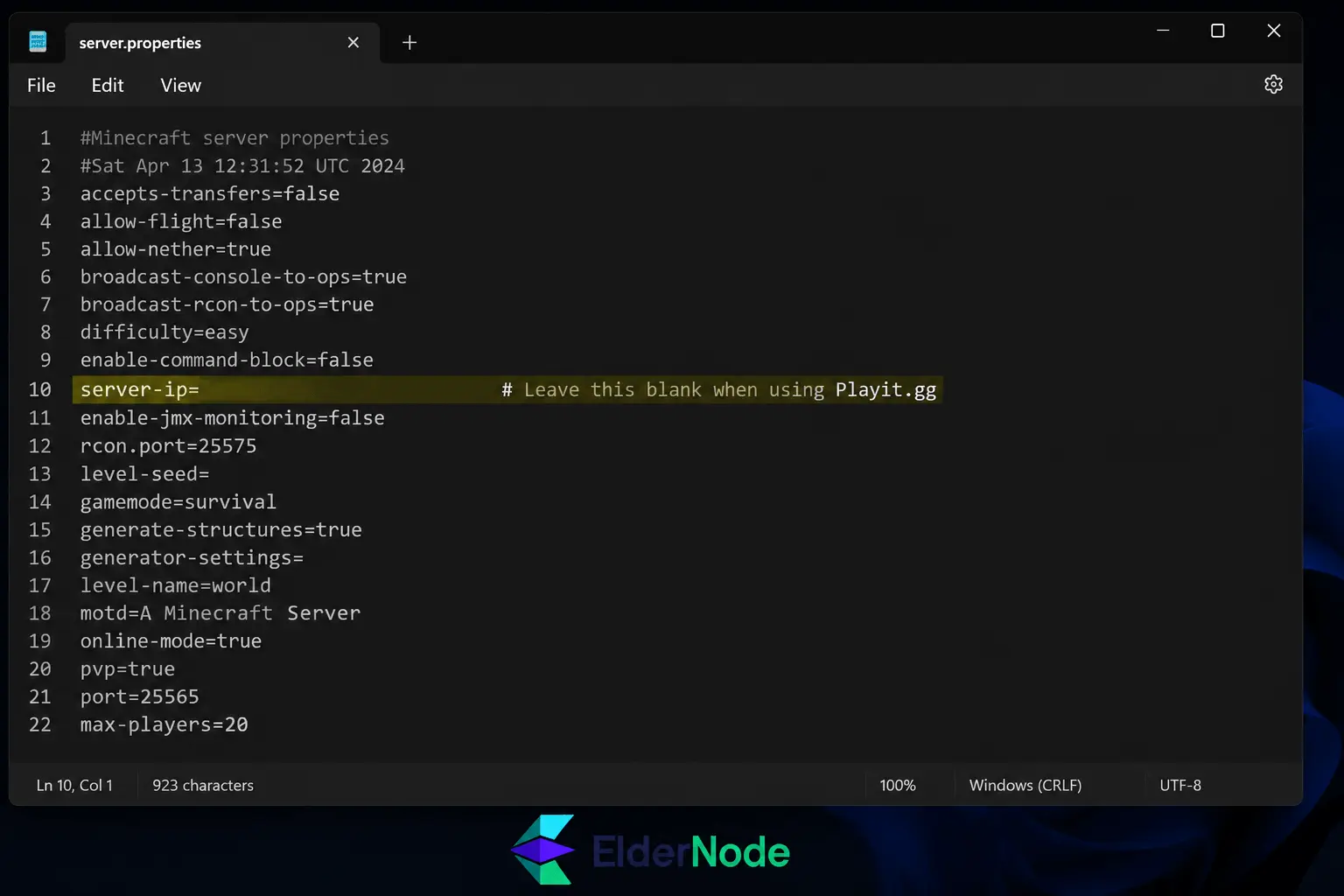
If your Minecraft server isn’t letting people in, the culprit is almost always the server-ip setting. Open your server.properties file and make sure server-ip, is completely blank. If you bind the server to your local IP, the playit.gg agent can’t route traffic properly, and players get blocked without warning.
Picking the Right Protocol (TCP vs UDP)
Minecraft Java uses TCP, but games like Minecraft Bedrock, Rust, Ark, or Palworld lean heavily on UDP because they need fast, constant data flow. If your friends can’t join a Bedrock or other UDP-based server, check your tunnel settings:
- Open the playit.gg dashboard.
- Go to your active tunnels.
- Double-check that the tunnel is using UDP, or set it to “Both” if your game needs both protocols.
- Double-check that the local port matches what your server is actually broadcasting.
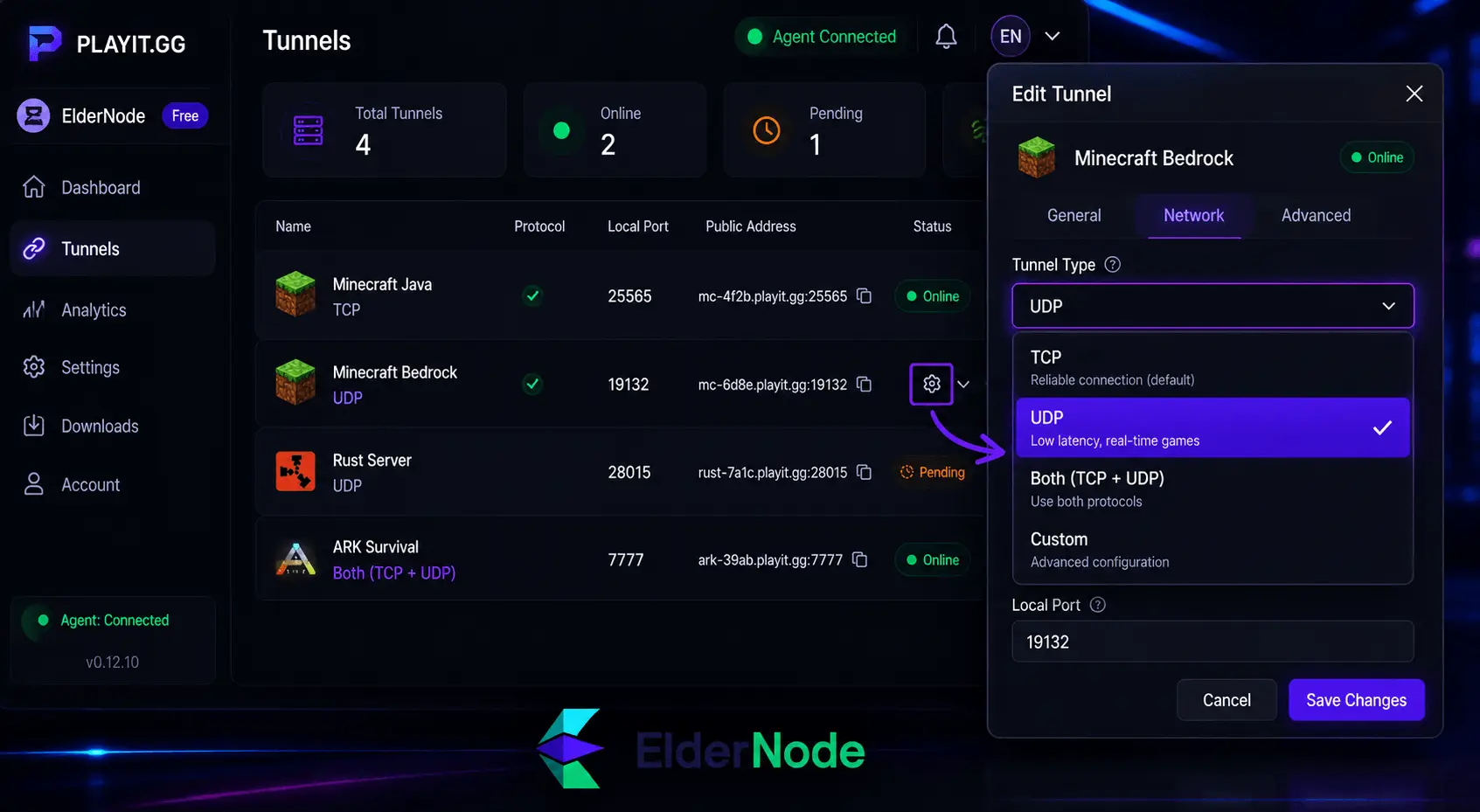
Small mistakes here are usually why players can’t connect. Once you line up the protocol and port, things usually just work.
When Things Go Wrong
Even if your firewall is fine and the tunnel type is correct, stuff can still break. Usually it’s DNS or a shaky internet connection.
DNS quirks
Sometimes the IP works but the domain doesn’t. Make sure everyone’s using the exact address and port from your dashboard. If it’s still acting up, have them run:
ipconfig /flushdns
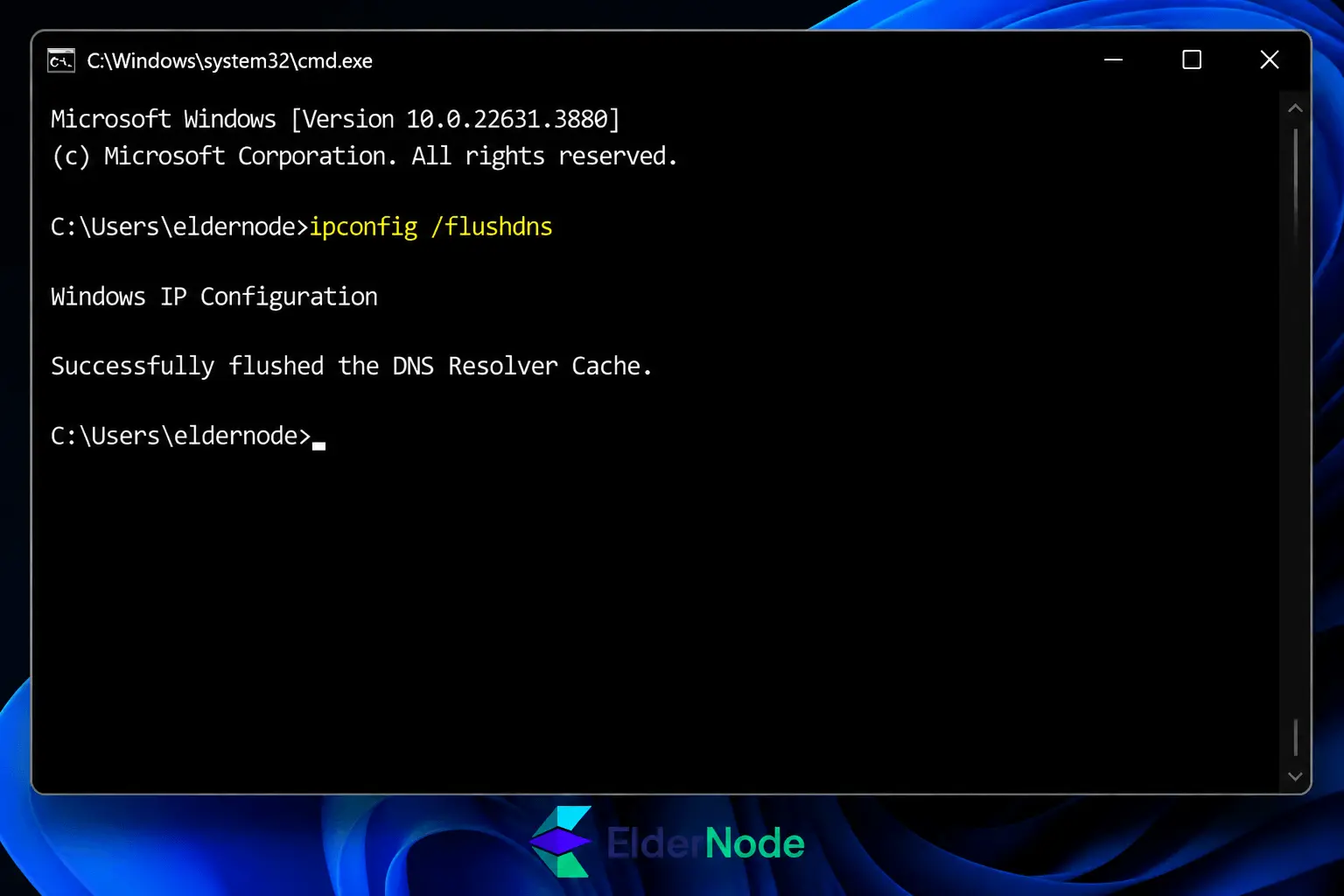
This clears old cached entries and usually fixes it.
Random disconnects
If players drop mid-game, your connection or PC might be struggling. Wi-Fi can be unstable, and if your CPU overheats, it might drop the tunnel unexpectedly. Plug in an Ethernet cable and make sure nothing else is hammering your computer, it often fixes it immediately.
Full agent reset
Sometimes the agent just refuses to behave. In that case:
- Go to the playit.gg folder.
- Delete playit.toml.
- Start playit.gg again and follow the new setup link.
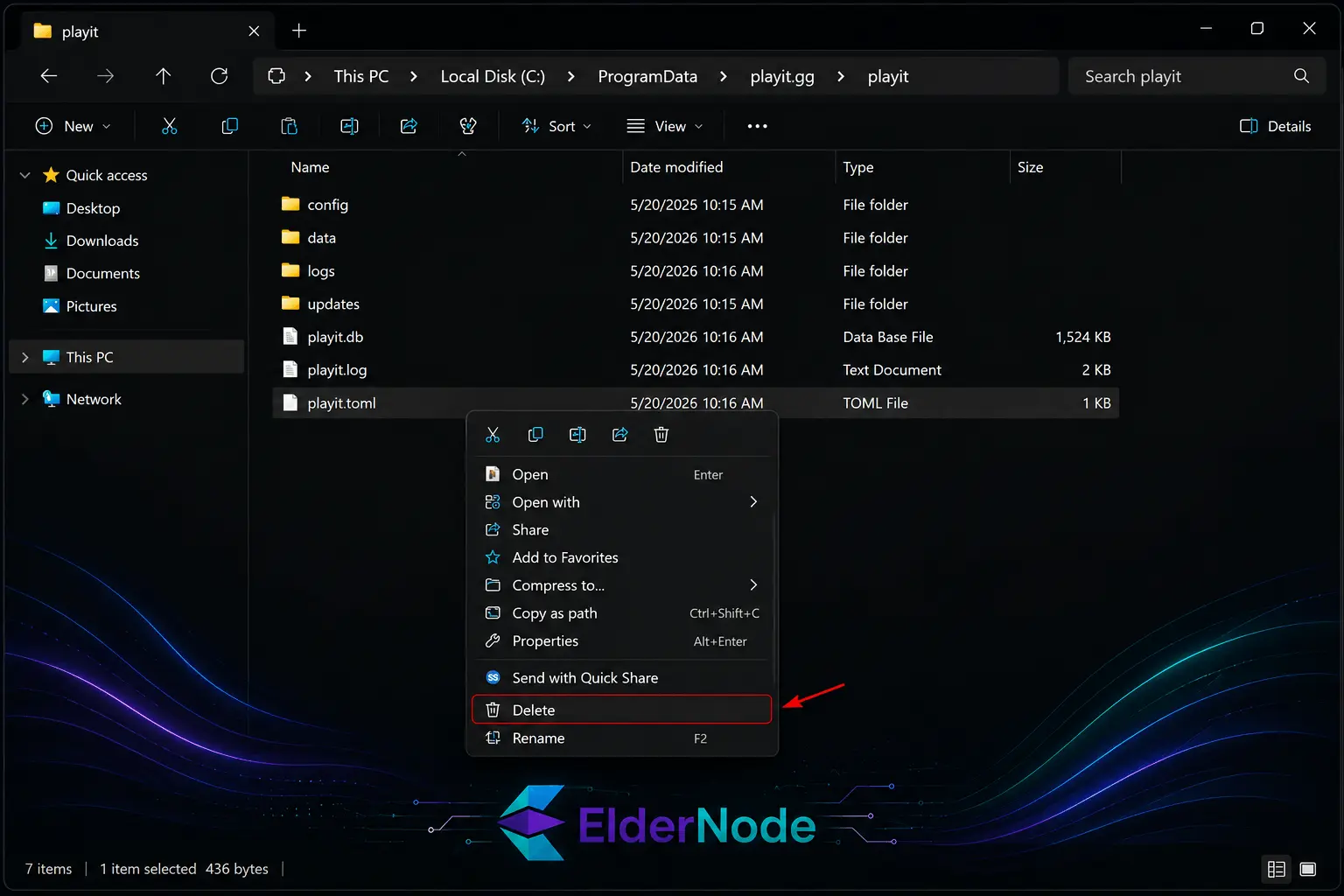
It’s basically starting fresh and solves most stubborn issues.
Conclusion
Running a game server should be fun, not hours of messing around with network issues and random connection problems. Most playit.gg issues usually come from small things, a blocked firewall, the wrong tunnel type, unstable internet, or an outdated agent.
Once those are sorted, everything normally works pretty smoothly. So next time players can’t connect, don’t panic. Check the basics, restart the agent if needed, and you’ll probably be back in-game a few minutes later.