Special Offer




How to Integrate a Minecraft Server File into Single Player
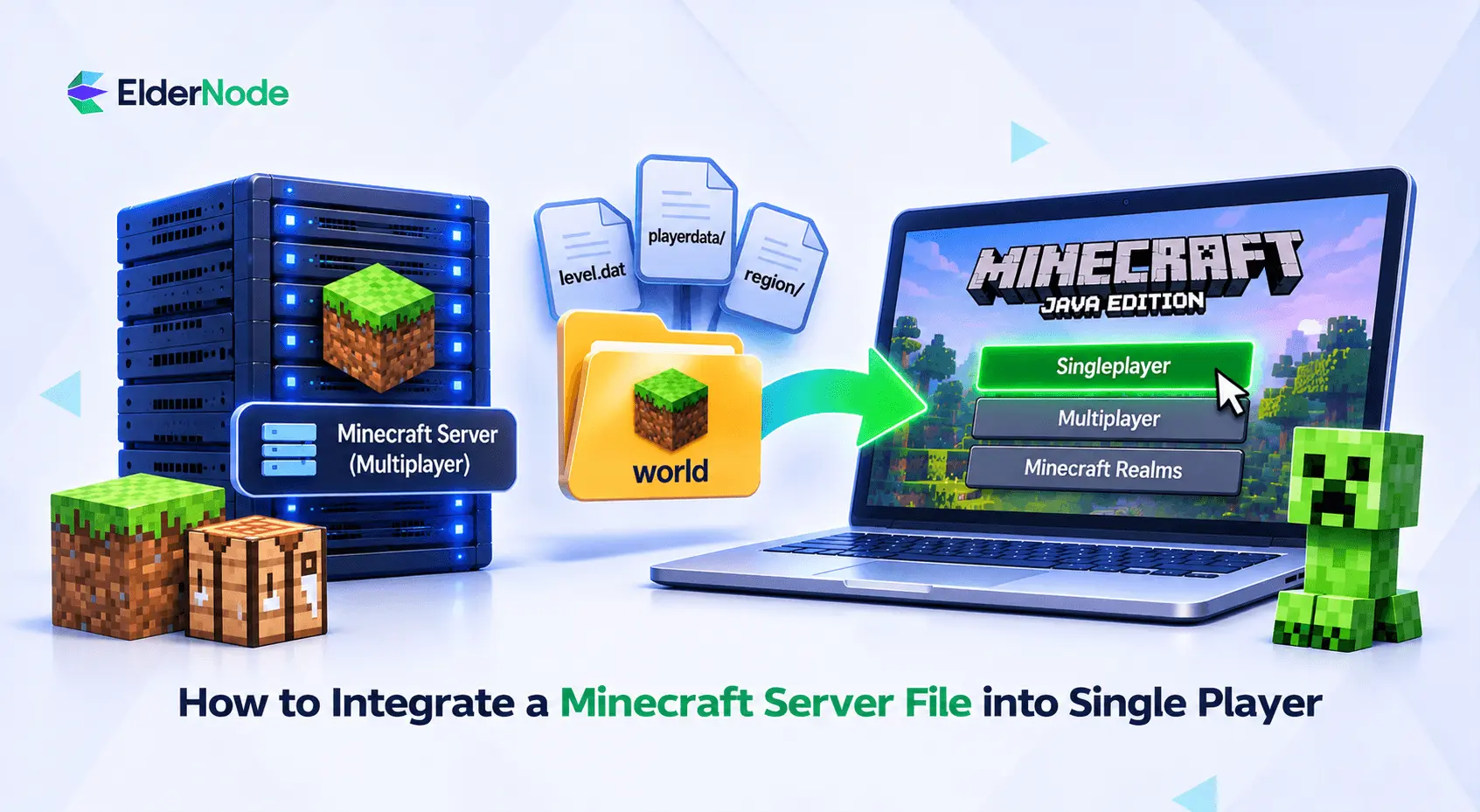



Want to play your Minecraft server world in singleplayer? If you’re looking to copy a Minecraft server to single player mode, don’t worry, you won’t lose your world. Just download the world folder from your server and drop it into your Minecraft saves folder. Depending on your server software, you may need to tweak a few files before the world will open.
Which Minecraft server files do you need for single player?
You need the complete world folder containing level.dat and its accompanying world data. The server’s .jar file runs the server software; it is not your playable map. In your Minecraft server setup, check level-name in server.properties to identify the active world folder, commonly called world.
Follow Java Edition instructions for a Java world; do not assume these folder steps apply to another edition.
Before changing anything, make these checks:
- Record the Minecraft version and server software. Note whether the world uses vanilla, Paper, or a mod loader.
- Identify required mods. Before you load a modded world, double-check that your game version and mods match what the server was running. It’ll save you a lot of headaches later.
- Confirm access. Ask the server owner for a complete world download if you cannot access its files.
- Keep an untouched backup. Make your changes on a copy, not the original. That way, if something breaks, you can just go back to the original.
Back up and download the world
Stop the server completely before copying its world. Keep a full server backup as well as the working world copy, especially when converting between server software. Paper’s migration instructions explicitly require backups and a stopped server before file changes.
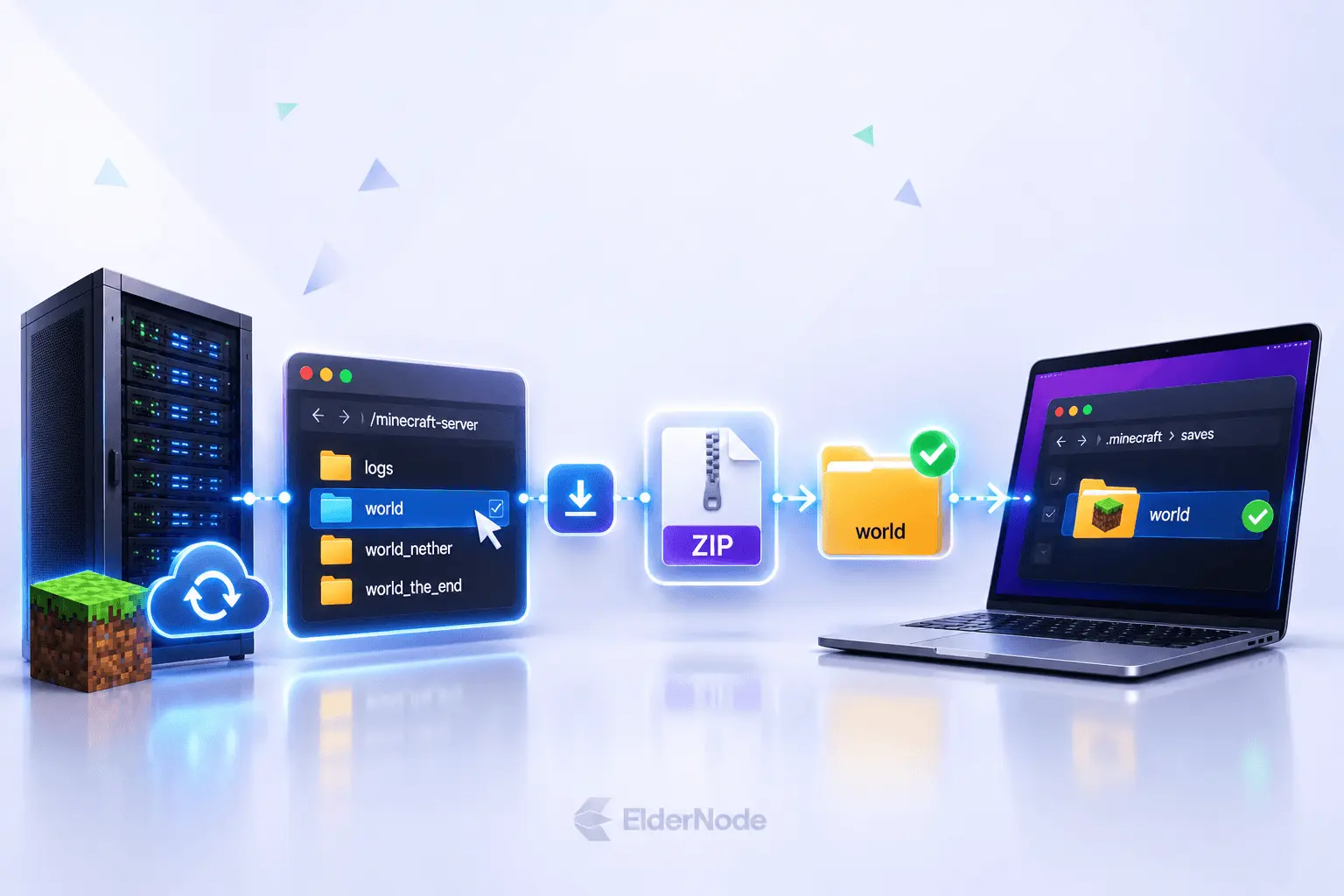
If your Minecraft server is hosted remotely, open your hosting panel’s File Manager or connect through SFTP. Find the world folder listed under level-name in server.properties, then download the entire folder to your computer. If your hosting panel gives you the world as a ZIP file, unzip it first, then move the world folder into your Minecraft saves folder.
Match the version and prepare the folder layout
Use the same Minecraft version as the server when opening the imported world. Minecraft 26.1 introduced changes to world storage, so check version compatibility before opening an older save.
Vanilla and modded worlds
For a vanilla world, preserve the complete folder structure. Older saves can contain region, DIM-1, and DIM1; Minecraft 26.1 moved default dimensions under dimensions/minecraft/. Do not reorganize a valid vanilla save to resemble screenshots from a different version.
If your server uses mods, install the same Minecraft version and a compatible version of its mod loader, such as Forge, Fabric, or NeoForge, on your computer. You’ll also need the mods that add blocks, items, or dimensions used in the world. Opening the save without them can leave content missing, so test it on a backup first.
Paper worlds need version-specific adjustments
For Paper versions before 26.1, download the world, world_nether, and world_the_end folders. Copy world_nether/DIM-1 and world_the_end/DIM1 into your working world folder. This puts the Nether and End data where older Java singleplayer worlds expect to find them.
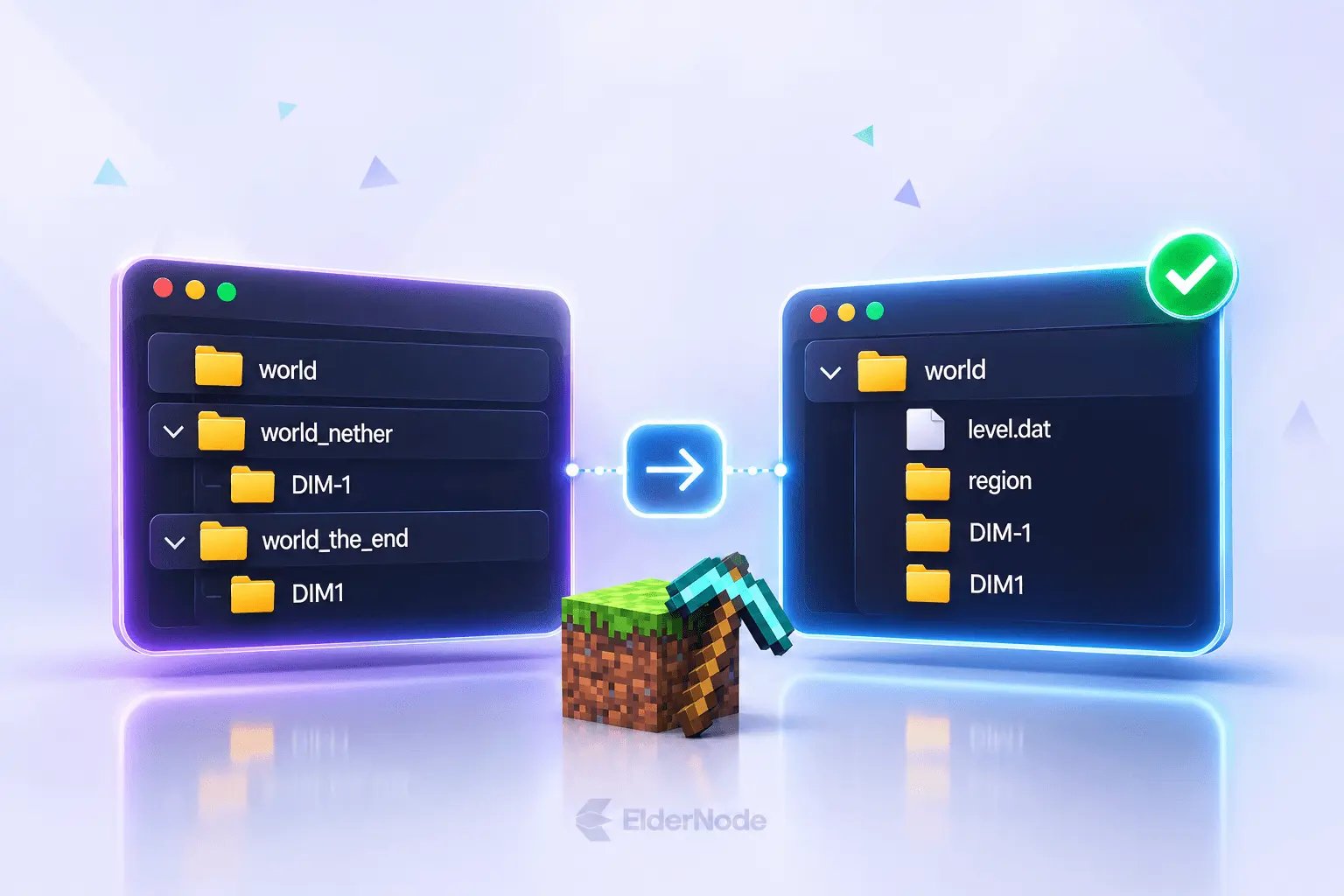
For Paper 26.1 and newer, the dimensions are already stored together under world/dimensions/minecraft/. However, Paper keeps some Overworld data files in a different location. On your working copy, move the following files from world/dimensions/minecraft/overworld/data/minecraft/ to world/data/minecraft/:
- game_rules.dat
- scheduled_events.dat
- wandering_trader.dat
- weather.dat
- world_gen_settings.dat
Paper plugins do not become single-player features through copying; replacement mods may be necessary.
Place the world in your local saves folder
Close Minecraft before moving any files. Open the saves folder for your Java Edition installation:
Windows: %appdata%\.minecraft\saves
macOS: ~/Library/Application Support/minecraft/saves
Linux: ~/.minecraft/saves
Copy your extracted world folder into saves. Make sure level.dat is directly inside that world folder, not buried inside another folder.
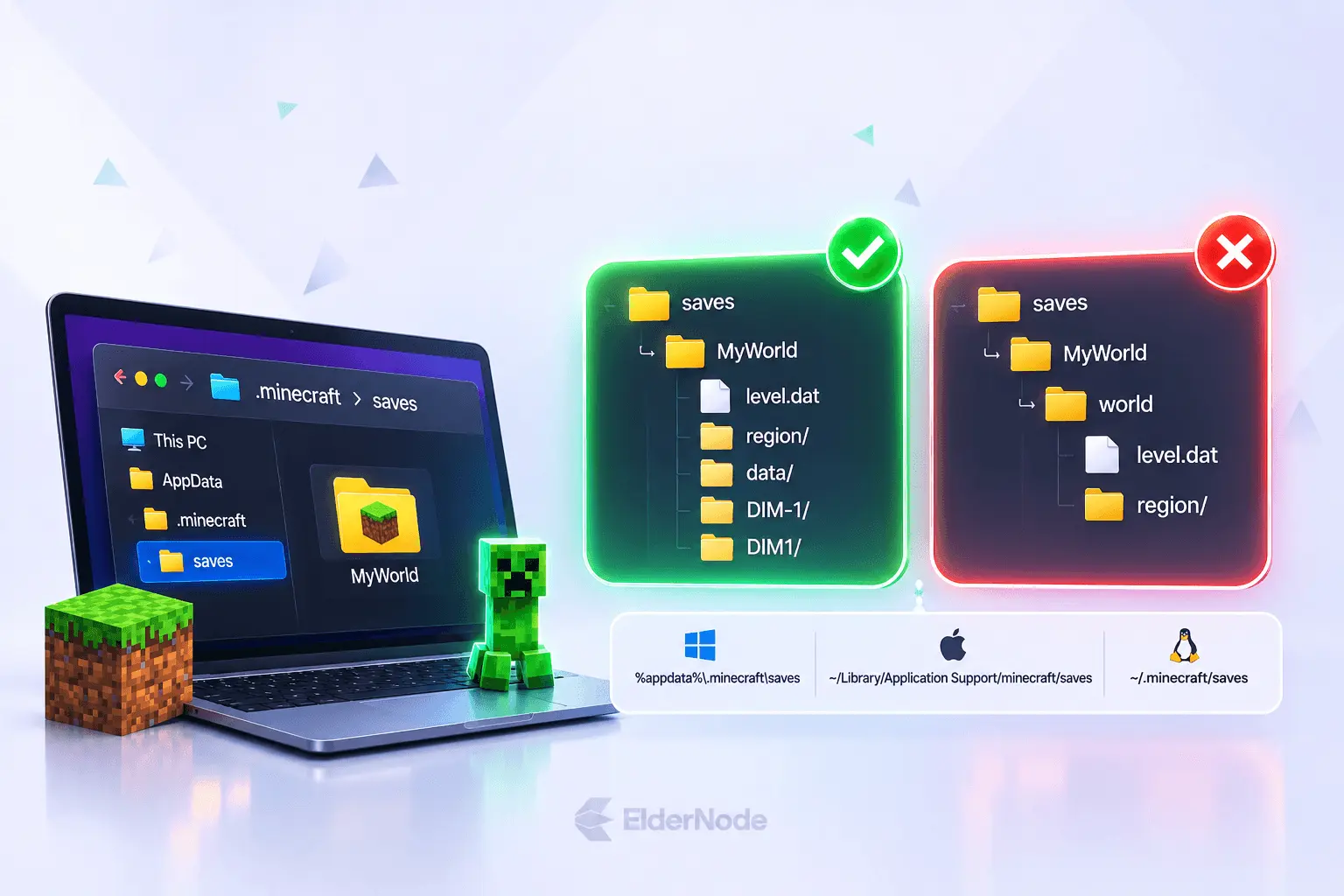
All set? Fire up Minecraft Java Edition on the same version your server uses, click Singleplayer, and look for your world in the list. If it’s there, you’re in!
Why is the world missing or loading incorrectly?
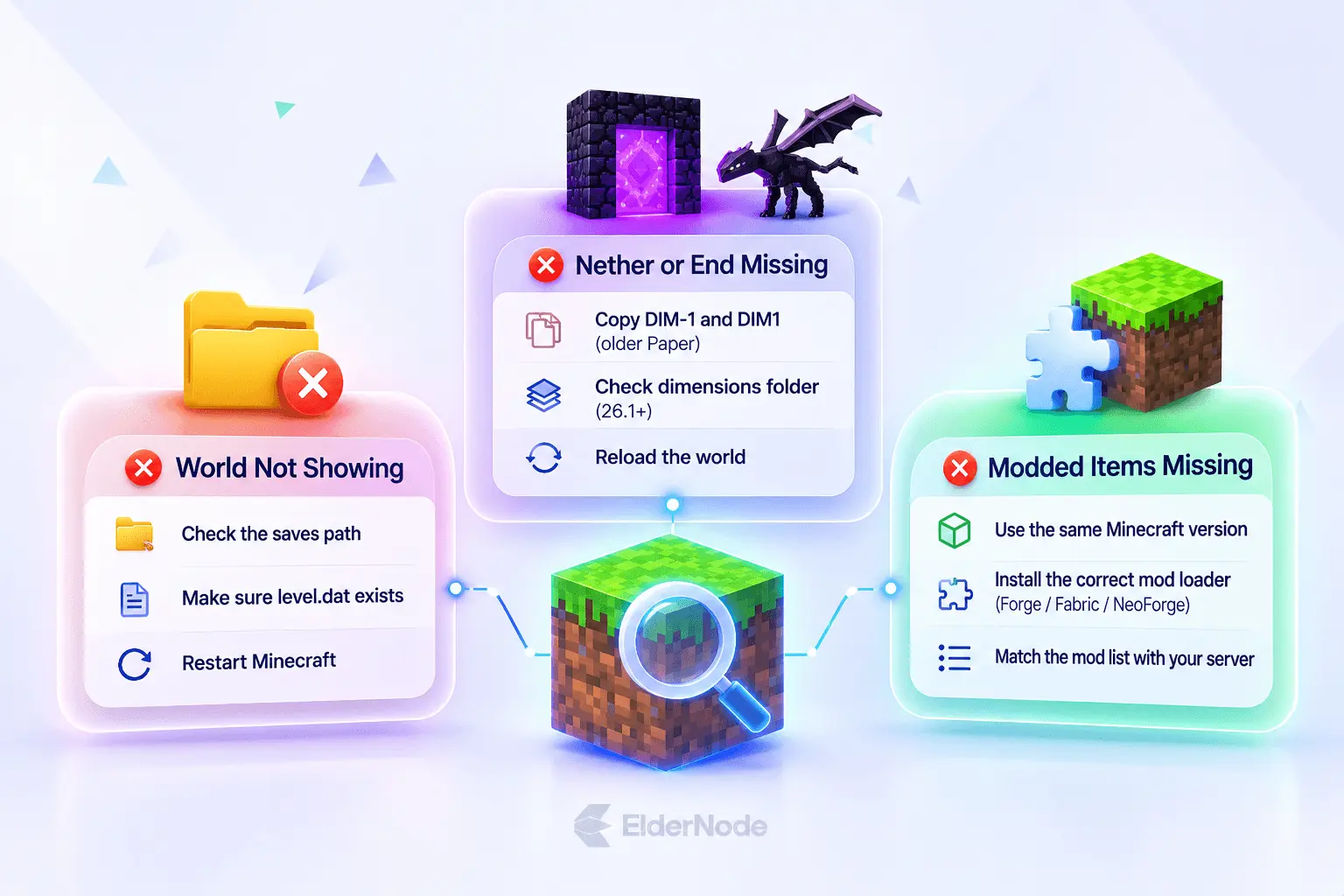
If your world doesn’t show up in Singleplayer, open its folder and check that level.dat is inside it. Also make sure you copied the world into the saves directory used by your Minecraft launcher.
If the Nether or End appears empty, check whether you copied the dimension folders from your server. Older Paper worlds keep these separately, so downloading only the main world folder can leave them behind.
Don’t panic if some modded blocks or items look missing. It’s usually just a version mix-up. Check your Minecraft version, your mod loader, and your mod list, and make sure they all match your server’s setup. Don’t keep opening the save with different configurations; use a fresh backup while troubleshooting.
Use your first session as an inspection:
- Visit a familiar build. Compare it with the server world you expected to download.
- Check both additional dimensions. Before you call the transfer done, pop into the Nether and the End and make sure your known spots look the way you left them.
- Inspect player belongings. Don’t just look at the terrain. Also check that your inventory, your position, and the items in your chests made it over.
- Save, quit, and reopen. Confirm the working copy remains usable before making major changes.
Your inventory and player position might not transfer exactly as expected. Quick heads up before you start editing: servers store player data in their own files, while singleplayer also relies on level.dat. Back up these files first, just in case. And if you’re playing 26.1 or newer, you’ll find player files in players/data rather than the older playerdata folder.
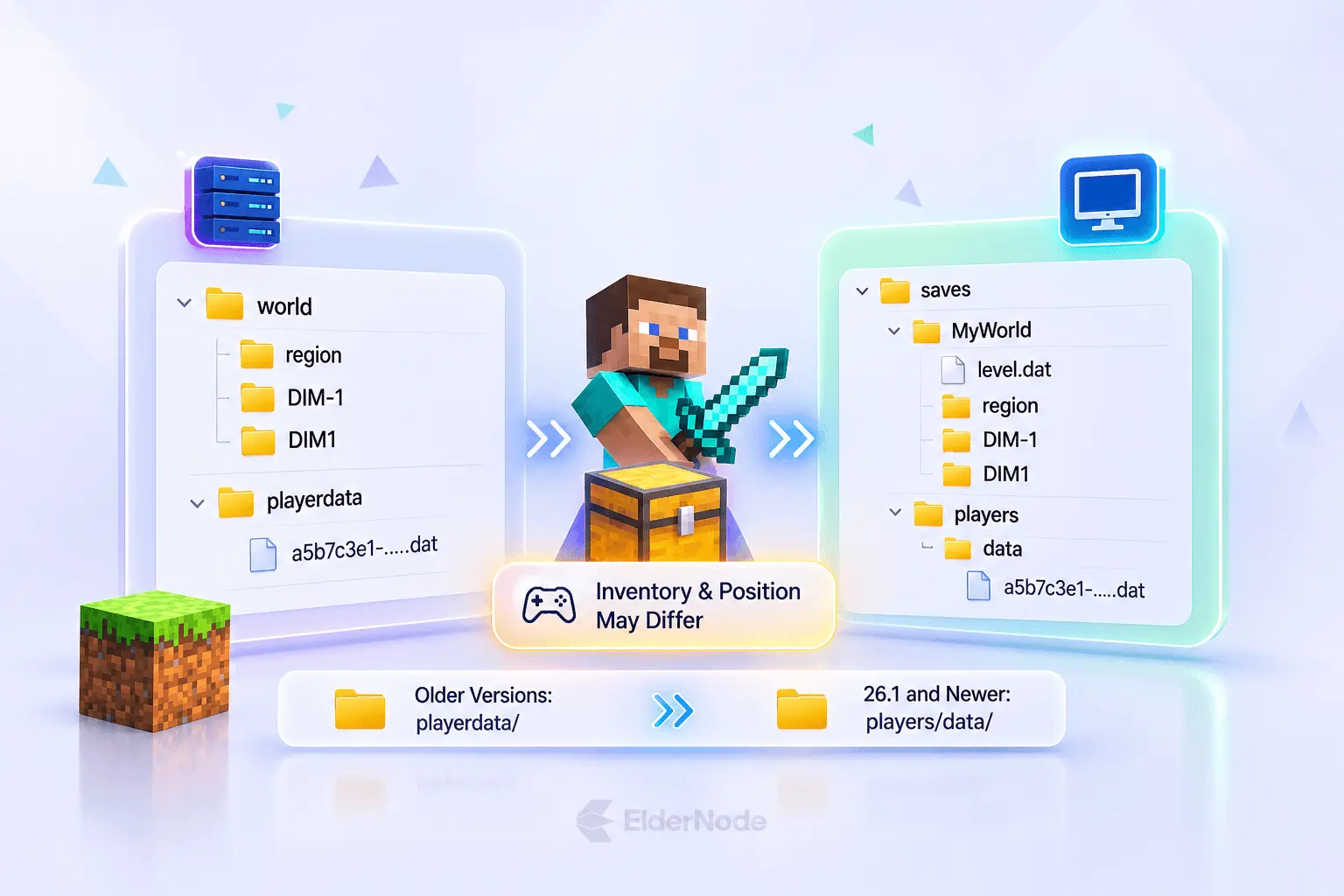
Keep the original until the transfer is verified
Once the world loads in Singleplayer, check your builds, Nether and End dimensions, and player data. Keep the original server backup until you’ve confirmed everything transferred correctly.