Special Offer



How to Install Kali Linux on Android



Most people think Kali Linux is something you only run on a laptop. It seems Android phones can handle it too. With the right setup, you can even install Kali Linux on Android and your phone becomes a surprisingly useful little device for learning cybersecurity, testing tools, and just experimenting with Linux on the go.
And honestly, it’s not as complicated as it looks at first. You can set everything up with apps like Termux or Linux Deploy without needing a huge amount of Linux experience. Take it step by step, and before long, you’ll have a portable Kali setup sitting right in your pocket.
What is Kali Linux and Why Install it on Android?
Ever wanted to play around with cybersecurity without lugging a laptop everywhere? That’s where Kali Linux on your Android comes in. It’s the same Linux distro pros use for hacking tests, but now it fits right in your pocket.
Why put Kali Linux on a phone in the first place? Honestly, because your phone can do way more than just sit there running social apps all day. You can learn how networking works, play around with security tools, test things in your own environment, and experiment whenever you’re bored or have some free time. And the best part is, it’s all sitting in your pocket already.
Here’s what’s cool about having Kali on your phone:
- Tons of hacking and security tools in one place
- You can test and learn anywhere, coffee shop, bus, wherever
In short, it turns your Android into a little playground for cybersecurity, and it’s a fun way to learn and experiment anytime you want.
Prerequisites: What You Need Before You Start
Before you jump into installing Kali Linux on your Android. First, make sure your phone isn’t running on fumes, check you’ve got enough storage and a bit of processing power to handle Kali alongside Android. You don’t need a beast of a phone, but enough room and juice is important.
Speaking of juice, plug it in or make sure it’s charged. You don’t want it dying halfway through. And yep, a stable internet connection is key, you’ll be grabbing files and packages, so flaky Wi-Fi, frustration.
In short, just have these ready:
- Enough storage
- Charged battery or plugged in
- Solid internet connection
Do that, and you’ll save yourself from the little headaches that pop up if you rush in unprepared.
Method 1: Install Kali Linux on Android Using Termux (No Root)
Alright, so if you don’t want to root your phone, Termux is the way to go. Honestly, it’s way easier than it sounds and works pretty smoothly.
First, grab Termux from the Play Store and open it. Update things so you’re not fighting outdated packages later. Then run this to get things ready:
pkg install wget curl proot -y
Next up, grab the Kali installer script. This part pretty much takes care of the hard work for you:
wget -O install-nethunter-termux https://offs.ec/2MceZWr
Make it runnable:
chmod +x install-nethunter-termux
And then just start it:
./install-nethunter-termux
After that, sit back and let it do its thing. It’ll download everything, set it up, and before you know it, Kali Linux is running on your phone.
From there, you can poke around, test tools, and just explore. Seriously, it feels kind of like your phone just leveled up into a mini hacking lab.
Method 2: Install Kali Linux on Android Using Linux Deploy (Root Required)
Alright, so if you don’t mind rooting your phone, Linux Deploy is another way to run Kali Linux. Rooting gives you total control, but yeah, warranty alert.
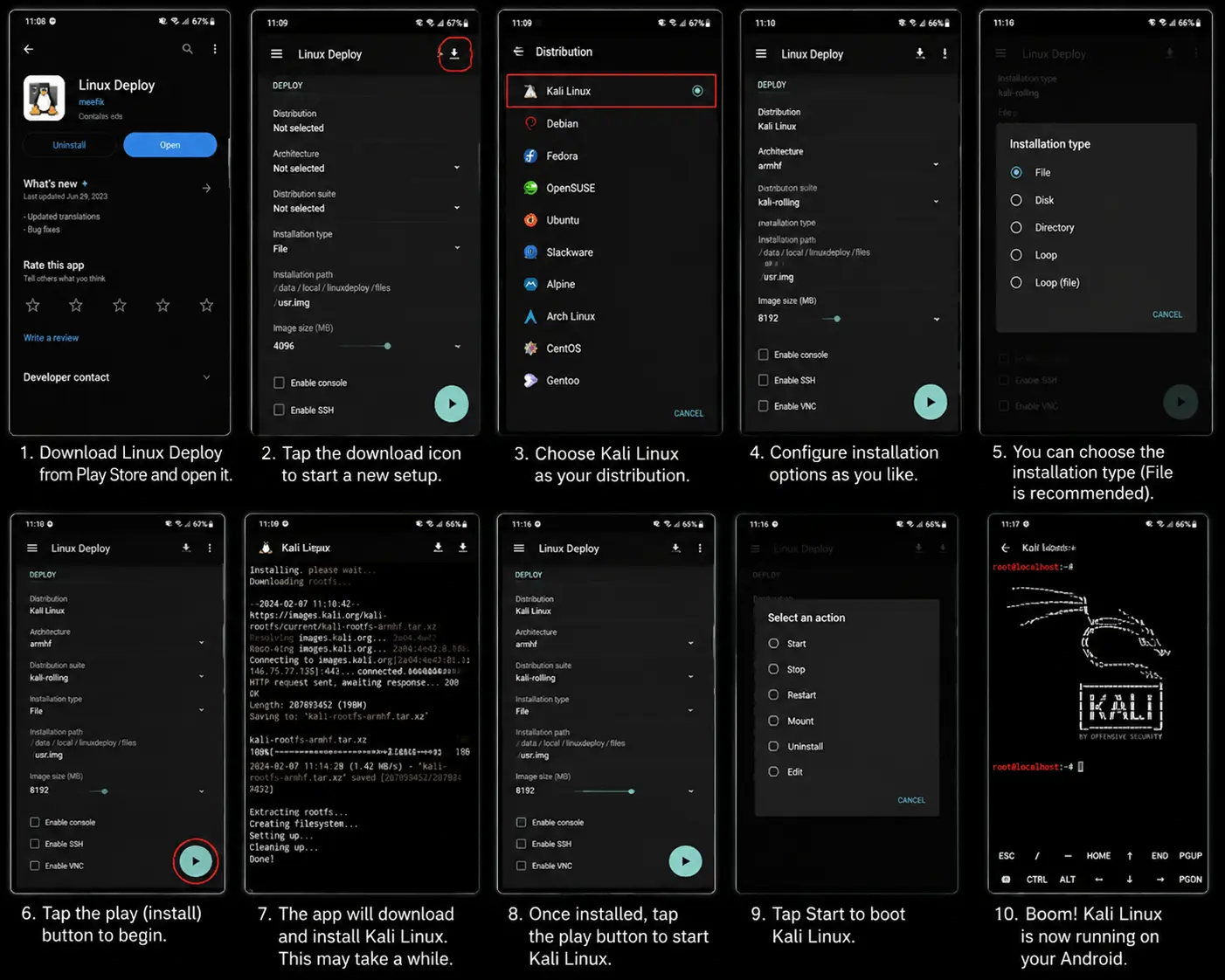
First, make sure your phone is rooted and there’s some free space. Then download Linux Deploy from the Play Store and run it.
Hit the little download icon to start a new setup. Choose Kali Linux as your distro. You can tweak things like where it installs or the environment type, whatever feels right.
Make sure your internet is solid. Then tap Install. The app will handle the heavy lifting: downloading all the files and setting up Kali.
Once it’s done, hit Start, and boom, your Kali Linux is live. Now you can dig in, explore tools, and play around.
Method 3: Install Kali NetHunter on Android
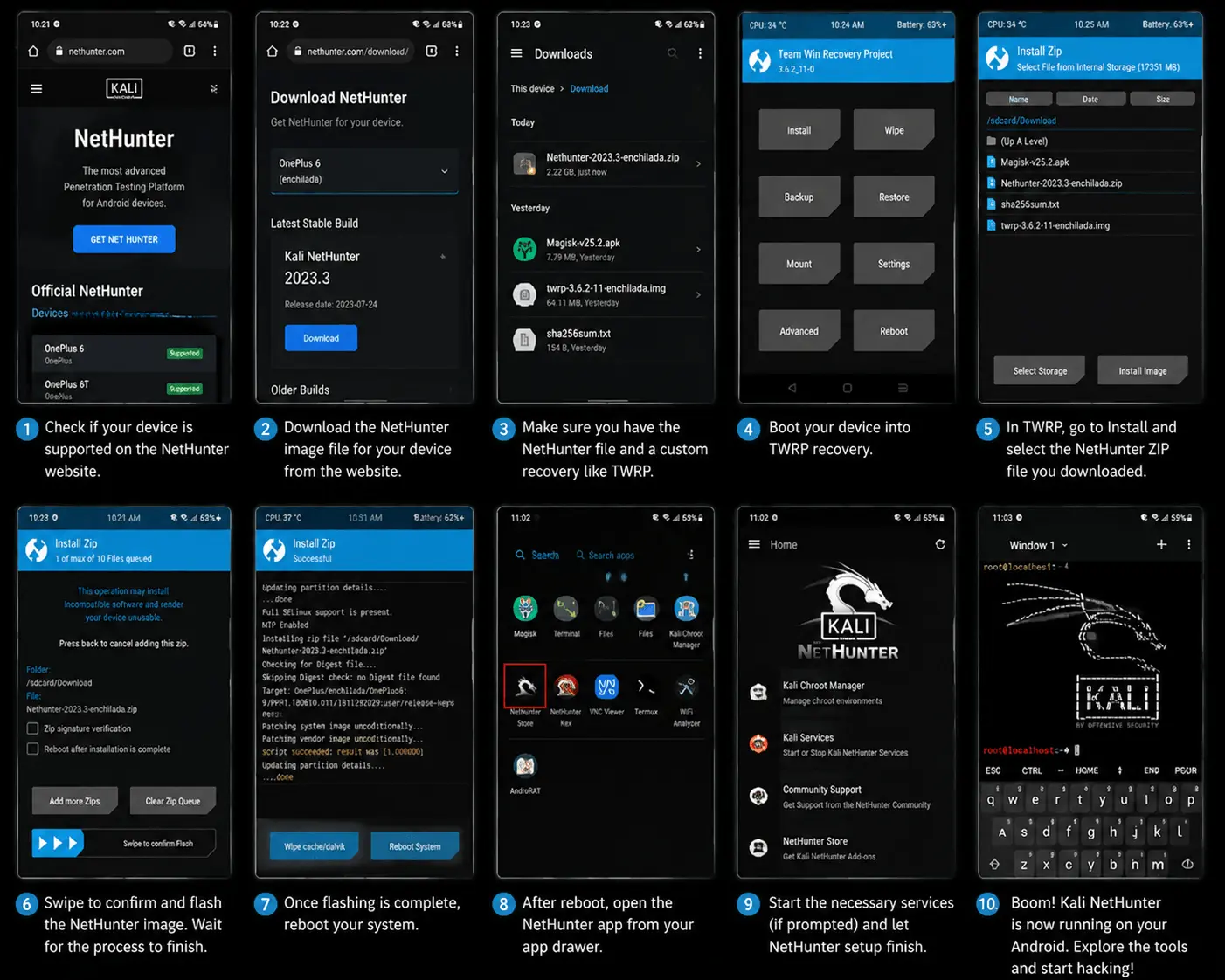
Step one: check if your phone can handle it. Go to the NetHunter website and see if your device is on the list. If it’s compatible, you’re golden, installation will be much smoother.
Next, you’ll need the NetHunter files and a custom recovery like TWRP. Yeah, this part sounds scary, but it basically lets you “flash” Kali onto your phone.
Boot into recovery, flash the image, follow the on-screen instructions, and don’t stress. It’s mostly just waiting for it to finish.
When it’s done, fire up the NetHunter app. Boom, you’ve got a mini hacking lab in your pocket. Explore the tools, mess around, learn stuff. It’s the full Kali experience without lugging around a laptop.
Quick mental checklist:
- Make sure your phone works with NetHunter
- Download the NetHunter files
- Install TWRP
- Flash the NetHunter image
- Open the app and start exploring
Once it’s up, your Android is no longer just a phone, it’s a tiny playground for security testing and learning.
Getting the Kali Linux Desktop Running on Android
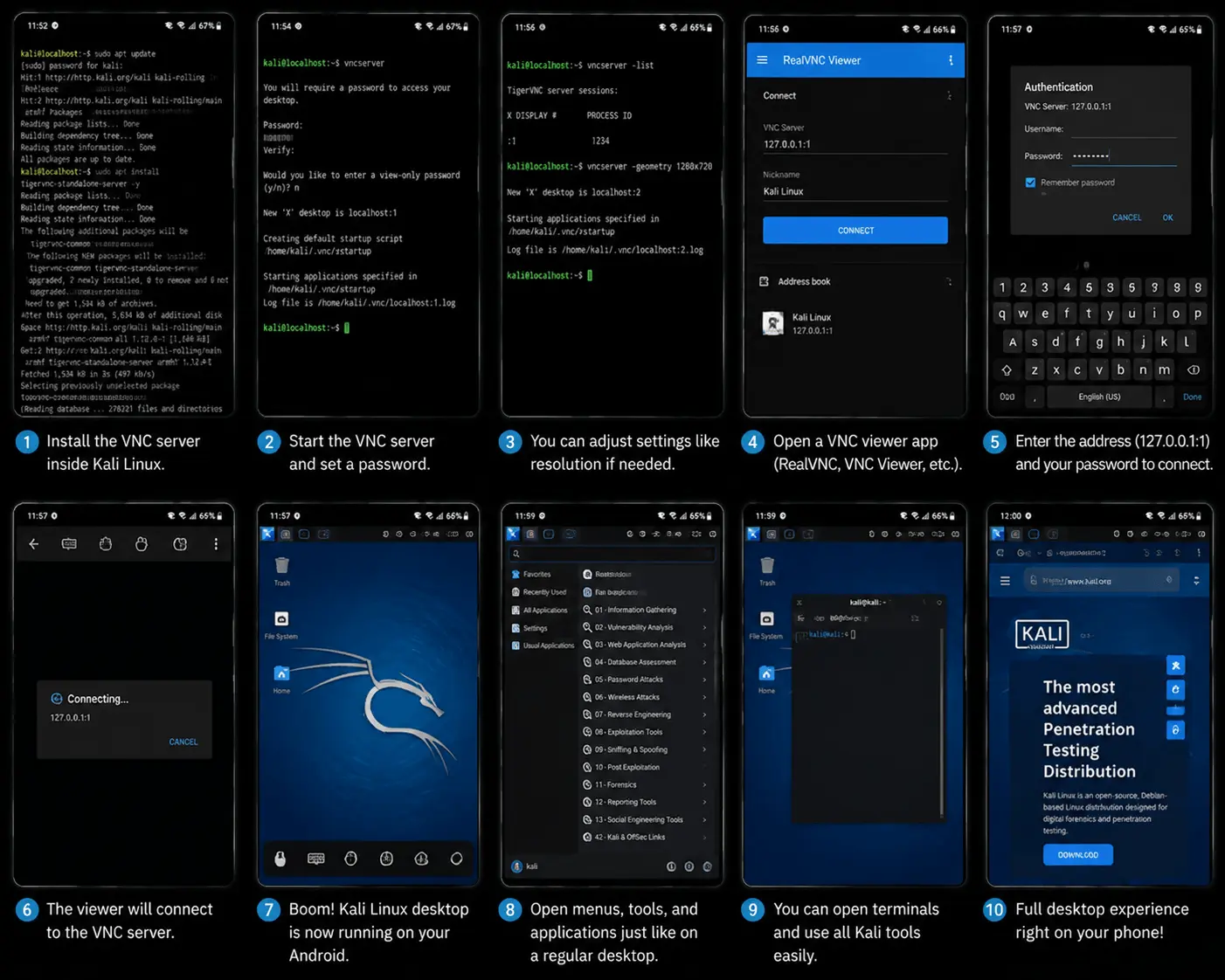
Alright, so you’ve got Kali Linux on your phone, nice! But staring at the terminal all day can get old fast. Good news: you can actually run a full desktop environment and it feels way more like a proper computer.
The trick is a VNC server. It’s what lets you open up the Kali desktop right on your Android with a VNC viewer app.
First, install the VNC server inside Kali and set a password you’ll actually remember. After that, start the server, adjust the settings if you want, then open your VNC viewer app and connect to it. Once it loads, you’ll see the Kali desktop right on your phone screen.
Once it’s running, navigating Kali feels so much easier. Clicking around tools, opening apps, exploring menus, it suddenly feels like a real computer, not just a terminal.
Using Android Hacking Tools with Kali Linux
Alright, this is the part most people install Kali for in the first place, the tools. Once everything’s running, your phone suddenly feels a lot less like a normal Android device and a lot more like a pocket-sized security lab.
You can scan networks while sitting in a café, test stuff on your own setup, or just learn how these tools work without dragging a laptop around all day. That’s honestly the fun part of having Kali on a phone.
Some tools you’ll probably end up trying first:
- Nmap for checking what’s alive on a network
- Metasploit if you want to explore how security flaws are tested in a safe lab environment
- Aircrack-ng for wireless security testing
- Hydra for password testing experiments
And yeah, seeing these run on a phone the first time feels kinda ridiculous in a good way.
Just keep it ethical. Mess with your own lab, your own devices, or systems you actually have permission to test. Kali is awesome for learning, but being careless with these tools is a quick way to get yourself into trouble.
Tips, Troubleshooting, and Best Practices
One thing that helps a lot? Make sure your phone actually has enough free space and isn’t struggling for memory. Kali can run on Android just fine, but older phones tend to get grumpy pretty quickly.
Also, keep backups. It only takes one bad tweak or broken update to make you wish you had one. And don’t start installations with 5% battery unless you enjoy suffering.
Half of learning Kali is figuring out why something stopped working and fixing it yourself. Weirdly enough, that’s also the fun part.
Legal and Ethical Considerations
Quick reminder before you start playing around with Kali tools: don’t test random networks or devices just because you can. If it’s not yours, or you don’t have permission, no need any work.
The safest way to learn is simple:
- Practice on your own devices
- Build a small test lab at home
- Use the tools for learning and security testing
Kali is great for learning cybersecurity. Just use it responsibly and you’ll avoid a lot of unnecessary problems.
Conclusion
Getting Kali Linux running on Android is honestly a fun project if you’re into cybersecurity or just curious about how these tools work. Once everything is set up, your phone becomes way more than just a phone, it turns into a portable space for learning, testing, and experimenting.
Take your time, don’t rush the setup, and stick to ethical use. The more you explore Kali Linux, the more comfortable you’ll get with networking, security tools, and Linux itself.