Special Offer




How to Fix DNS Server Not Responding on MikroTik Router
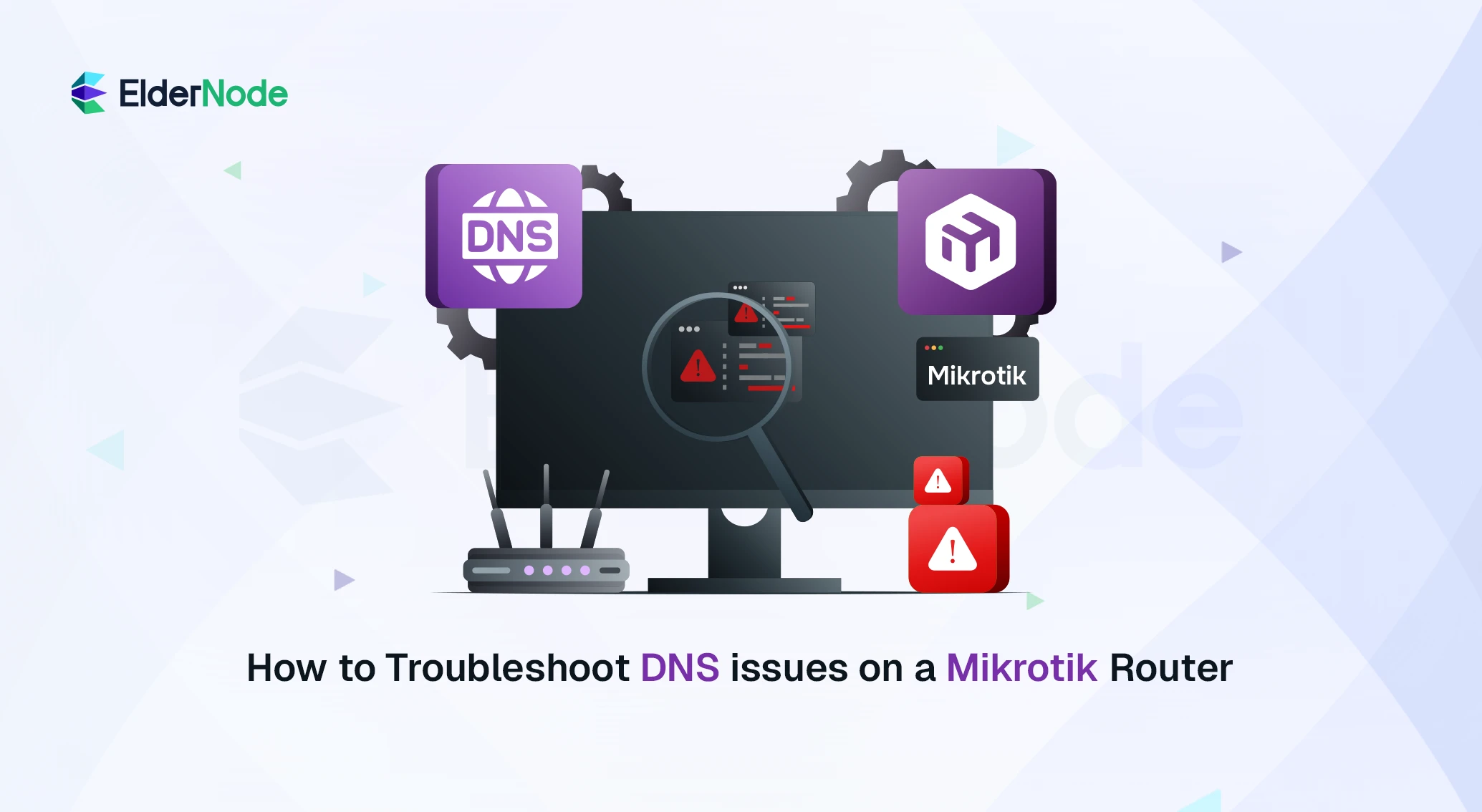



Nothing is more annoying than seeing your connection is active, but none of your sites will actually load. If you’re getting a ‘DNS server not responding’ error on your MikroTik, it’s usually just a simple mix-up in your settings, a routing hiccup, or maybe a firewall rule that’s being a bit too strict. In this guide, I’ll show you how to troubleshoot DNS issues on a Mikrotik so you can hunt down the problem and get everything back to normal.
What Causes DNS Issues on a MikroTik Router
On MikroTik, DNS issues usually happen for simple reasons, wrong DNS settings, no upstream DNS, firewall blocking requests, or just cache issues in RouterOS.
DNS is basically what translates domain names into IP addresses. On MikroTik routers, RouterOS handles this job by acting as both a resolver and a cache for whatever clients are connected to it. So when your DNS server on the router starts giving you trouble, there’s a handful of usual suspects, could be a misconfigured DNS setting, a hiccup with the upstream resolver, a firewall rule getting in the way, or just a plain old routing issue.
Identify If the Issue Is DNS or Connectivity Related
DNS errors should be confirmed by checking router-level configuration. First, verify whether the problem is related to DNS resolution or general network connectivity. A device may show DNS errors even when the actual issue is routing, firewall, or WAN connectivity.
How DNS Works in MikroTik RouterOS
Here’s a neat thing about MikroTik RouterOS, it’s not just a DNS client, it doubles as its own local cache server too. Basically, it takes DNS queries, sends them out to upstream resolvers like Google or Cloudflare, and then saves the answers locally so the next lookup is faster. Only problem is, if those DNS settings get messed up, clients can suddenly lose the ability to load websites, even when the internet connection’s working just fine.
How to Configure DNS on MikroTik Router
/ip dns set servers=8.8.8.8,1.1.1.1 allow-remote-requests=yes
/ip dns print
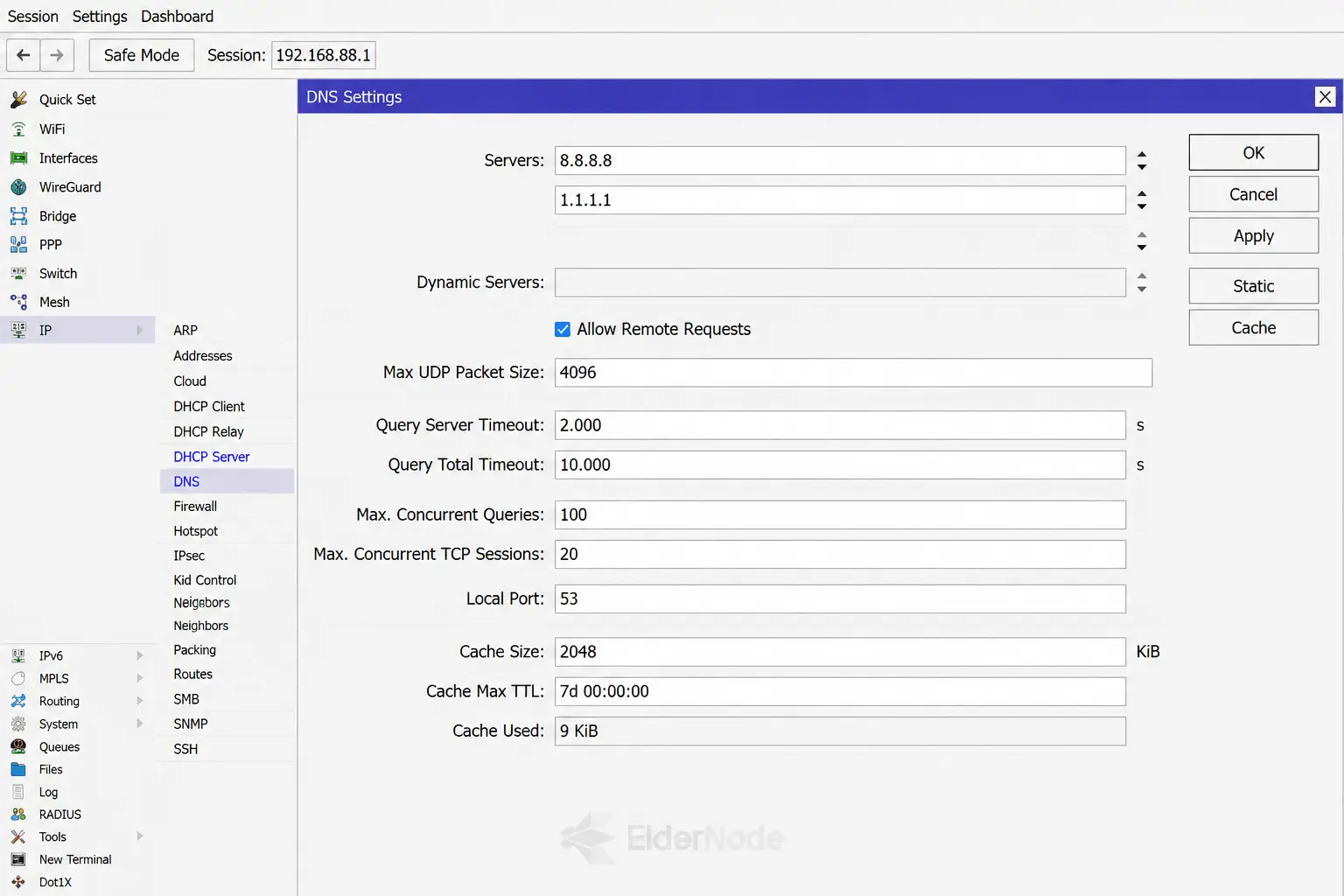
8.8.8.8 Google DNS
1.1.1.1 Cloudflare DNS
Check MikroTik Firewall Rules
/ip firewall filter print
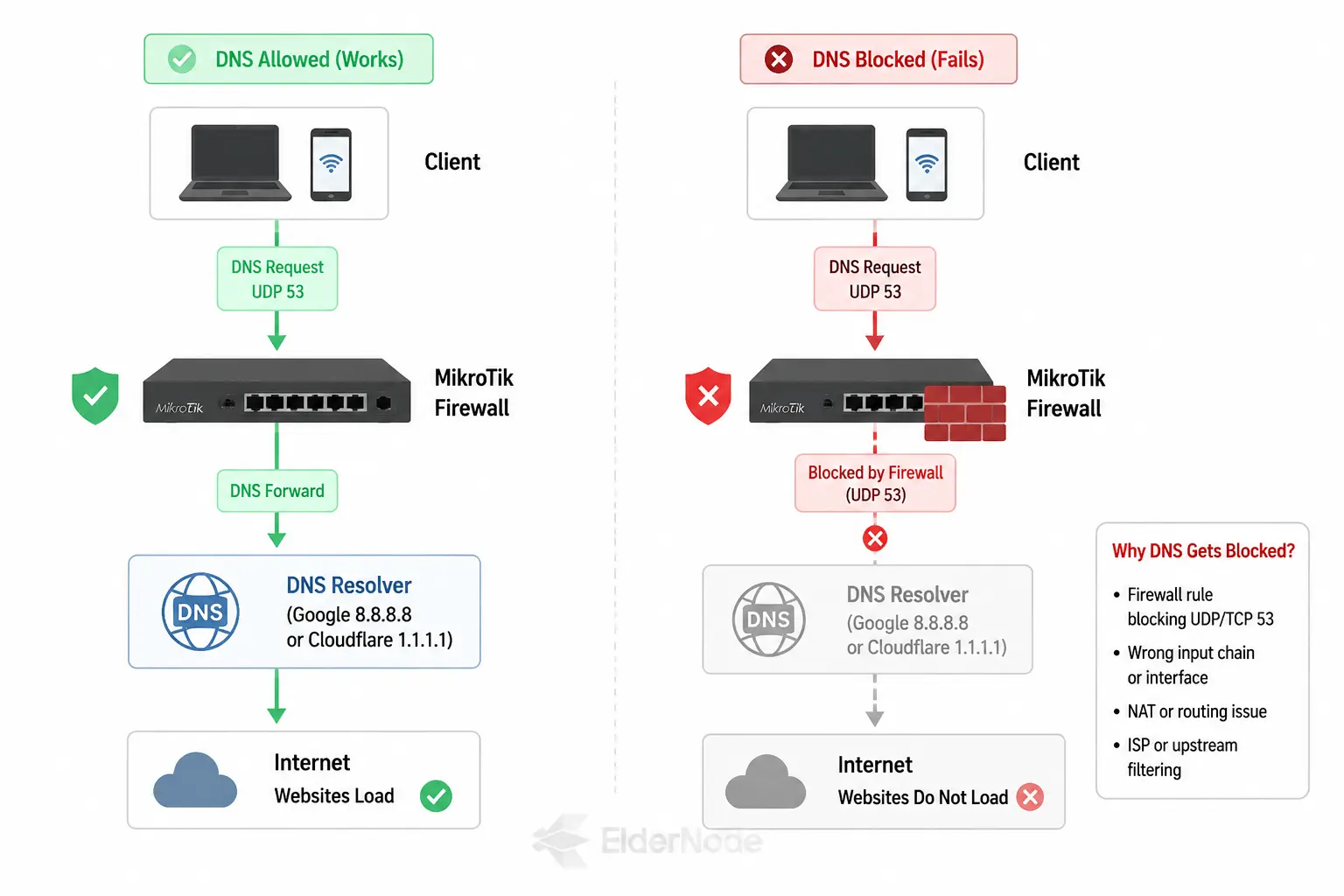
Make sure firewall rules are not blocking DNS traffic. DNS requests typically travel over UDP port 53, though sometimes they’ll use TCP port 53 instead.
How to Fix a DNS Server Not Responding Error on MikroTik
Got a “DNS server not responding” error and can’t shake it? Time to put on your detective hat and dig into what’s really going on. The quickest way to start troubleshooting is with nslookup, it’ll help you figure out pretty fast whether DNS is the actual culprit, or if something else on your network is to blame.
Use Nslookup for DNS Diagnosis
You can use it to verify your IP address and the DNS server you are on. If you want to find the IP address of a host, just enter the command prompt and type nslookup followed by your domain. This will probably return a local server. After that, it’s a good idea to look at the common DNS record types that can cause issues.
An A record is what connects a domain to an IP address. You can check it with nslookup and your domain. It just shows if the domain is pointing to the right place. AAAA is the same thing, but for IPv6.
Real-World MikroTik DNS Problem Example
In many real MikroTik deployments, DNS may appear to be working but websites still do not load. This usually happens when DNS is fine, but routing or firewall rules are blocking things somewhere along the way.
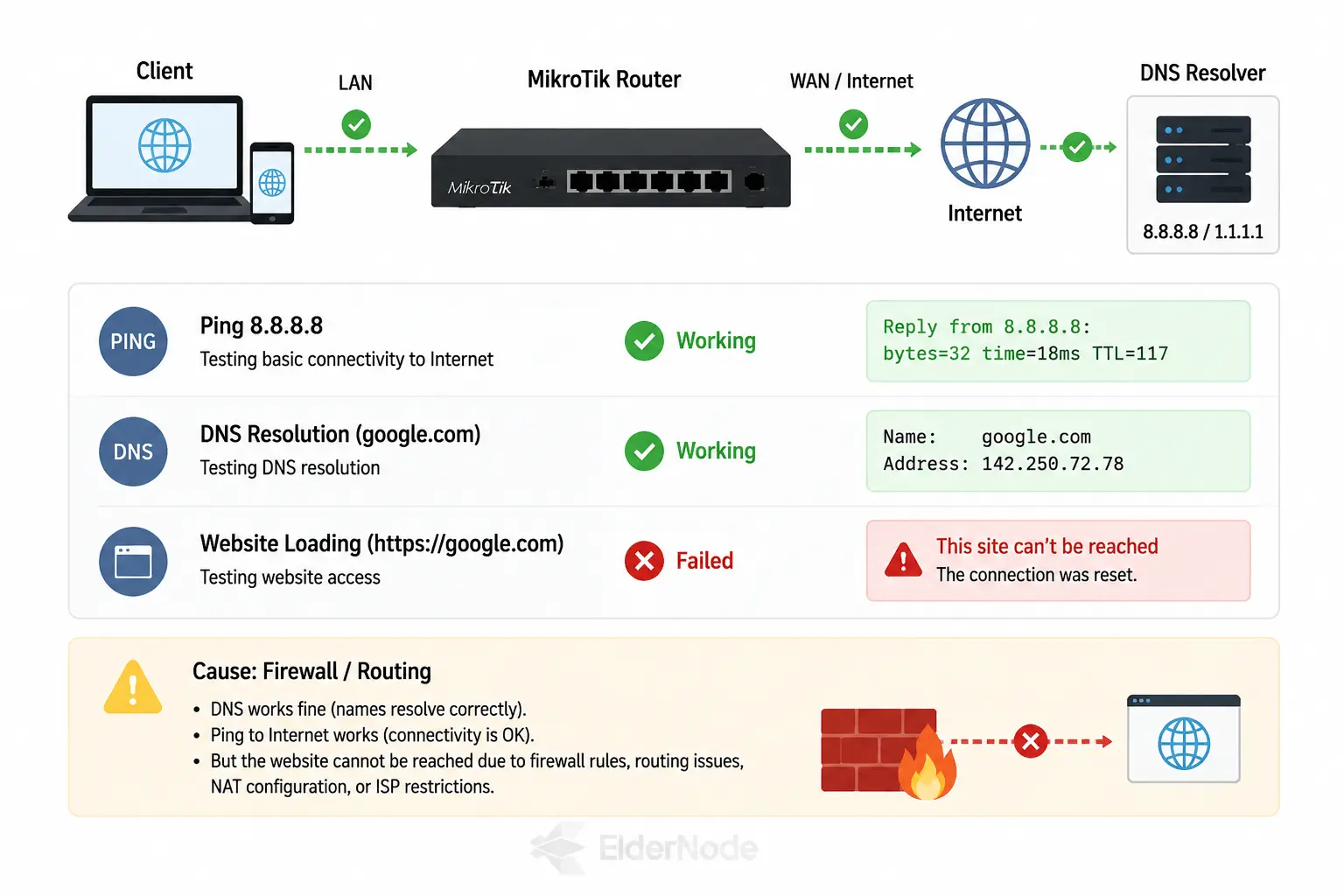
DNS is resolving google.com fine, and ping to 8.8.8.8 is working.
But websites still won’t open in the browser.
In cases like this, it usually isn’t a DNS problem, it’s more likely something in routing or a firewall rule causing the issue.
Check DNS Directly from MikroTik Router
/ip dns print
/ip dns cache print
/ping 8.8.8.8
/ping google.com
Advanced DNS Debug Tools
/tool traceroute 8.8.8.8
These tools basically help you narrow down whether it’s a DNS resolution problem or a routing issue you’re dealing with.
Flush DNS Cache on MikroTik Router
To flush DNS cache on MikroTik, use this:
/ip dns cache flush
How to Prevent DNS Issues on MikroTik
- Use reliable DNS (Google / Cloudflare)
- Avoid ISP DNS only
- Enable DNS caching
- Monitor routing stability
- Configure backup DNS servers
Conclusion
Most DNS issues on MikroTik boil down to a handful of usual suspects: misconfigured resolver settings, firewall rules getting in the way, routing problems, or something off with the cache. If you work through it step by step, checking your DNS config, testing connectivity, and reviewing your RouterOS rules, you’ll usually spot the root cause pretty quickly and get it fixed.