Special Offer




How to Clear Memory Cache on Ubuntu and Debian



Your system’s been running a while, things get a little slower, memory cache is usually why. It holds onto the stuff you use a lot so the processor doesn’t have to go digging through RAM every time. Works great, until it doesn’t. Sometimes you need that memory back for something else, or you’re stuck debugging some weird memory issue and need a clean slate. So here’s how you clear the memory cache, on both Ubuntu and Debian.
(If you manage Linux servers and need reliable infrastructure, Eldernode provides scalable Linux VPS solutions for developers, administrators, and businesses.)
Quick rundown on what cache memory even is: it’s small, it’s fast, and it sits right next to the processor. Its whole job is holding data and instructions you reach for often, so the CPU doesn’t waste time going all the way to main memory (RAM) for them. Less waiting, faster system. Simple as that. But yeah, every so often, clearing it out is just what needs to happen.
Check Memory Usage Before Clearing Cache
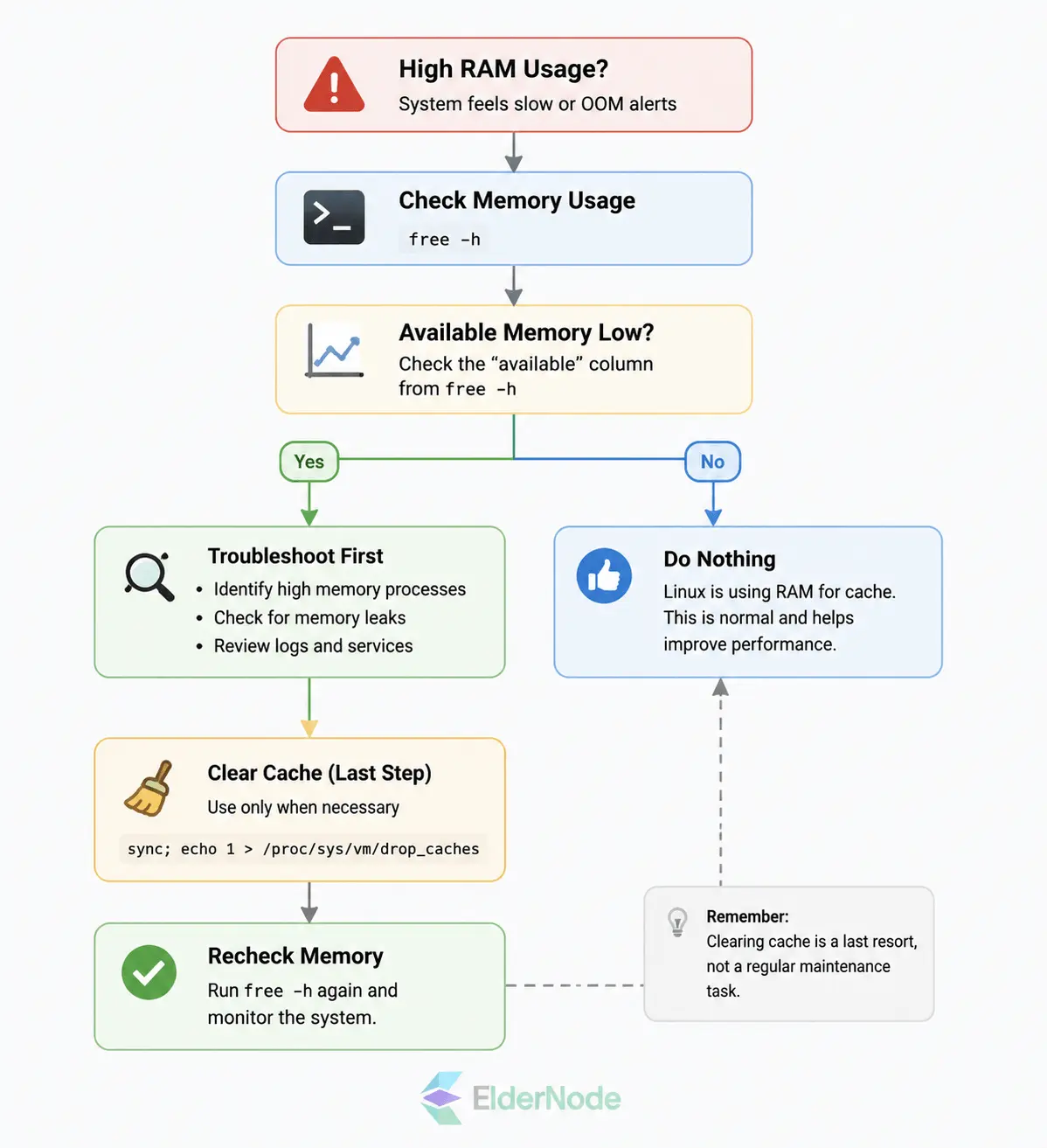
Don’t clear the cache blindly, check your memory usage first. Linux grabs unused RAM for caching whenever it can, so a high cache number on its own isn’t a red flag. That’s just how the system works.
Run this to see where things stand:
free -h
A few numbers matter here:
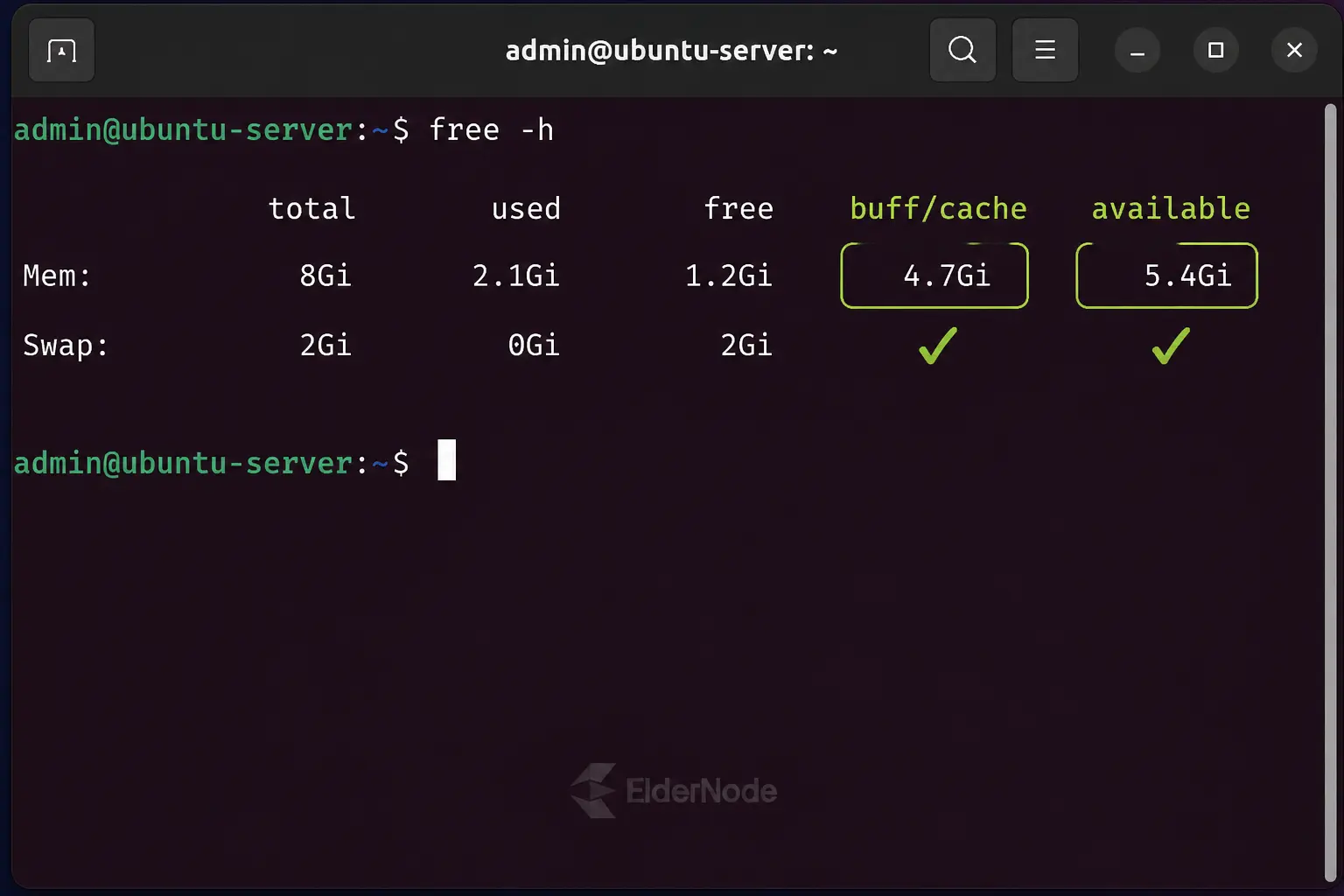
Used – what your apps are actually using right now
Available – what’s still free for new processes
Buff/cache – what Linux has set aside for filesystem caching
If “available” looks fine, leave the cache alone. You don’t need to touch it.
Clear Memory Cache on Ubuntu and Debian
You can manually clear Linux cache without stopping running applications or services. However, clearing cache may temporarily affect performance because cached data needs to be rebuilt.
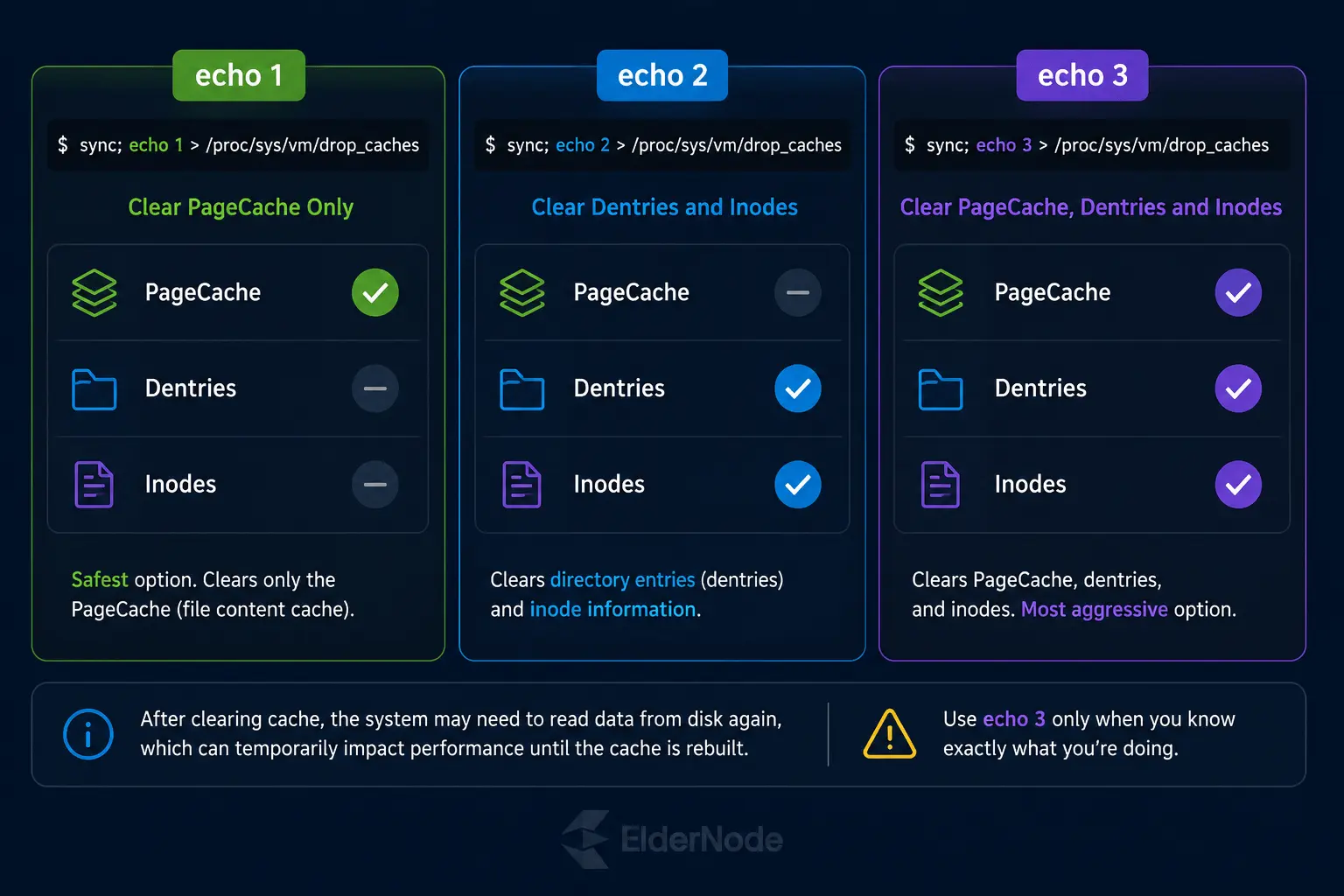
1- To clear PageCache only, run the following command:
sync; echo 1 > /proc/sys/vm/drop_caches
2- To clear dentries and inodes, enter the command below:
sync; echo 2 > /proc/sys/vm/drop_caches
3- To clear pagecache, dentries, and inodes, execute the following command:
sync; echo 3 > /proc/sys/vm/drop_caches
Please be aware that synchronizing will cause the file system buffer to be flushed. The shell waits for each command in the sequence to finish before executing the next command. Writing to drop_cache cleans the cache without killing the application/service and the echo command does the writing to the file.
The first command we introduced is the safest in enterprise and production and is the best to use if you have to clear your disk cache. This command only clears the PageCache. It is better not to use the third option command until you know what you are doing, because this command clear pagecache, dentries, and inodes.
When a program requests a resource from a disk, the kernel first checks the page cache to see if it already has a copy of the data. If the data is present in the cache, the kernel can serve the request directly from memory, resulting in faster access times compared to accessing the physical disk.
Once you clear or flush the cache, though, that data’s gone from memory, the kernel doesn’t have it sitting there ready anymore. So the next time something asks for it, the system has to go back to disk to fetch it, which can be noticeably slower.
Automating Cache Clearing with Cron (Use Carefully)
In Linux, the kernel utilizes a disk cache to improve performance by storing frequently accessed data in memory. This cache is known as the page cache, and it holds copies of data from files that have been read from or written to disk.
You can automate cache clearing with cron, sure, but on a production server, it’s usually a bad idea. Linux already does a good job managing memory on its own, clearing it too often just means more disk activity, and that ends up slowing things down, not speeding them up.
Save the automated approach for specific situations: troubleshooting, benchmarking, testing. Not something you want running on a schedule for no real reason.
You can create a shell script that automatically clears the RAM cache daily at a certain hour via a scheduled cron job. So, for this, you need to create the clearcache.sh shell script and add the following lines:
For production environments, using echo 1 is recommended because it only clears PageCache and has less impact than clearing all cache types.
!/bin/bash
sync
echo 1 > /proc/sys/vm/drop_caches
echo "Page cache cleared successfully"
Give it execute permission so you can actually run it:
chmod 755 clearcache.sh
Now, if you want this running automatically instead of doing it by hand every time, open up crontab:
So, run the command below to open crontab for editing:
crontab -e
Add this line, it’ll run the script every day at 2 AM:
0 2 * * * /path/to/clearcache.sh
Save it, close the file, and that’s it, it’s set.
Clear Swap Space on Ubuntu and Debian
Before you disable swap, double-check that you’ve actually got enough RAM to spare. On smaller VPS instances especially, pulling that swapped data back into memory can put extra strain on things.
To clear Swap space, just run the below command:
swapoff -a
swapon -a
Next, you should make a proper script to clear RAM Cache and Swap Space by combining both above commands into one single command:
sync && echo 1 > /proc/sys/vm/drop_caches && swapoff -a && swapon -a && printf '\n%s\n' 'Cache and Swap Cleared'
Lastly, check the cache after running the script using the command below:
free -h
Is Clearing Linux Cache Necessary?
Not usually. Linux fills up spare memory with cache because it helps disk access run faster, that’s just how it’s designed to work, not a problem. The only time you’d really want to clear it by hand is when you’re trying to track down a slowdown, or you need a clean state to test something.
Conclusion
So that’s it, clearing the memory cache on Ubuntu and Debian. Nothing complicated about it, but it can genuinely help if your system’s dragging or you’re dealing with some memory issue you just can’t figure out. Run through the steps above and you’ll get that memory back.