Special Offer




How to Get to Crafty Password Linux



First things first, before you type a single command, make sure the server you’re about to dig into is actually yours, or that you’ve got someone’s explicit okay to be there. It’s a small step, easy to skip, but it’s the one that matters most. If you’re wondering how to get to crafty password linux access, it’s crucial to follow security guidelines.
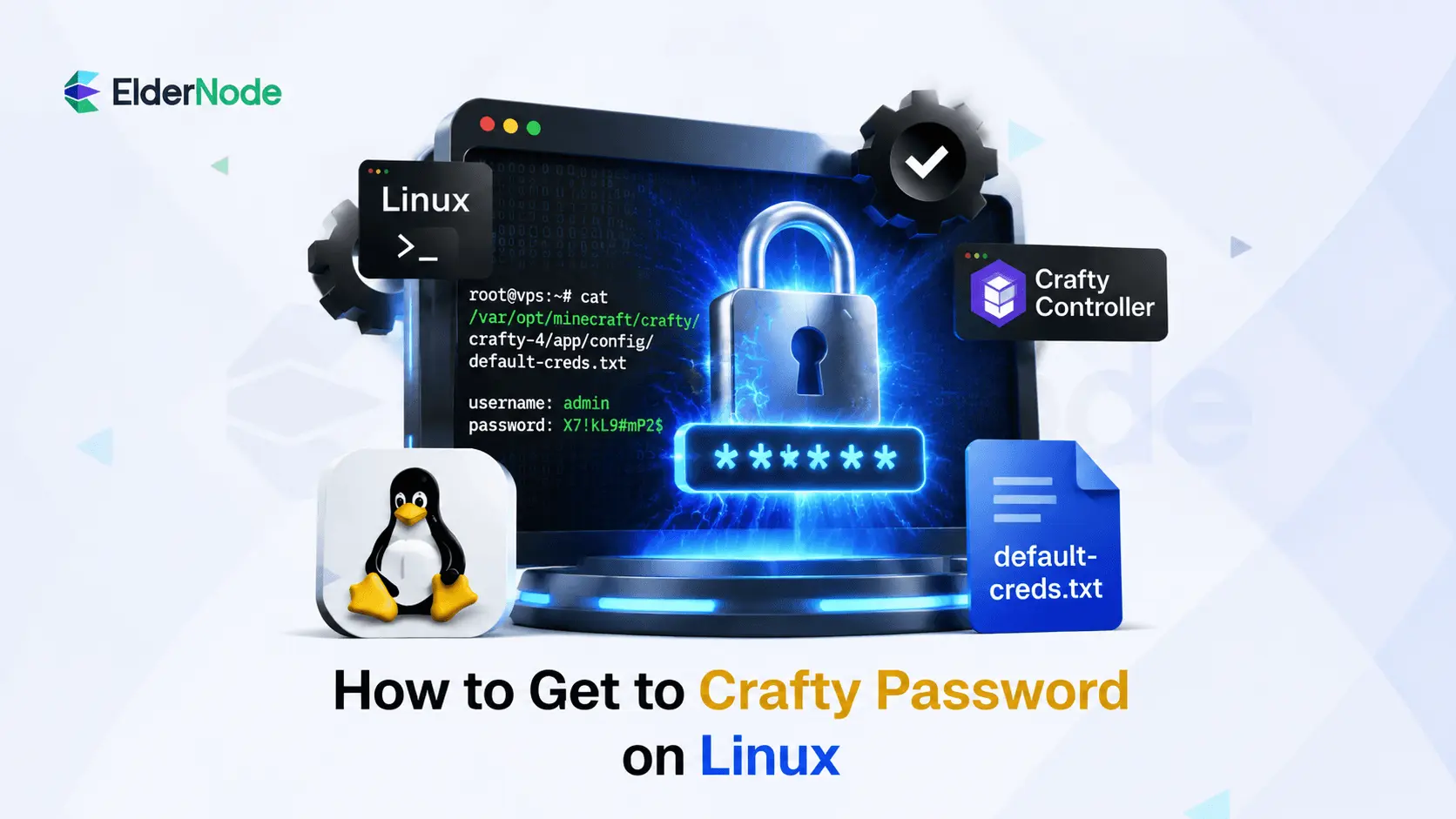
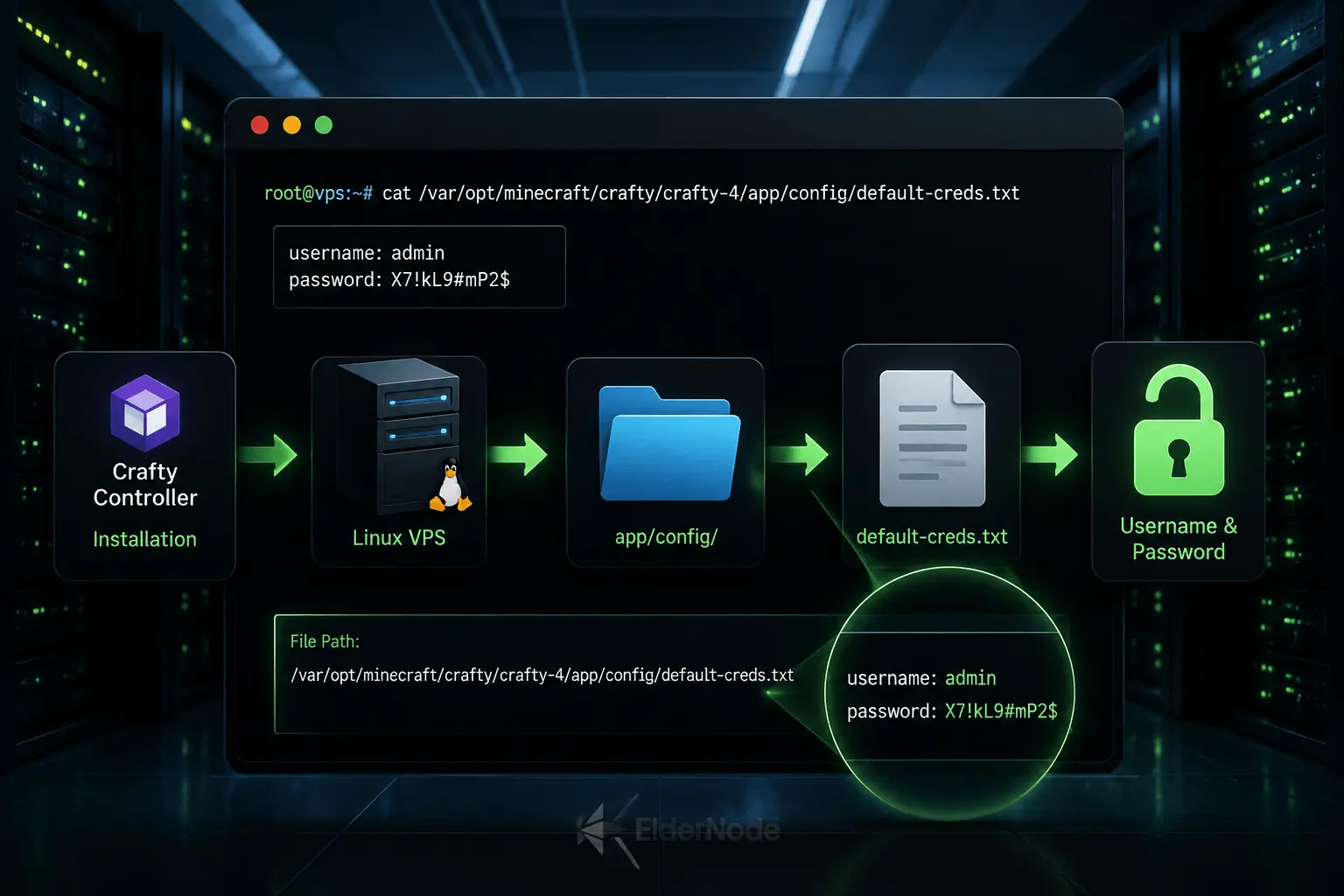
When Crafty Controller finishes installing, it quietly tucks away a default username and password inside this file:
/var/opt/minecraft/crafty/crafty-4/app/config/default-creds.txt
Grab those credentials, log in, and change the password immediately. This isn’t a suggestion, it’s really a rule.
Running an Eldernode Linux VPS? You’ll be doing all of this straight from the terminal, with full root access in hand, which is exactly what you need to get Crafty up and running the right way.
Step 1: SSH into your VPS
Open a terminal on your computer then please connect to your Linux VPS. Replace the placeholders with your real username and server IP:
ssh username@your-server-ip
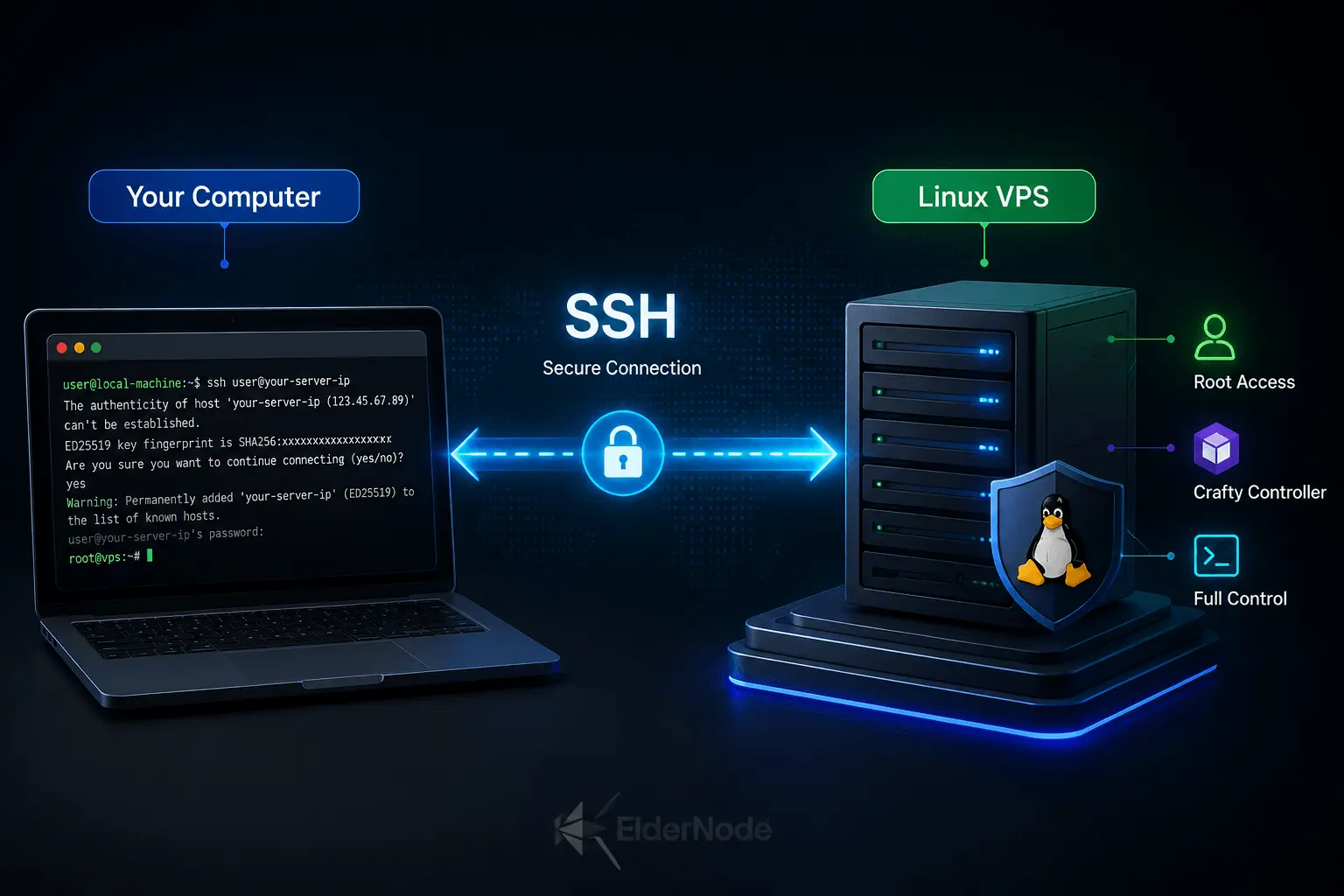
If you’re logging in with a non-root account, just make sure that user actually has sudo privileges, otherwise you’ll hit walls later. Crafty’s own installation docs assume you’re working with a sudo-capable user who’s comfortable on the command line, so we’re sticking with that same setup here.
Once you’re in, take two seconds to double check you actually landed where you meant to:
hostname
And while you’re at it, check who you’re logged in as:
whoami
Small step, but it saves you from a surprisingly common headache, hunting for Crafty’s password on the wrong server, or worse, inside the wrong container, and wondering why nothing matches up.
Step 2: Check if Crafty landed in the default location
First things first, please open a terminal and connect to your server. Swap in your actual username and server IP here:
cd /var/opt/minecraft/crafty
To confirm, just run:
ls /var/opt/minecraft/crafty
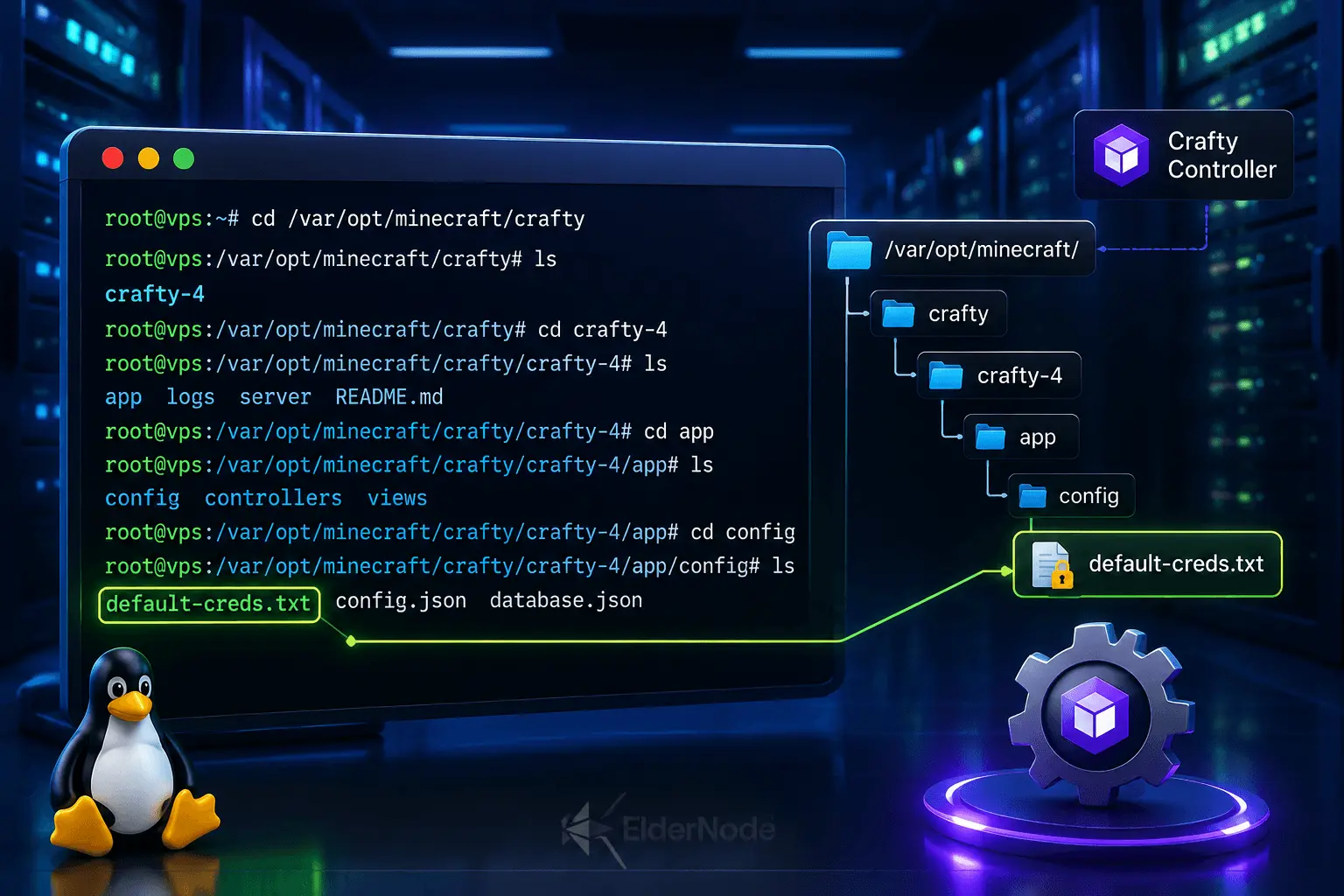
If you spot a crafty-4 folder in the output, you’re good, that’s the default path. If you installed Crafty somewhere custom, you’ll need to poke around in that directory instead.
Assuming it’s a default install, the file you’re after is:
/var/opt/minecraft/crafty/crafty-4/app/config/default-creds.txt
This is usually the answer when people search things like “how to get to crafty password linux” or “crafty password linux” right after a fresh install.
Step 3: View the default Crafty credentials
Run this command:
sudo cat /var/opt/minecraft/crafty/crafty-4/app/config/default-creds.txt
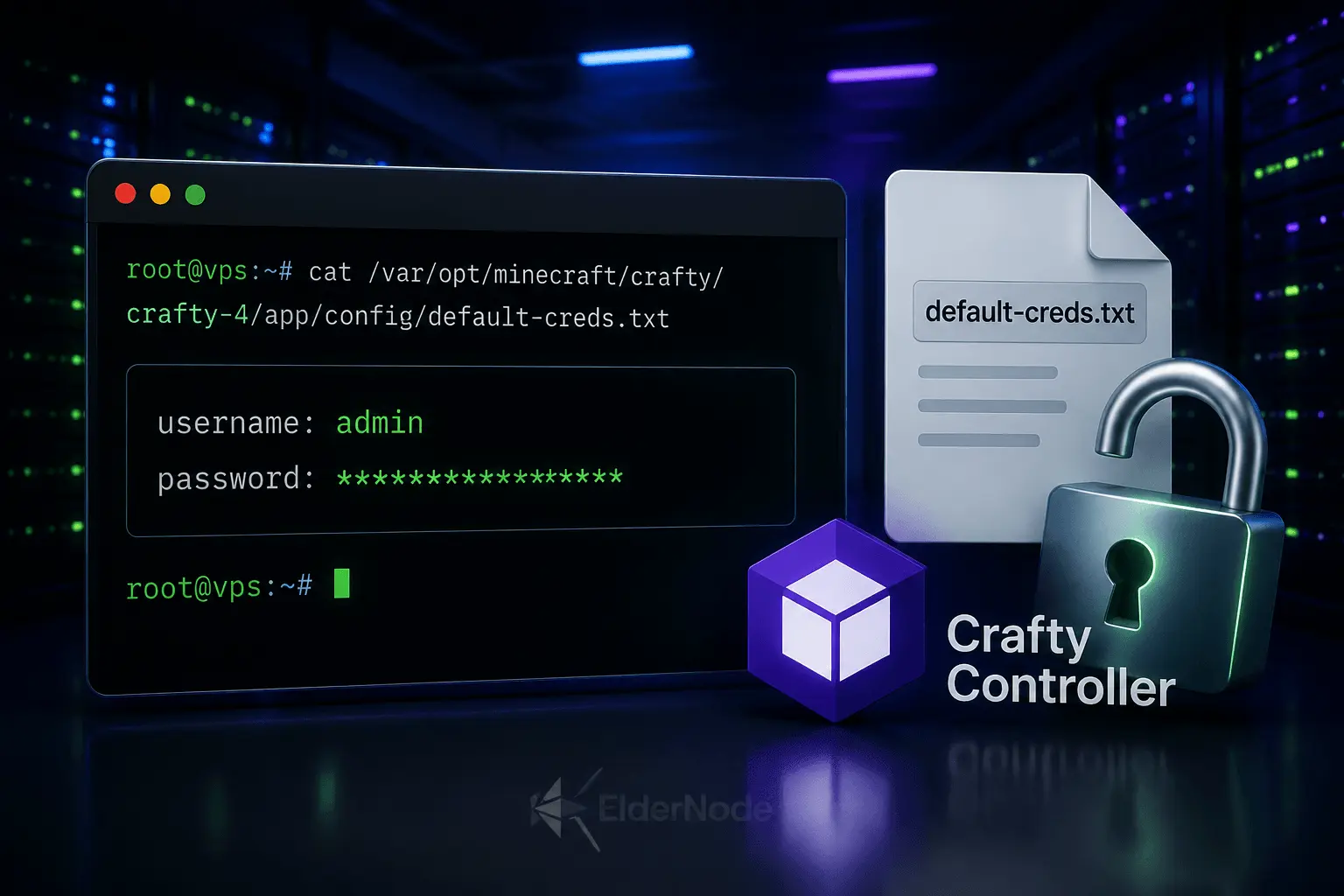
You should see the auto-generated username and password Crafty created for your first admin login. Turns out this is the exact command Crafty’s own documentation points to for Linux installs sitting in the default path.
Copy the password carefully. And if you’re pasting it into the Crafty login page from your terminal, double-check you haven’t picked up any stray spaces before or after it, that kind of thing trips people up more often than you’d think.
Step 4: When Crafty decides to hide from you
So the default path came up empty. That happens more often than you’d expect, especially if someone installed Crafty manually or shuffled things around at some point along the way. No panic needed, though. Your system knows where the file is, it’s just a matter of asking nicely.
Try this:
sudo find / -name default-creds.txt 2>/dev/null
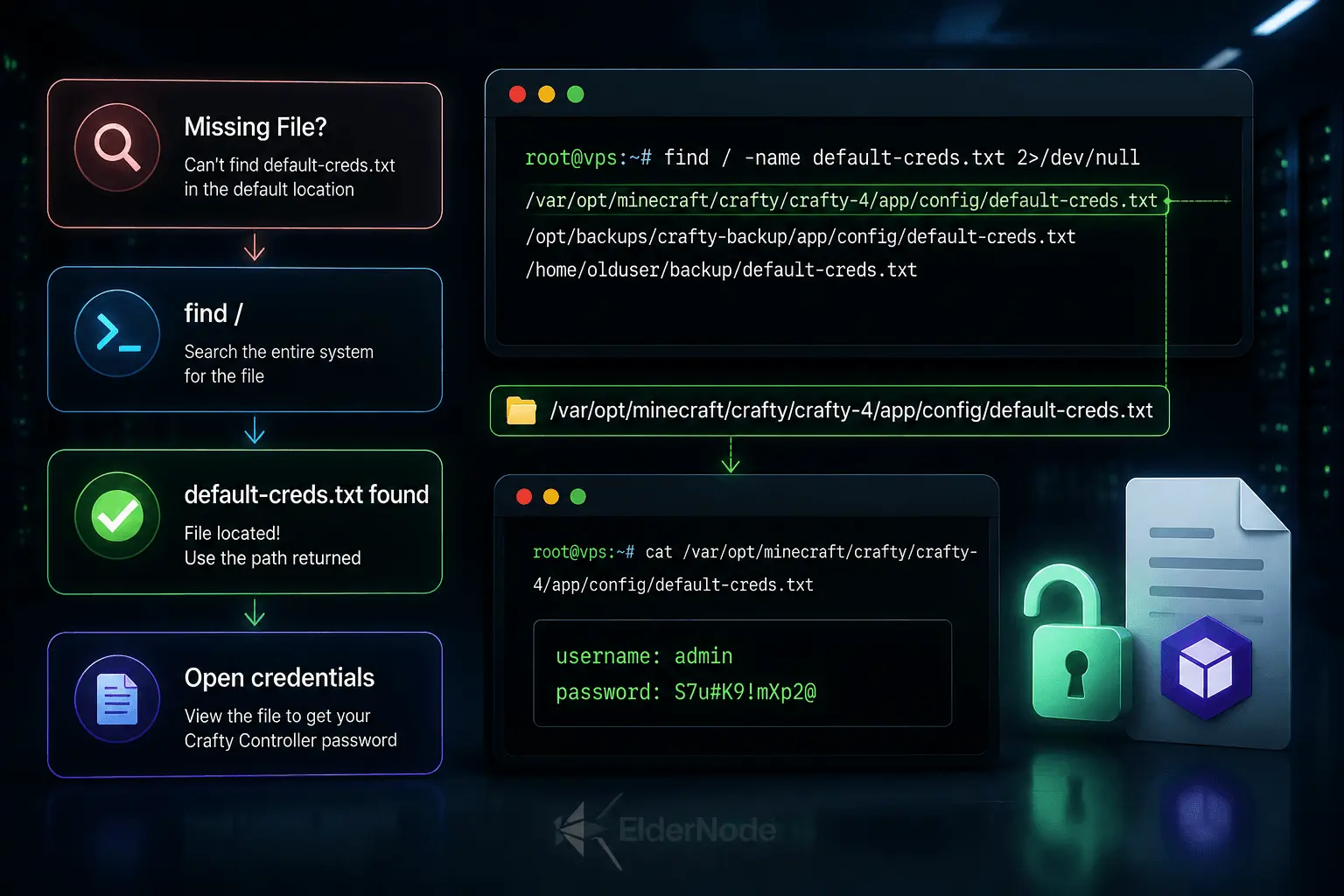
Give it a moment, larger servers take a bit longer to search through everything. Once it returns a path, open the file the same way you did before:
sudo cat /path/to/crafty/app/config/default-creds.txt
Here’s where it gets a little tricky: sometimes the search turns up more than one match. Maybe there’s an old installation sitting around from a previous setup, or a backup someone forgot to clean up. Don’t just grab whichever one shows up first, that’s a rookie mistake. You want the file living inside the Crafty instance that’s actually running right now.
So how do you know which one that is Really? Ask Crafty itself.
systemctl status crafty
This gives you a quick snapshot of what’s active. But if you want the real details, the working directory, the exact command it’s launching from, dig one level deeper:
sudo systemctl cat crafty
Somewhere in that output, you’ll spot the path Crafty is actually running from. Follow that, and you’ll land exactly where you need to be, no guesswork, no wrong turns.
Step 5: Open the Crafty login page
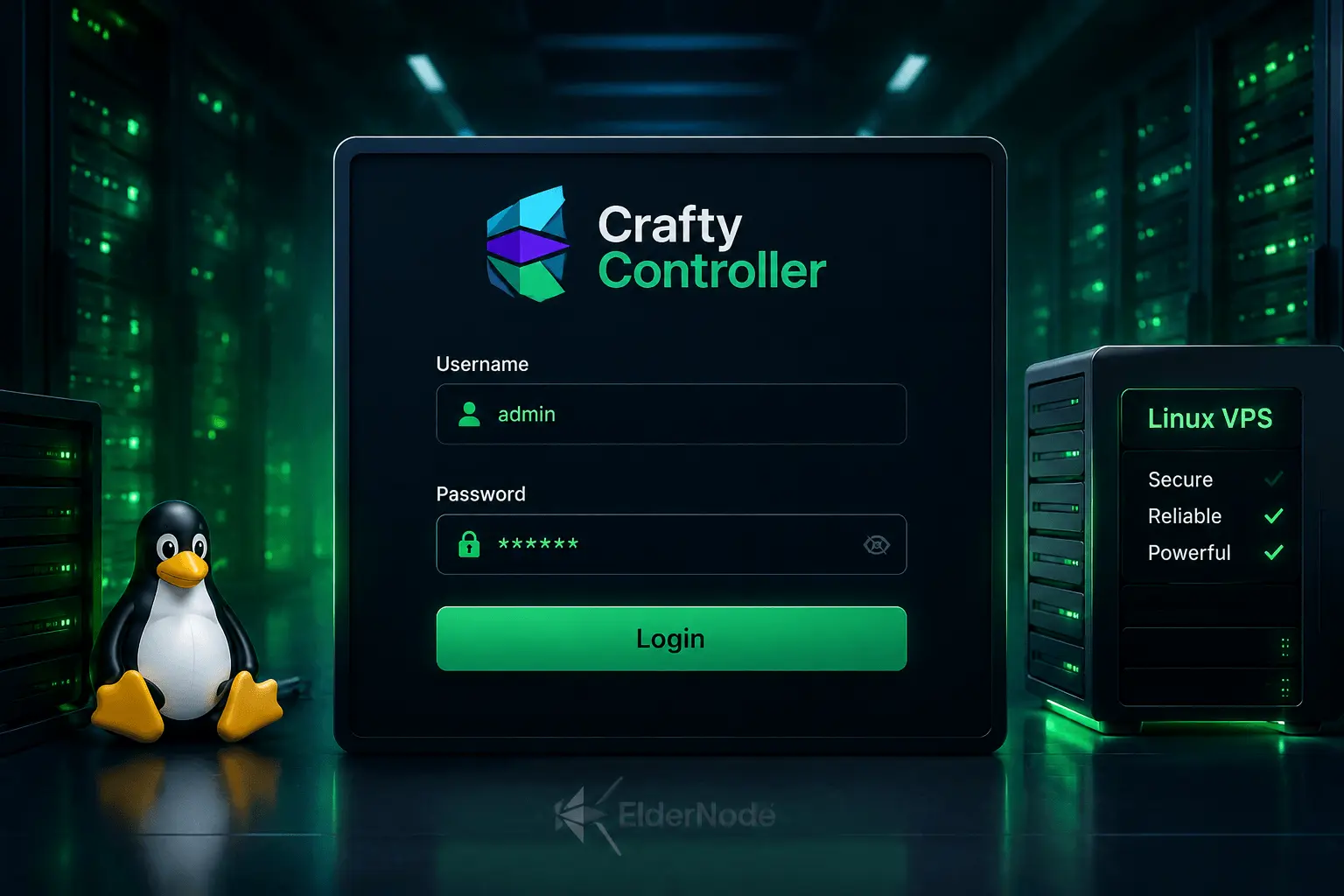
Alright, now that you’ve got the username and password in hand, it’s time to pull up Crafty in your browser. Just plug in your VPS IP address (or domain, if you’ve set one up) followed by the port Crafty’s running on.
Quick note: if you changed the port before launching Crafty, that’s the one you need to use here, not the default. Crafty stores that setting inside app/config/config.json, so if you’re ever unsure what port you configured, that file will confirm it.
Nothing loading? Before you assume something’s broken, check whether Crafty is even running:
sudo systemctl status crafty
If it turns out it’s just sitting there stopped, wake it up:
sudo systemctl start crafty
And here’s a small thing that saves a lot of headaches later, if you want Crafty to come back on its own every time the server reboots, go ahead and enable the service:
sudo systemctl enable crafty
This is exactly the setup Crafty’s own Linux documentation walks through, assuming the installer created a systemd service file for you, which it does by default in most cases.
Step 6: Log in and change the password immediately
At the Crafty login screen, enter the username and password from default-creds.txt. After you log in, change the password right away.
This is the most important password management Linux step in the tutorial. That default password Crafty hands you is only ever meant to get your foot in the door for that very first login. Once you are in, replace it with a password you control and can rotate when needed.
Step 7: What if you forgot a changed Crafty password?
If you already changed the password and later forgot it, do not expect default-creds.txt to recover your current password. That file is mainly useful for first access after installation.
Instead, use the Crafty login screen’s Forgot Password option. Crafty’s FAQ says this activates a temporary anti-lockout user for one hour, and the temporary credentials are printed to the Crafty terminal. If Crafty is running in Docker, the FAQ points users to container logs for those credentials.
On a Linux VPS using systemd, check recent Crafty logs with:
sudo journalctl -u crafty -n 100 --no-pager
If you just clicked Forgot Password, you can narrow the logs to recent entries:
sudo journalctl -u crafty --since "10 minutes ago" --no-pager
Use the temporary account only to reset the real admin password. Then log out of the temporary account and log back in with the new credentials.
Step 8: Secure Crafty on your Linux VPS
You’re back in, good. Now spend five minutes securing things so this doesn’t happen again.
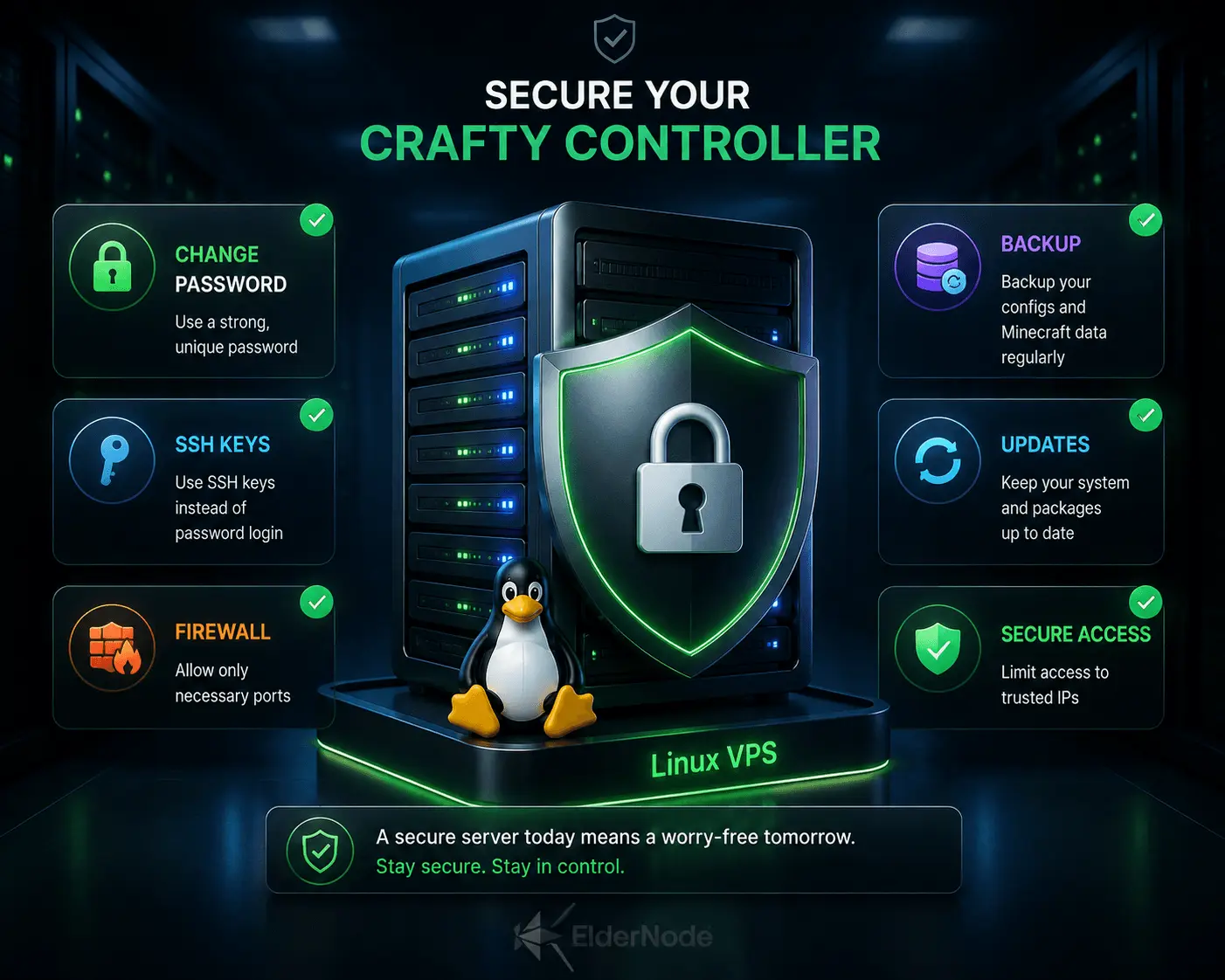
Save the new password in a real password manager. Remove access for any old admins who don’t need it anymore. Keep your Linux packages updated. Switch to SSH keys instead of password-only logins. Lock your firewall down to just Crafty’s web port, and don’t expose the panel publicly unless you’ve actually planned for it. Back up your Crafty config and Minecraft data regularly, servers crash, and you’ll thank yourself later.
A VPS gives you control, but that control comes with responsibility. Eldernode’s own guidance echoes the same basics: stay updated, use strong passwords, keep the firewall tight.
Still stuck? Run through this
If you’ve followed all the steps and you’re still locked out, don’t panic, just work through this checklist one item at a time:
Double check you’re actually on the right VPS. Sounds obvious, but it happens more than people admit.
Run sudo find / -name default-creds.txt 2>/dev/null again, just to be sure nothing was missed.
Check whether Crafty is even running with sudo systemctl status crafty.
Pull up the logs, they usually tell you exactly what’s going wrong:
sudo journalctl -u crafty -n 100 --no-pager
Make sure your firewall isn’t blocking the web port Crafty needs.
If the original default credentials have already been changed or used, don’t keep hammering away at them, use the Forgot Password option instead.
And once you’re back in, reset the password properly and store it somewhere secure this time. Future you will appreciate it.
Final notes
The fastest way to get to the Crafty password on Linux is to SSH into your VPS and read the generated default-creds.txt file from the Crafty config directory. On a standard installation, the key command is sudo cat /var/opt/minecraft/crafty/crafty-4/app/config/default-creds.txt.
If you are setting up Crafty Controller on an Eldernode Linux VPS, keep your credentials organized from day one. Secure SSH access, change the Crafty admin password immediately, and document where your Crafty configuration lives so the next password reset is simple instead of stressful.