Special Offer





How to Install Claude Code on VPS
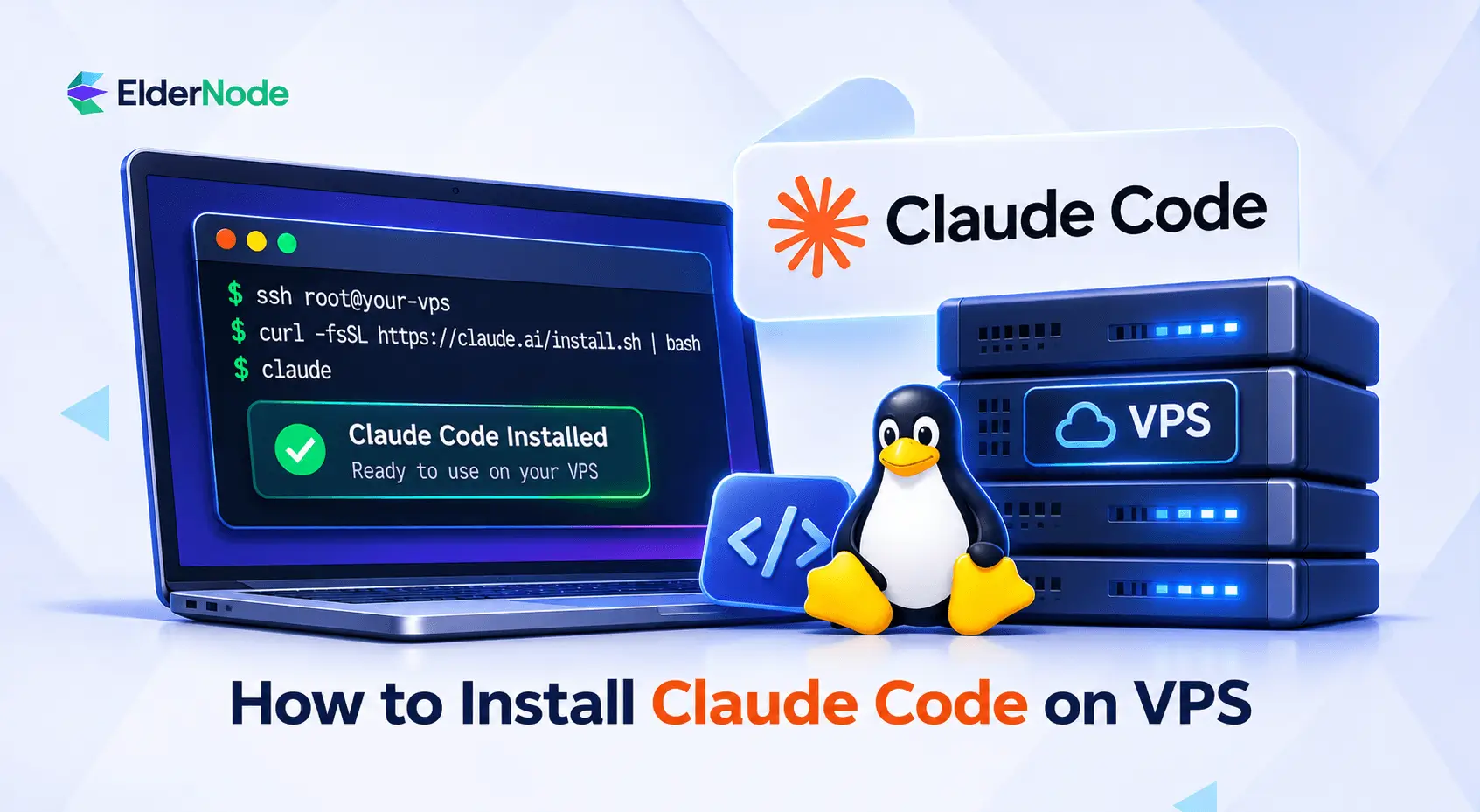



Installing Claude Code on a VPS puts Anthropic’s coding assistant alongside your remote project files and development tools. Connect through SSH, run the official Linux installer, authenticate, and launch it from your project directory.
What does it take to run Claude Code on a VPS?
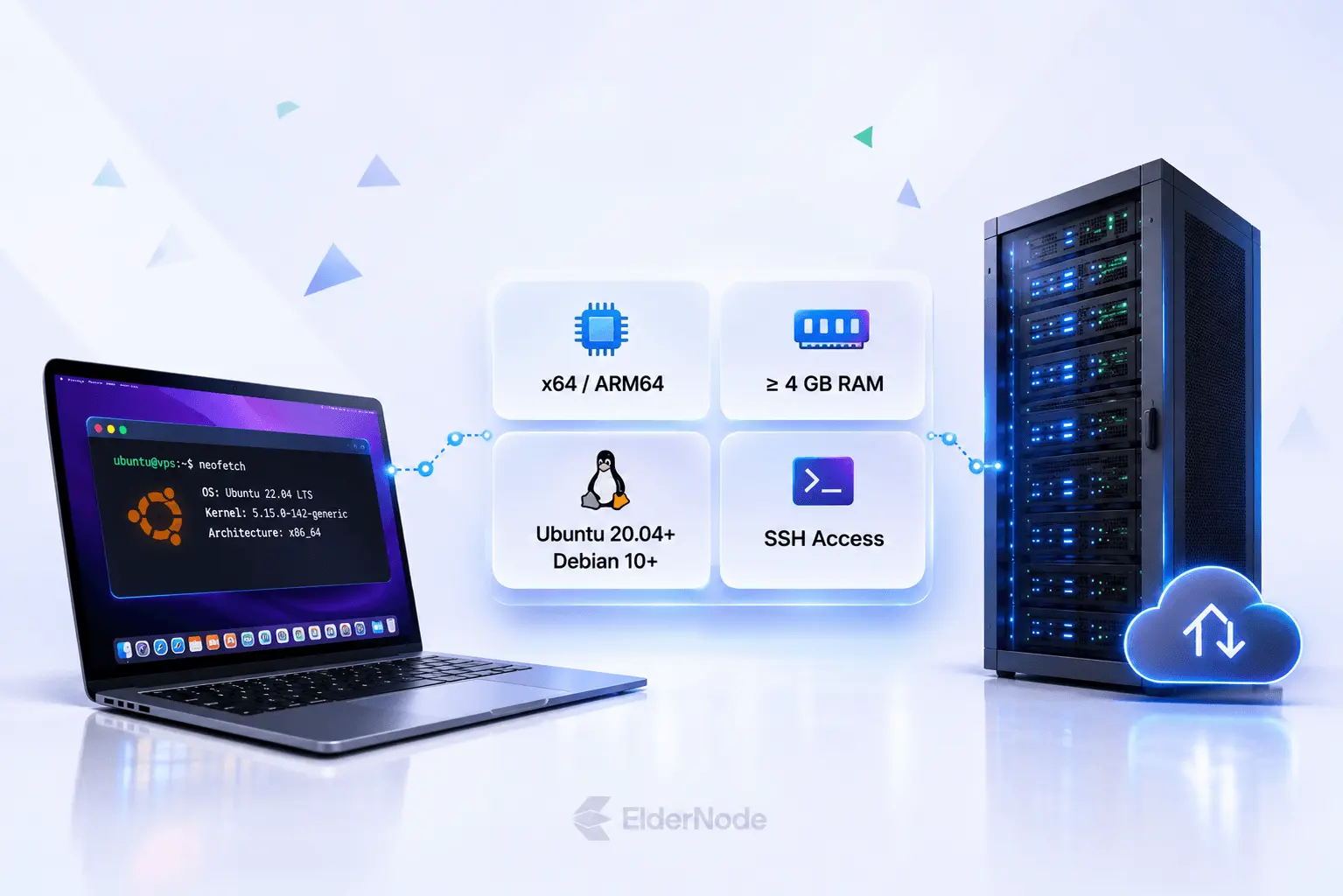
You need a compatible Linux server, at least 4 GB of RAM, an x64 or ARM64 processor, internet access, and an eligible Claude account or supported API access. Anthropic lists Ubuntu 20.04+ and Debian 10+ among supported systems; choose an actively maintained distribution release rather than treating those minimums as recommendations.
- Server access: Have an SSH login and a regular user account ready.
- Installation permissions: You’ll need admin access for the system packages, but that’s it. Claude Code itself doesn’t need it.
- Account access: Not sure you have access? Check that your subscription, Console account, or company plan covers Claude Code.
- Project requirements: Allow additional resources for your application’s builds, tests, and dependencies. Claude Code’s minimum memory requirement is not a sizing guarantee for your whole development environment.
Claude Code still needs internet access to communicate with Anthropic’s models.
Prepare your server and working account
Start in an SSH session under your regular server account. If your provider supplied only root access, set up a separate working account before using an assistant that can execute shell commands; avoid making the root account your development workspace. Anthropic notes that approved commands can operate with your user account’s filesystem access.
Refresh package information and install the supporting utilities:
sudo apt update
sudo apt install -y curl ca-certificates git
sudo apt install -y tmux
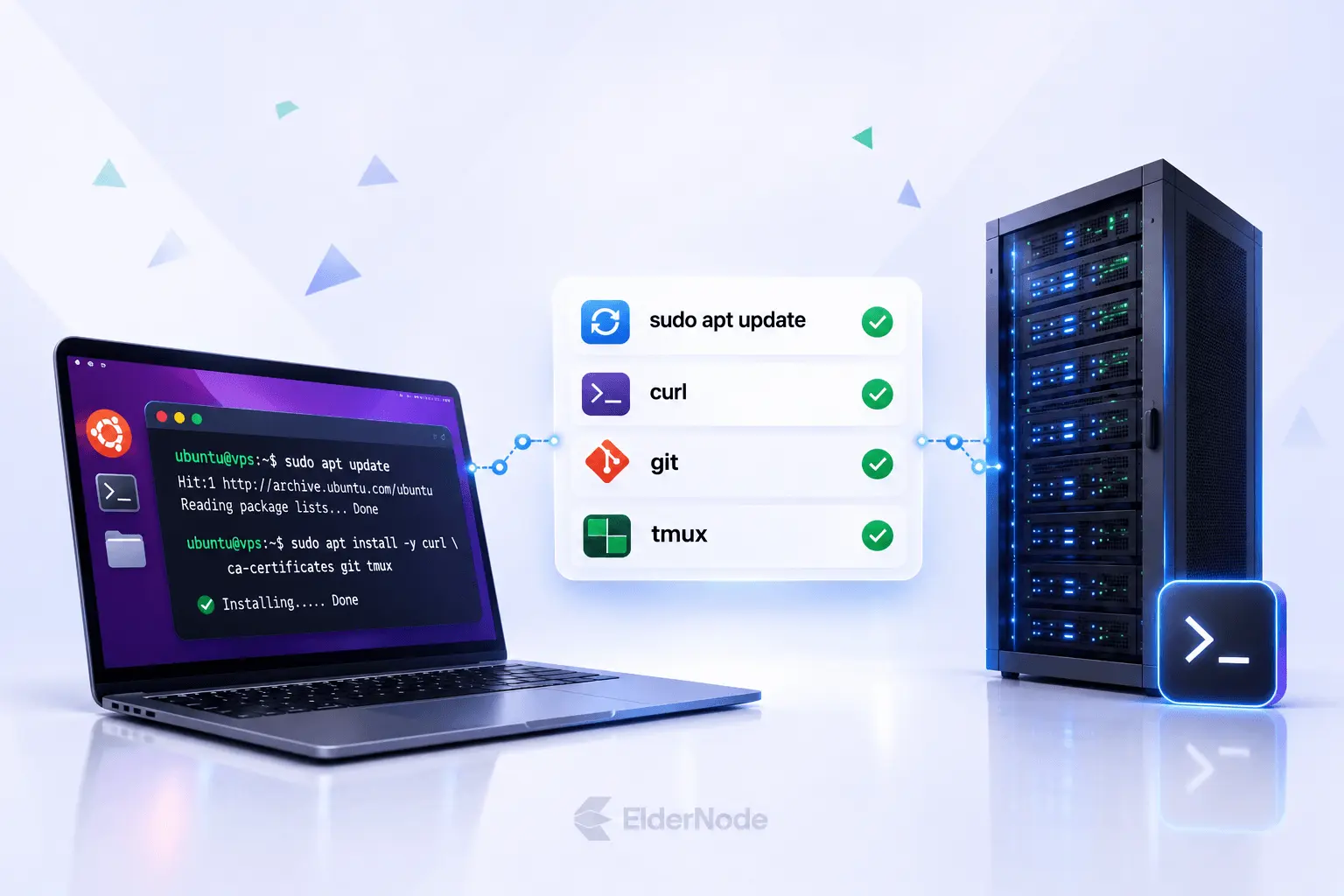
Here, curl supports downloading the installer, Git supports repository work, and tmux provides a persistent terminal session. The commands assume your user already has sudo access.
Install and verify the native CLI
Anthropic recommends the native installer for Linux. Run the official command from your regular user account, without adding sudo:
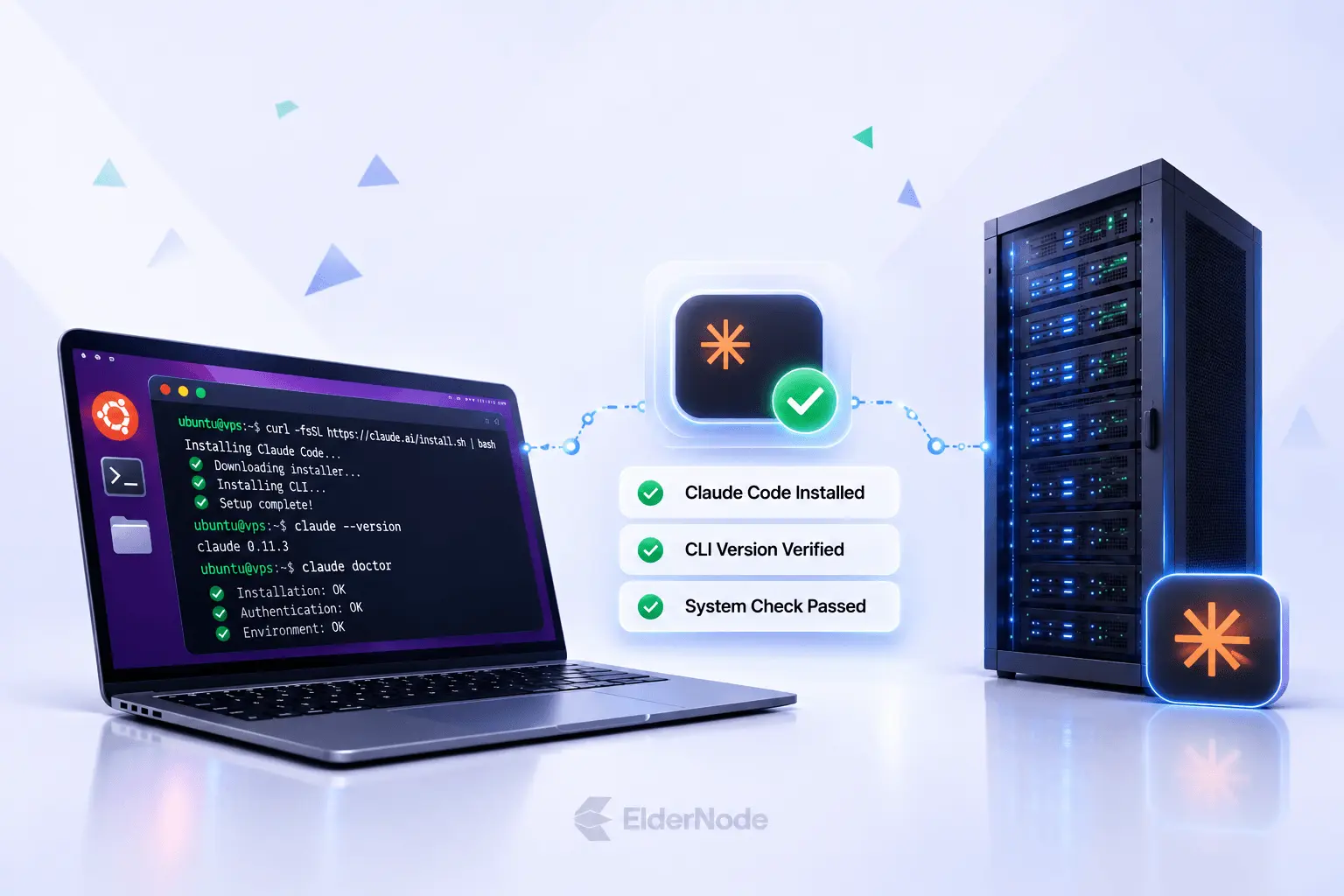
curl -fsSL https://claude.ai/install.sh | bash
This command downloads and executes a shell script, so check the hostname carefully before running it. For a more cautious workflow, download the script first and review it before execution. The native installation avoids needing a separately managed Node.js runtime.
After installation, reconnect your SSH session or open a fresh shell, then check:
claude --version
A version number confirms that your shell can find the executable. Follow with claude doctor to inspect the installation if anything looks wrong. Native installations automatically update in the background, so maintaining a separate npm installation is unnecessary for this workflow.
How do you authenticate on a headless VPS?
You can authenticate without installing a browser on the server. Run claude, copy the login URL displayed in the terminal, and open it in your local browser. Complete sign-in, then paste the returned code into the remote terminal if prompted. This manual flow addresses a common SSH problem: the browser cannot complete a localhost callback to the remote process.
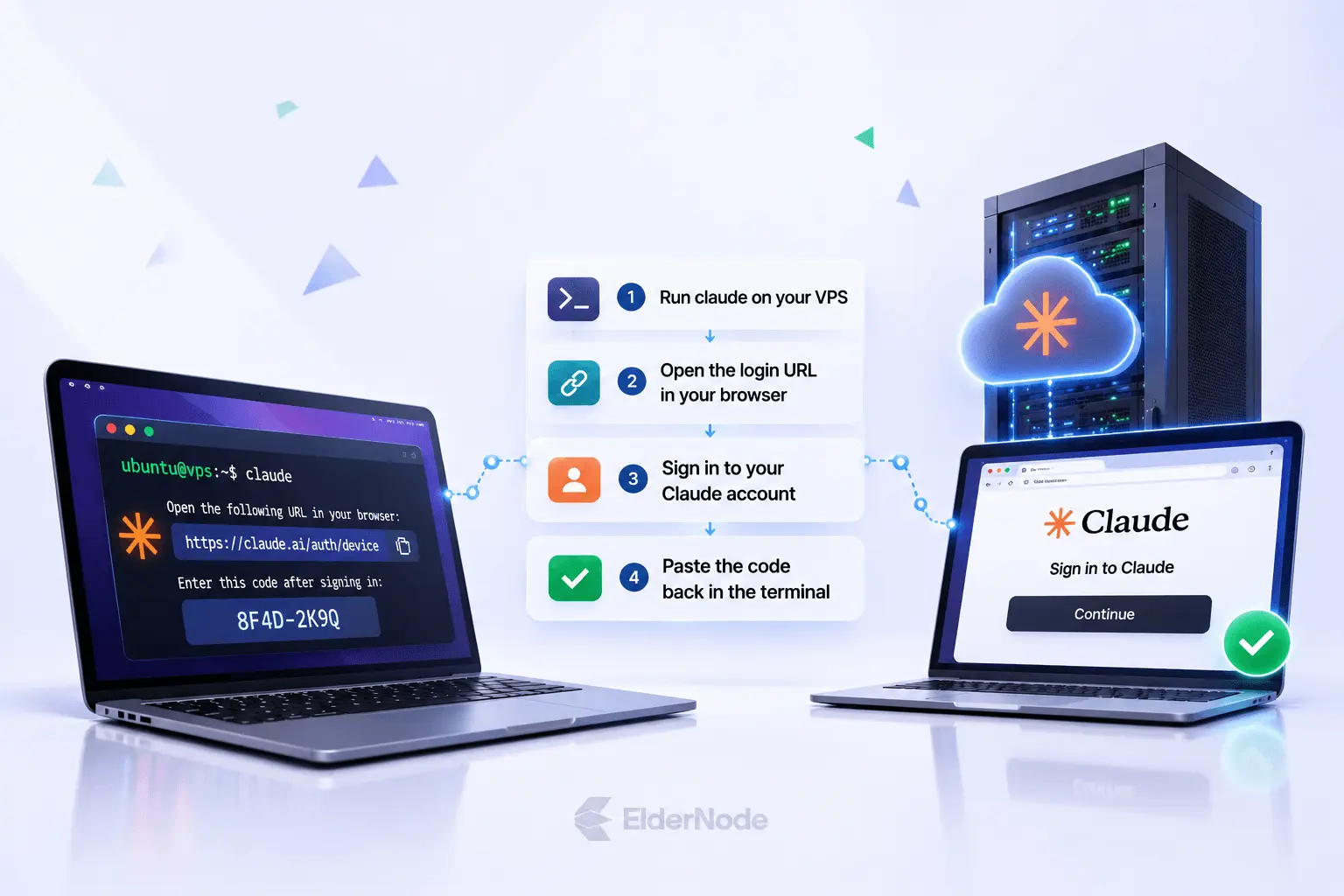
Choose the account route your organization supports:
- Claude subscription: Follow the browser sign-in prompts using your eligible account.
- Console/API access: Use Console authentication or an approved ANTHROPIC_API_KEY environment variable.
- Managed cloud access: If your company runs Claude through its own cloud provider, you won’t sign in the usual way. Check their setup guide instead.
Avoid pasting API keys into shared terminal transcripts, repositories, or support requests. If a key is already configured, Claude Code may ask you to approve using it rather than presenting the usual login flow.
Start with a small project task
Change into your existing project directory, replacing this example path with your own:
cd ~/projects/my-app
Then run claude. Starting inside the project gives the assistant a clear working context; it reads relevant files as needed. Try a bounded first request: “Explain this project’s structure and identify the test command. Do not modify files.”
Once the explanation looks sensible, ask for one small change rather than a broad rewrite. Review the proposed edits and commands, then run the project’s tests before accepting the result.
Keep sessions available with tmux
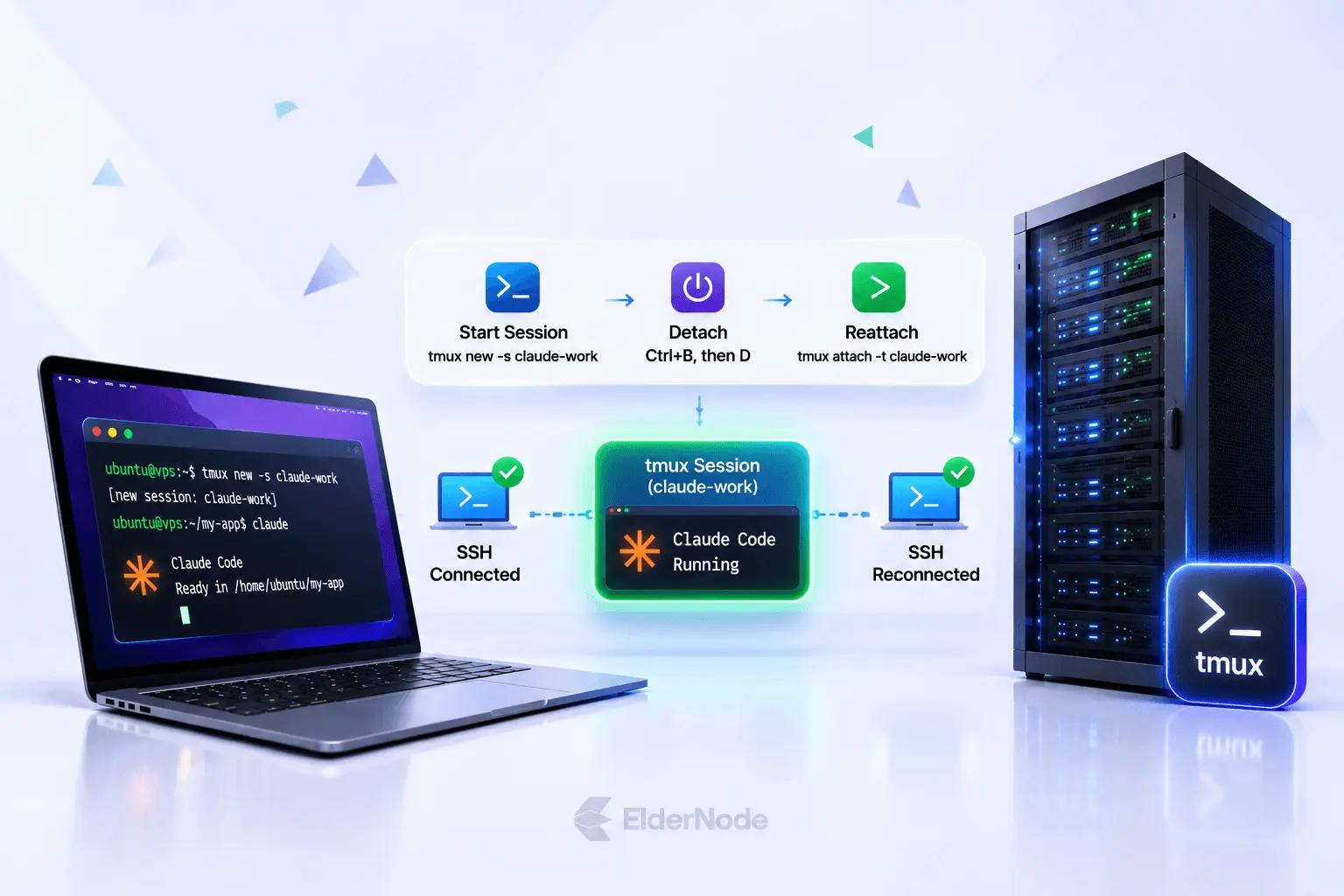
For a Claude Code VPS workspace, tmux protects running terminal programs from SSH connection drops. Create a named session before launching Claude Code:
tmux new -s claude-work
Inside it, enter your project directory and run claude. To step away, press Ctrl+B, release, then press D. Your session keeps running in the background. When you’re back, run tmux attach -t claude-work to pick up where you left off. Heads up: this doesn’t replace backups, and if the server shuts down, the session goes with it.
Resolve common installation problems
- Command not found: Open a new SSH session or run source ~/.bashrc if you use Bash. Check whether the Claude executable is available in your PATH.
- Login never finishes: Use the displayed URL and manual code flow.
- Permission errors: Hit a permission error? Start by checking who owns the files and folders. And skip sudo when you install Claude Code. Your regular account is all you need.
- Unclear failures: Run claude doctor from the shell and review its diagnostic output.
Keep the workspace controlled
Give Claude Code its own workspace instead of your whole server. Take a quick look at every command before you say yes, and if you want extra protection, set up a sandbox to restrict file and network access. A project directory alone is not a hard security boundary: approved shell commands can reach whatever your user account can access.