Special Offer



Best Linux Distro to Recover Windows Disks

 Study duration :
15 Minutes
Study duration :
15 Minutes  0 Comment
Losing files on your Windows disk sucks. I’ve been there. The good news? Linux can help. Some Linux distros come with tools that actually dig your files out, even if they’re corrupted. In this post, I’ll help you choose the best linux distro to recover windows disks when disaster strikes. Using linux for recovery is straightforward and often faster than you might expect.
The great thing about Linux is that it doesn’t cost anything, and you’re not stuck following strict rules. Even if you’ve never used it before, you can start working with the recovery tools right away. Some Linux versions come with everything you need to access Windows disks, so you don’t have to figure out complicated setups. It just makes the whole process simpler for windows data recovery when time matters.
Honestly, just pick one of the recovery Linux distros, plug in your drive, and start messing around with the tools. You’ll get your files back if you take it step by step. No magic, just Linux doing its thing.
Why Use Linux Distros for Windows Data Recovery?
If your Windows disk is damaged or files are missing, Linux can actually get them back. The big advantage is that some Linux distros already come with recovery tools built in, so you don’t need to hunt for extra software.
Most Linux distros can read Windows file systems like NTFS or FAT32, so you can just plug in your drive and start looking for lost files without worrying it won’t show up.
Here’s how I usually go about it. Here’s what you can do to make it practical. If you want to recover a disk quickly with Linux, here’s what I usually do:
- Boot your PC using a recovery-focused Linux distro (like SystemRescue or Ubuntu Live).
- Go ahead and plug in the Windows drive that’s acting up.
- Use built-in tools like TestDisk or PhotoRec to scan for lost files.
- Recover the files to a separate drive, never save them back to the damaged disk.
Key Features to Look for in a Recovery Linux Distro
The right one makes the process way easier, and the wrong one can just waste your time.
Here’s what I usually check:
- Does it come with a bunch of recovery tools already installed? You don’t want to be hunting for software while your files sit there.
- It can handle different Windows file systems like NTFS or FAT32 without any trouble. If it can’t, you’re stuck.
- You can just pop it in and run it straight from a USB. That’s handy if the Windows machine won’t boot.
Also, the interface matters. It doesn’t have to look fancy, but you should be able to grab the tools you need without hunting through a bunch of menus. Even if you’re new to Linux, it should feel manageable, while still giving experienced users full control.
Top 5 Best Linux Distros for Recovering Windows Disks
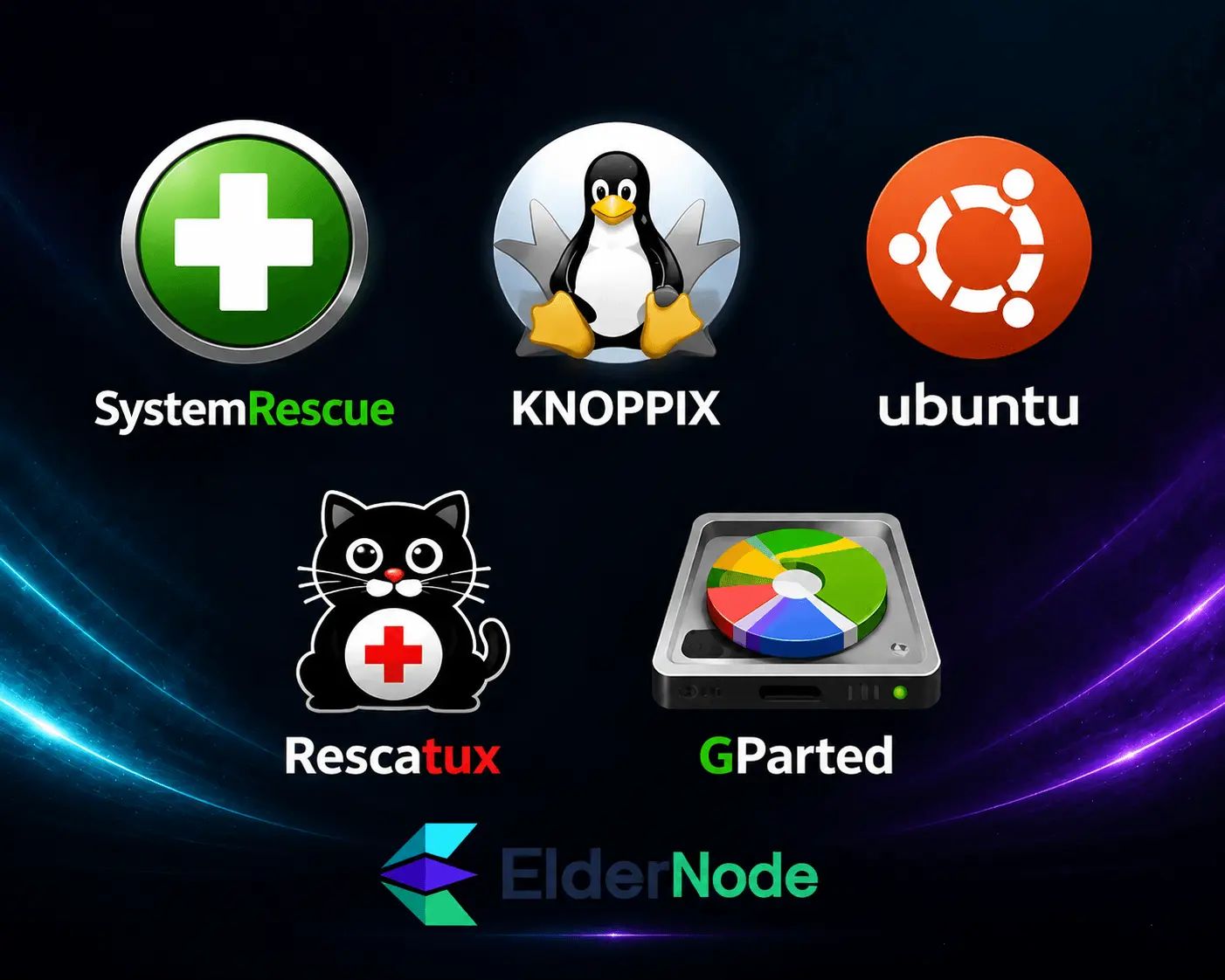
If you need to pull files off a messed-up Windows disk, there are a few Linux distros I always go back to.
SystemRescue has almost everything you’ll need to dig your files back out. It doesn’t matter if it’s your first time or you’ve done this a dozen times, it still gets the job done.
Knoppix is nice because you can just boot it from a USB, no installing, no messing with your system. Quick and easy.
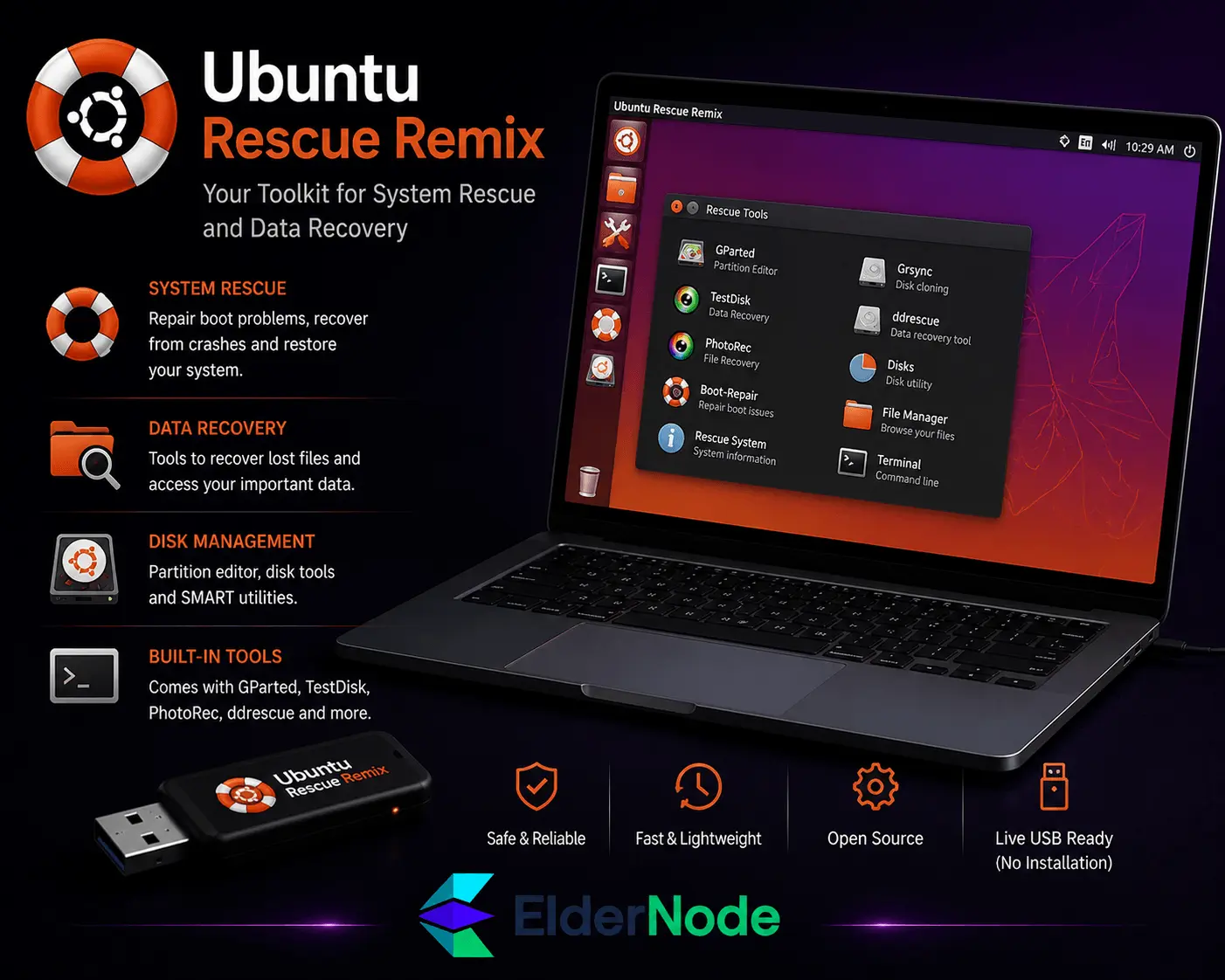
Ubuntu Rescue Remix is really lightweight. It’s focused just on recovery, so you don’t have all that extra stuff getting in the way.
Rescatux is simple to use. If you’re not very technical, it’s less intimidating than most other options.
GParted Live isn’t only for recovery, it’s really handy if you need to tweak partitions while getting your files back.
Each one has its own vibe. Some have all the features you might need, some are really easy to use, and some you can just take anywhere. Go with whichever one feels easiest for you to use.
1. SystemRescue
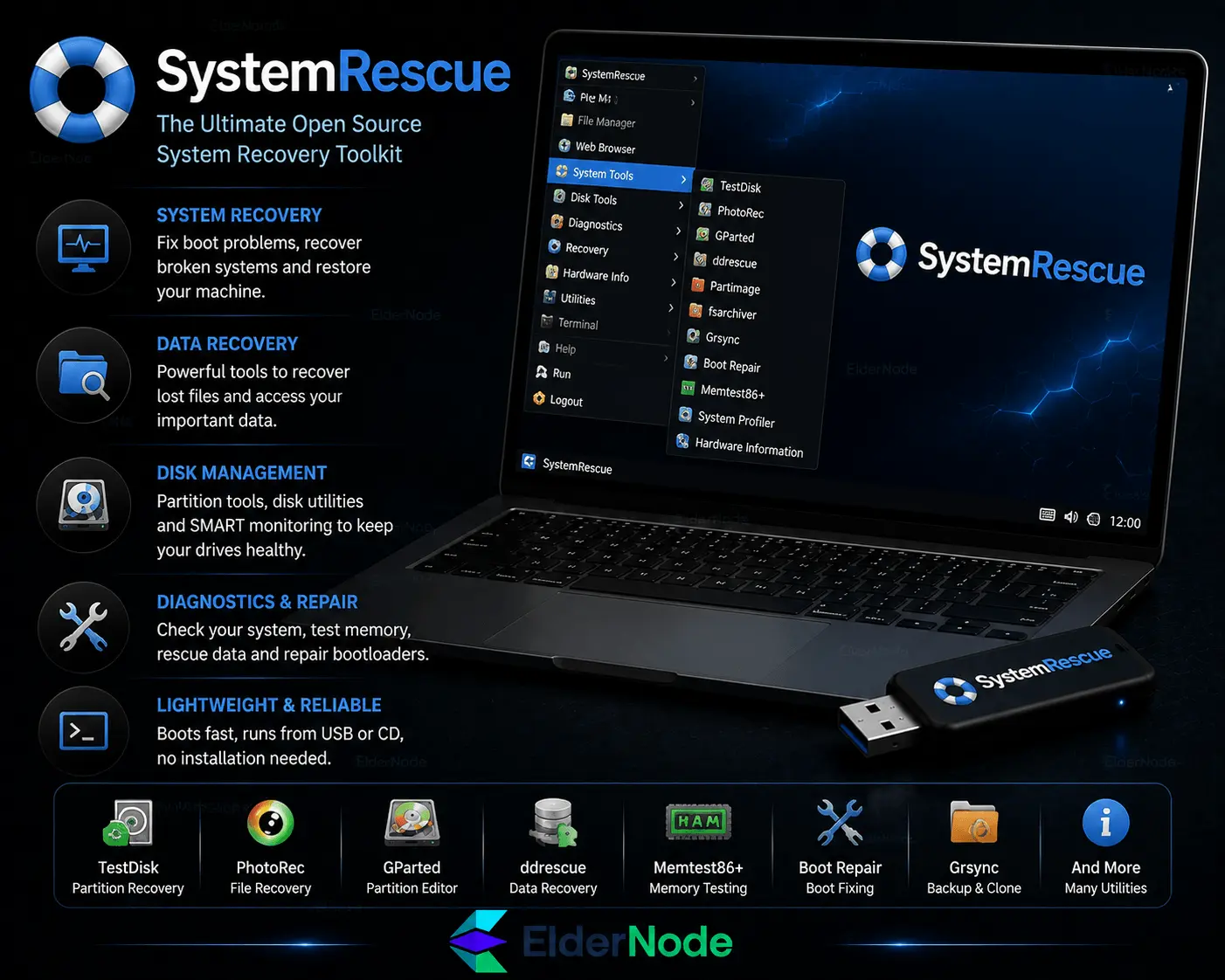
if I need to pull files off a Windows disk, SystemRescue is usually my first stop. It comes with a bunch of tools already, and it usually just gets the job done. It can read NTFS, FAT32, ext4, basically any file system you’re likely to come across.
The interface isn’t fancy, but that’s a good thing. You can see the tools you need and start working without digging through menus. You can fix broken disks, pull your files back, and it usually manages the messy stuff without too much trouble. Plus, it’s updated often, so it doesn’t get stuck on newer drives. For tricky recoveries, this one just works.
2. Knoppix
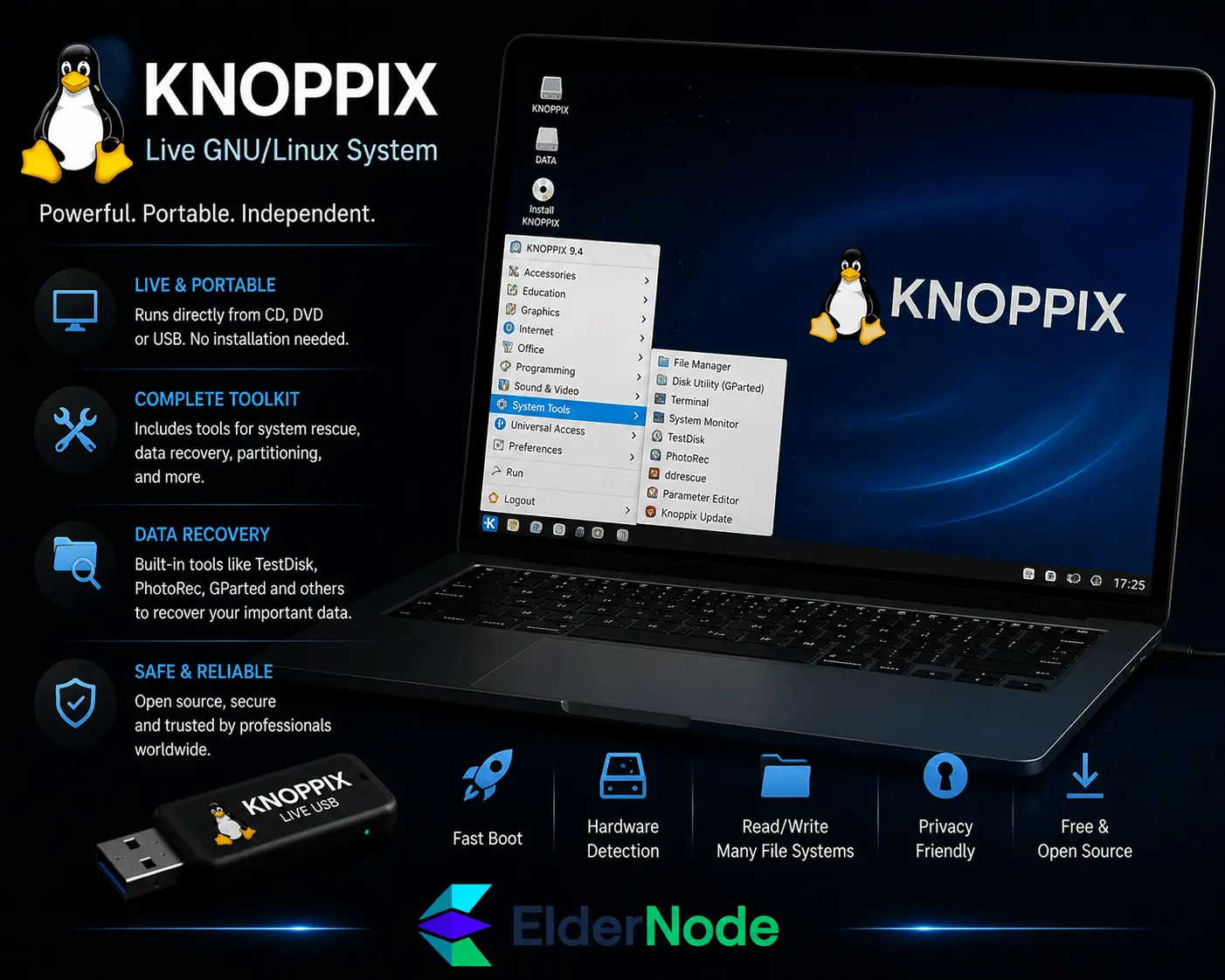
Knoppix is awesome if you just want to dive into recovery without having to install anything. You just boot it from a USB or CD, and you’re ready to go. That makes it really handy in emergencies when a Windows disk won’t even start.
It can read pretty much any file system and runs on most hardware, so you don’t have to stress about compatibility. The interface isn’t tricky, so you can get to the tools you need without wasting time. Because it’s portable and flexible, Knoppix is one of my go-to options for fast, emergency data recovery.
3. Ubuntu Rescue Remix
Ubuntu Rescue Remix is super stripped-down. It doesn’t have all the extra stuff that normal Linux distros do, which actually makes it easier when you just need to recover files.
It’s mostly command-line, so yeah, it can feel a bit tricky if you’ve never used Linux that way, but it’s fast and gets the job done. Because it’s lightweight, it runs on almost any machine without slowing down. I usually use it when I want something simple and quick, without a lot of clutter getting in the way.
4. Rescatux
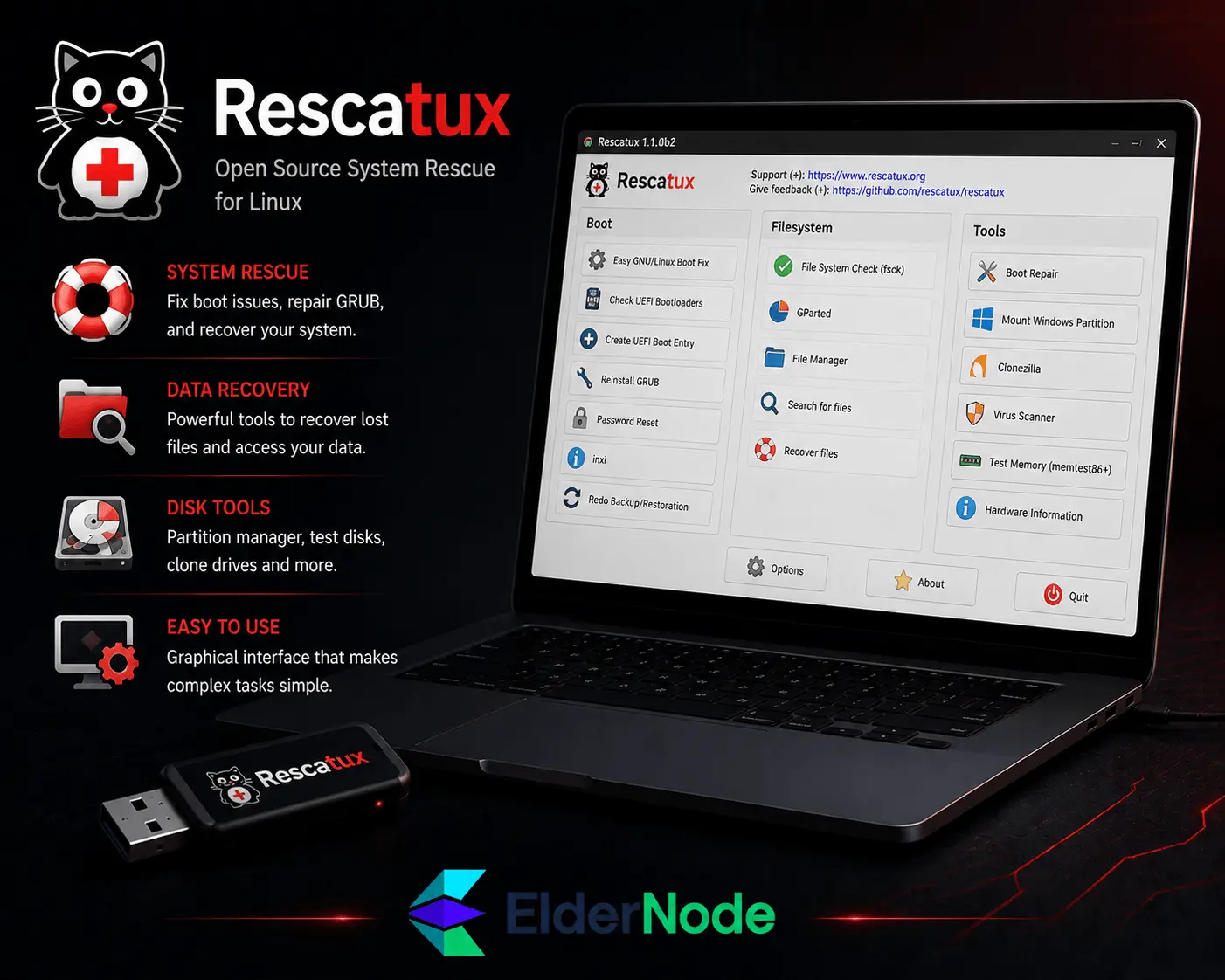
Rescatux is one of those distributions that really makes fixing things less scary. Like, if your Windows won’t boot, it has little prompts and wizards that guide you through fixing the boot loader. You don’t have to memorize commands or hunt through menus.
It’s great whether you’re just tinkering for the first time or you’ve been messing with PCs for years. Honestly, it just takes a complicated process and makes it manageable, so you don’t feel completely lost.
5. GParted Live
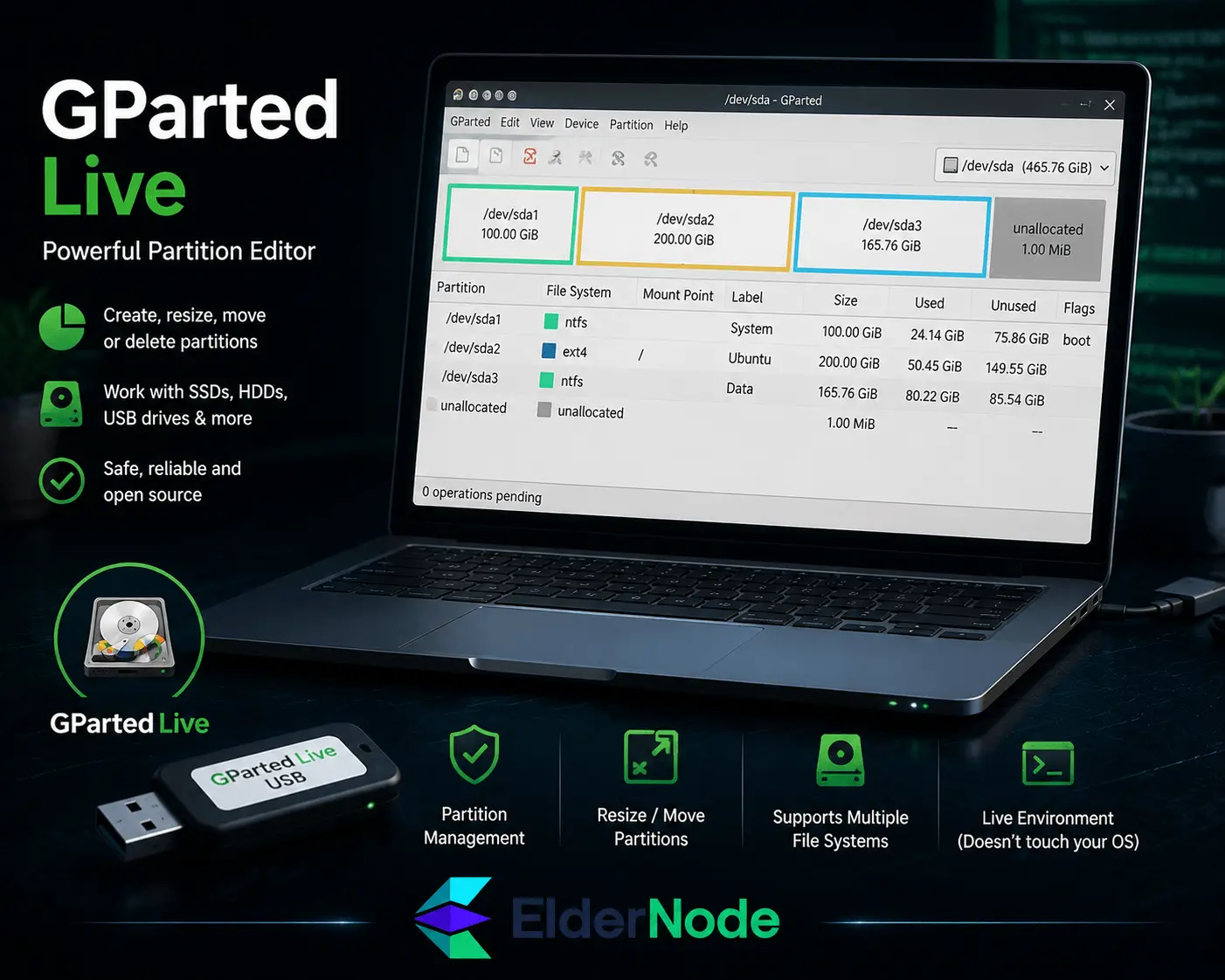
GParted Live is the one I grab when I need to mess with partitions while trying to get files back. You can resize or move partitions without wiping anything, which has saved me more times than I can count.
It’s got a graphical interface, so you can actually see what’s going on instead of guessing with commands. If you just want to adjust partitions and keep your files safe, this is usually the easiest one to use.
Essential Recovery Tools Included in These Distros
These distros come with tools that actually get your files back.
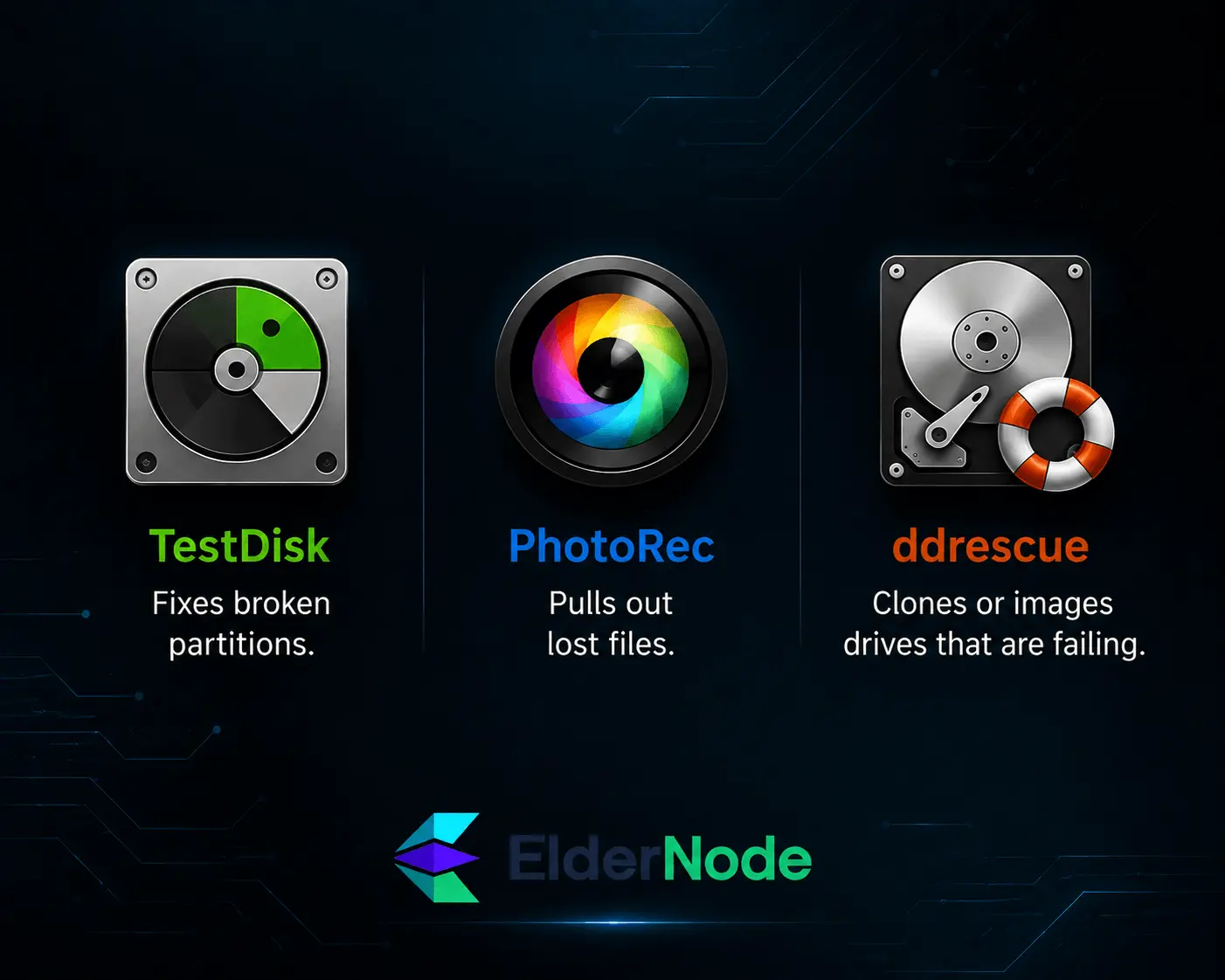
- TestDisk — fixes broken partitions.
- PhotoRec — pulls out lost files.
- ddrescue — clones or images drives that are failing.
Use them together depending on what’s wrong with your disk. Plug in your drive, pick the right tool, and start recovering. These tools are what make these Linux distros worth using.
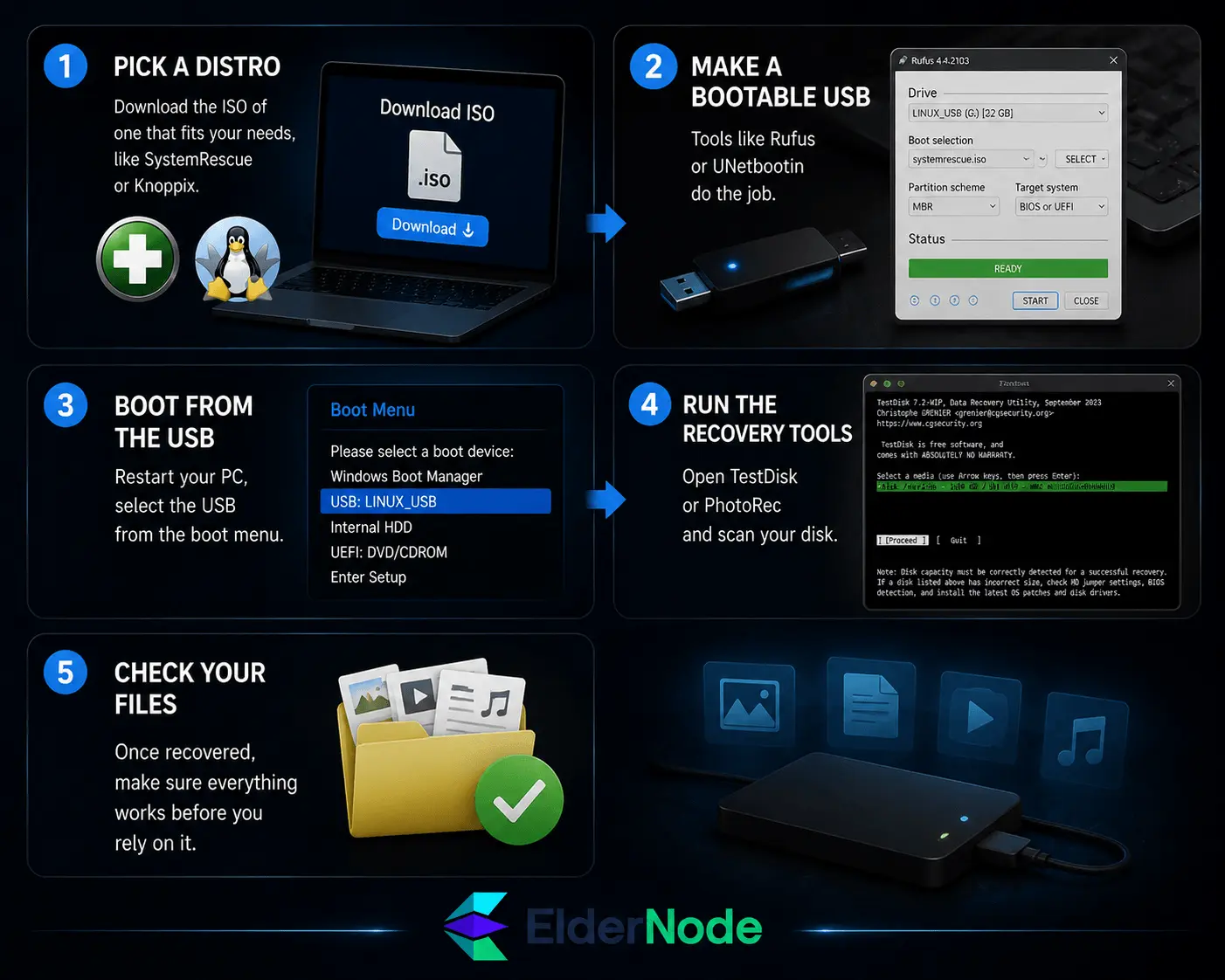
How to Use a Linux Distro for Windows Data Recovery (Step-by-Step)
If you’ve lost files on a Windows disk, using Linux isn’t as scary as it sounds. Here’s how I usually do it:
- Pick a distro — download the ISO of one that fits your needs, like SystemRescue or Knoppix.
- Make a bootable USB — tools like Rufus or UNetbootin do the job.
- Boot from the USB — please restart your PC, select the USB from the boot menu.
- Run the recovery tools — open TestDisk or PhotoRec and scan your disk.
- Check your files — once recovered, make sure everything works before you rely on it.
That’s it. Follow those steps, and you can usually get your files back without pulling your hair out. It’s mostly about picking the right tool and being careful not to write anything back to the damaged disk.
Tips for Safe and Effective Windows Data Recovery with Linux
Getting your files back works best when you’re careful and a bit prepared. A few things I always do:
- Make sure the hardware you’re using is solid, a failing USB or drive can make things worse.
- Double-check that your recovery tools are working before you start poking at the disk.
- If you can, back up any important stuff before doing anything risky.
- Keep your workspace tidy so you don’t mix up drives or files.
Following these simple habits can save you a lot of headaches and give you a much better chance of actually getting your files back.
Conclusion
At the end of the day, just grab a distro that makes sense for you. Some are easy and straightforward, some are more powerful but a bit messy. Look at what tools it has, check if you can find help online, and pick one that feels right for what you need. That’s it, it’ll save you a lot of headaches.