Special Offer



Ubuntu Clean Files Blocks: Master File Management

 Study duration :
10 Minutes
Study duration :
10 Minutes  0 Comment
If you’re new to Ubuntu, the way it handles files might feel a bit different from Windows. There’s no File Explorer or drive letters here, instead, everything starts from a single Root directory, and your personal space is the Home folder. For managing system space efficiently, you’ll want to get familiar with Ubuntu Clean Files Blocks.
Think of the Root like your computer’s engine room, you usually don’t touch it. Your Home folder is where you keep everything that matters: Documents, Downloads, photos, projects, basically, your digital “apartment.” System files stay out of your way, so you can focus on your stuff without getting lost.
Finding Hidden Files Without the Detective Work
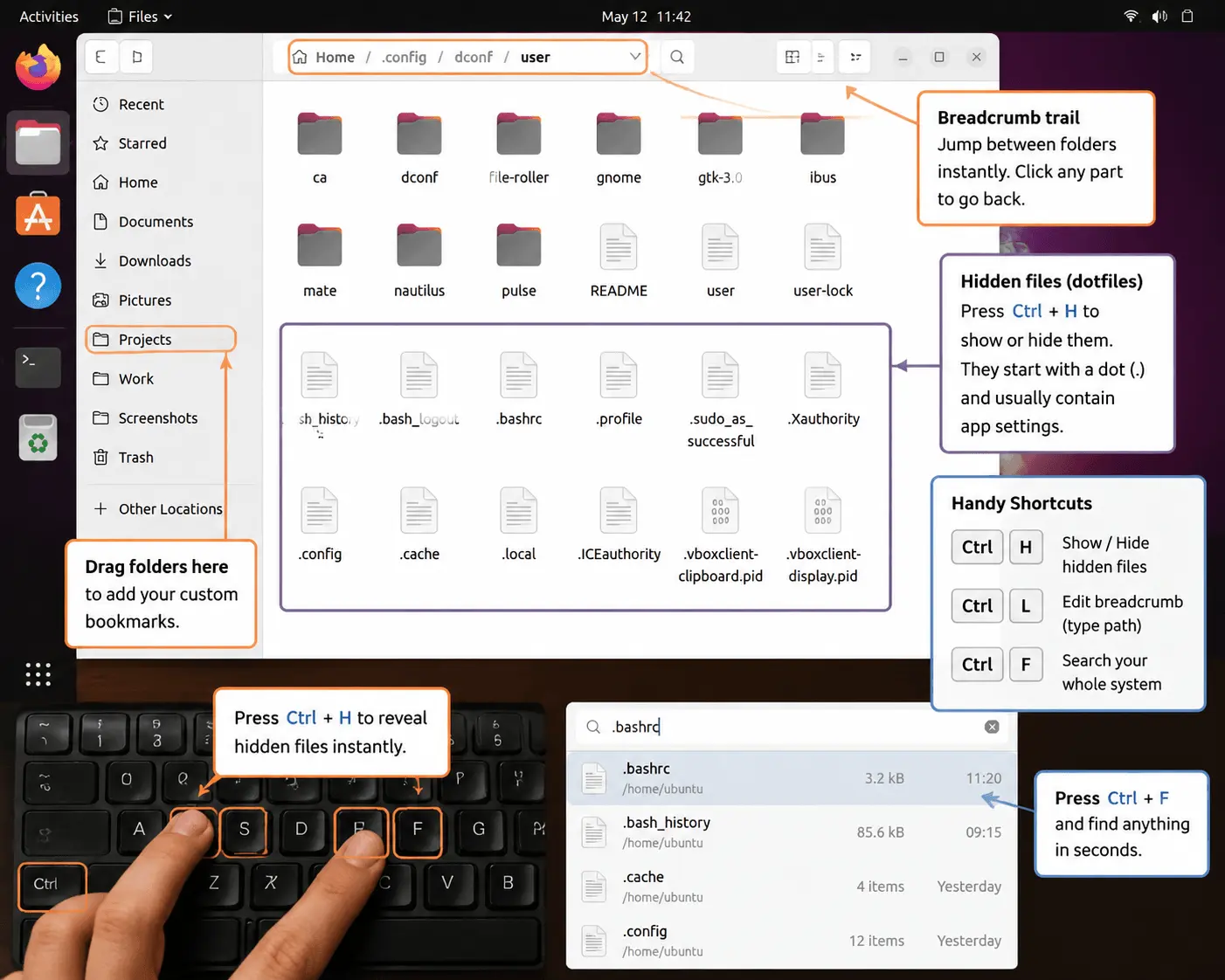
Ever wonder where all those hidden application settings live? Ubuntu keeps them tucked away in dotfiles, files that start with a period. Think of them as a tiny utility closet, hidden away until you actually need something. Want to see them? Just press Ctrl + H, and voilà, they appear instantly.
Navigating through folders every day can be tedious. A quick trick: drag any folder you use often into the left sidebar to make a custom bookmark, one click, and you’re there. A handy feature is the breadcrumb trail at the top, it helps you jump back through folders in a flash. To go back without wasting time, click on any part of it. In fact, Ubuntu Clean Files Blocks also makes managing frequent folders simple.
Here are some handy keyboard shortcuts that’ll make navigating Ubuntu much easier:
Ctrl + H: Show or hide hidden files.
Ctrl + L: Make the breadcrumb trail editable so you can type the path directly.
Ctrl + F: Search your whole system in seconds.
You really don’t have to use the command line for everything. Hit Ctrl + F, and any hidden file pops up in no time. It’s amazing what you’ll find, forgotten caches, old settings, and files taking up space. Spot the clutter, delete it, and your Ubuntu will instantly feel cleaner and faster.
How to Reclaim Gigs of Space When Your Disk is Full
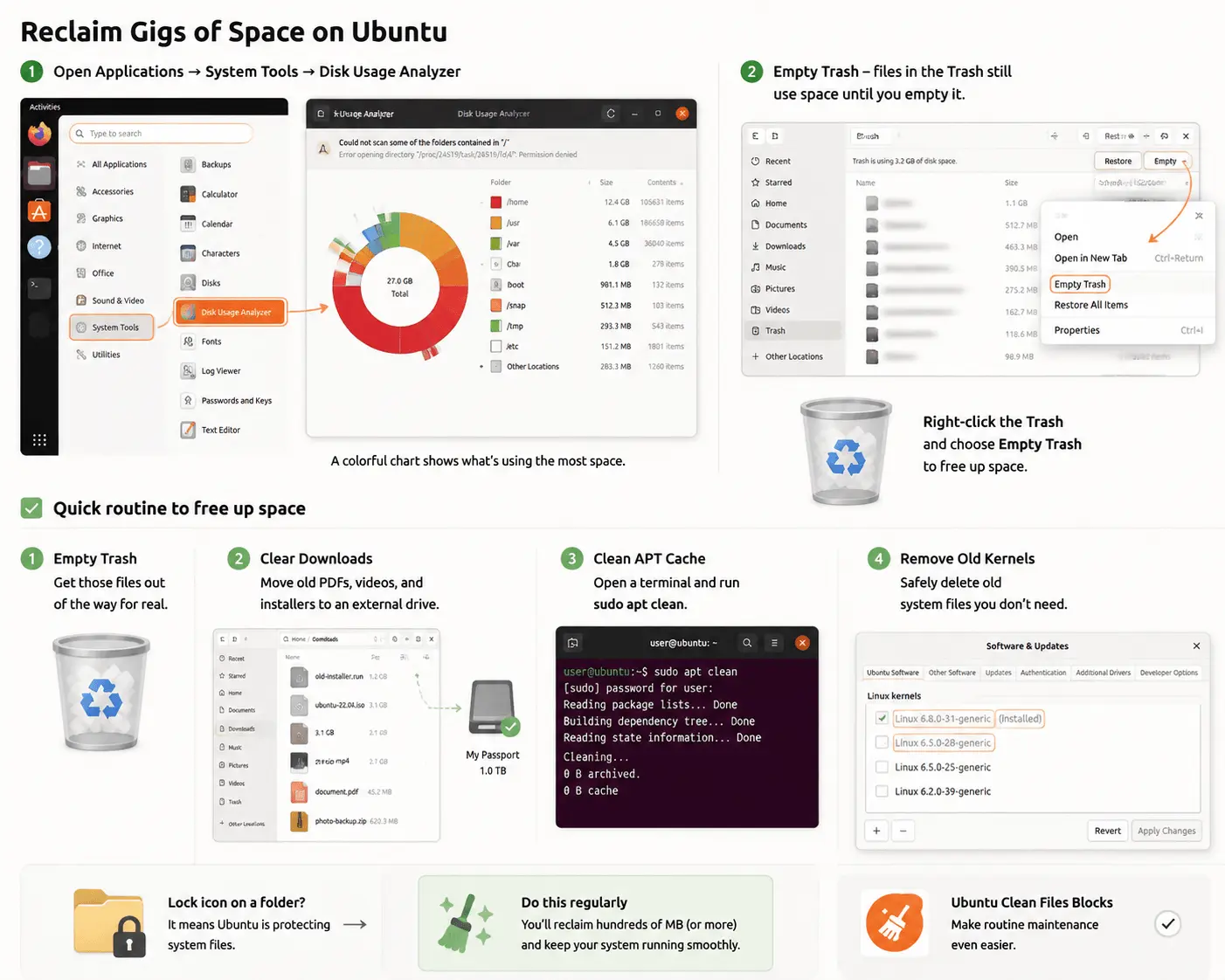
Out of disk space? Don’t worry, cleaning up Ubuntu is easier than you think. First, open the Applications menu and launch Disk Usage Analyzer. You’ll get a colorful chart of your folders, making it simple to spot what’s taking up all your space. Think of your disk as a bunch of tiny blocks, this makes it easy to see exactly what’s using up your space.
Just hitting delete isn’t enough. It’s like tossing a heavy box into a recycling bin, it’s still there until you empty it. Right-click the Trash and choose Empty Trash to actually get the space back.
Here’s a quick routine I use to free up space:
Empty Trash – get those files out of the way for real
Clear Downloads – move old PDFs, videos, and installers to an external drive.
Clean APT Cache – Open a terminal and run sudo apt clean to remove leftover software installers.
Remove Old Kernels – safely delete old system files you don’t need.
Do this regularly, and you’ll reclaim hundreds of megabytes, or more. Sometimes you’ll see a little lock icon on a folder; that just means Ubuntu is protecting system files. Following these steps keeps your disk tidy and your system running smoothly, without turning it into a chore. Additionally, the features included in the Ubuntu Clean Files Blocks tool make routine maintenance even easier.
How to Fix “Permission Denied” Without Messing Things Up
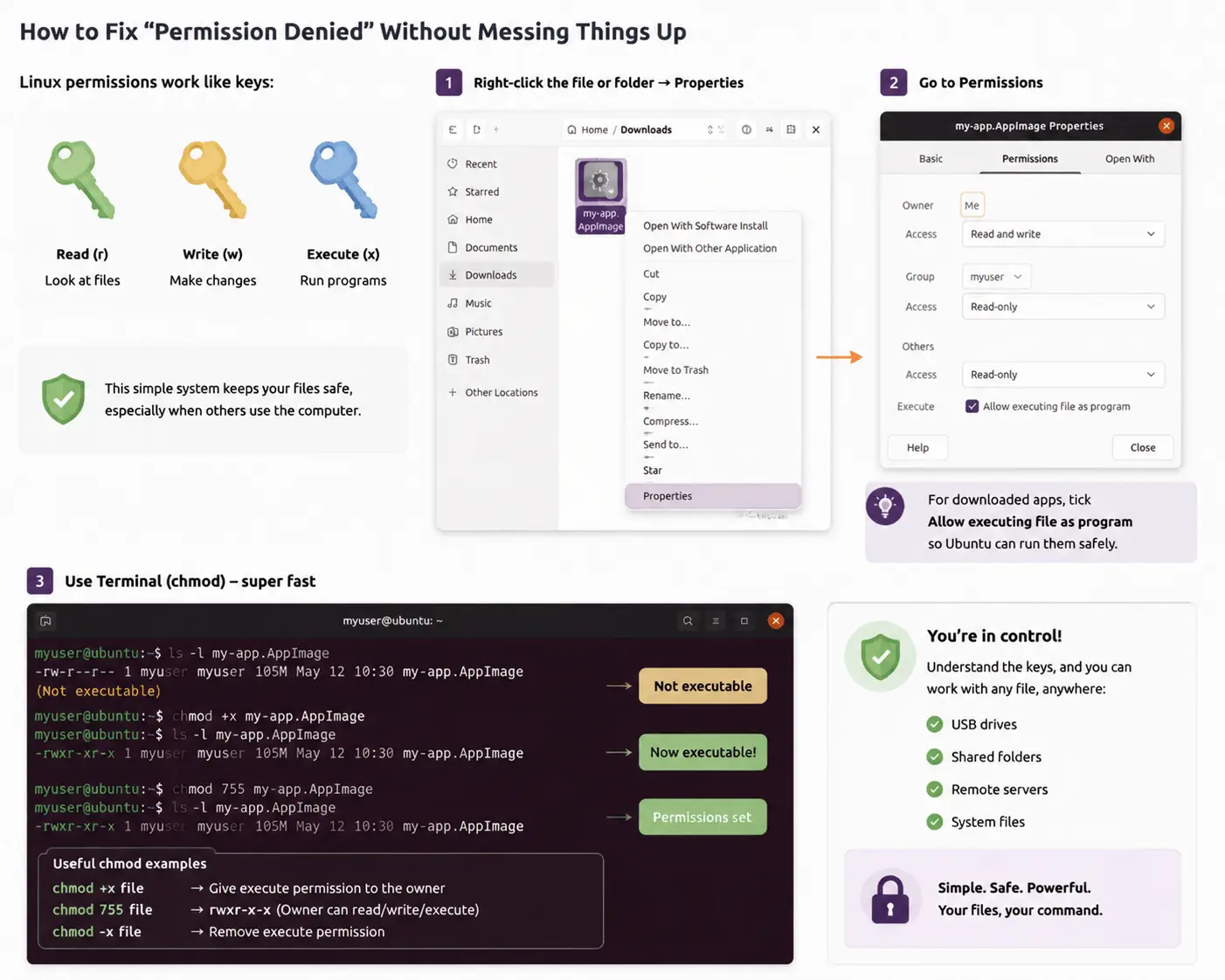
Permissions in Linux work like a simple key system: read lets you look at files, write lets you make changes, and execute lets you run programs. It keeps your stuff safe, especially if others also use the computer.
Fixing it is usually quick. Right-click the folder, choose Properties, and look under Permissions. For newly downloaded apps, tick “Allow executing file as program” so Ubuntu can safely run them.
If you want to be even faster, the Terminal is your friend. One quick chmod command can change permissions without any extra clicks. Once you understand how these “keys” work, you’ll feel completely in control, whether you’re handling a USB stick, a shared folder, or a remote server. It’s simple, safe, and keeps your files under your command.
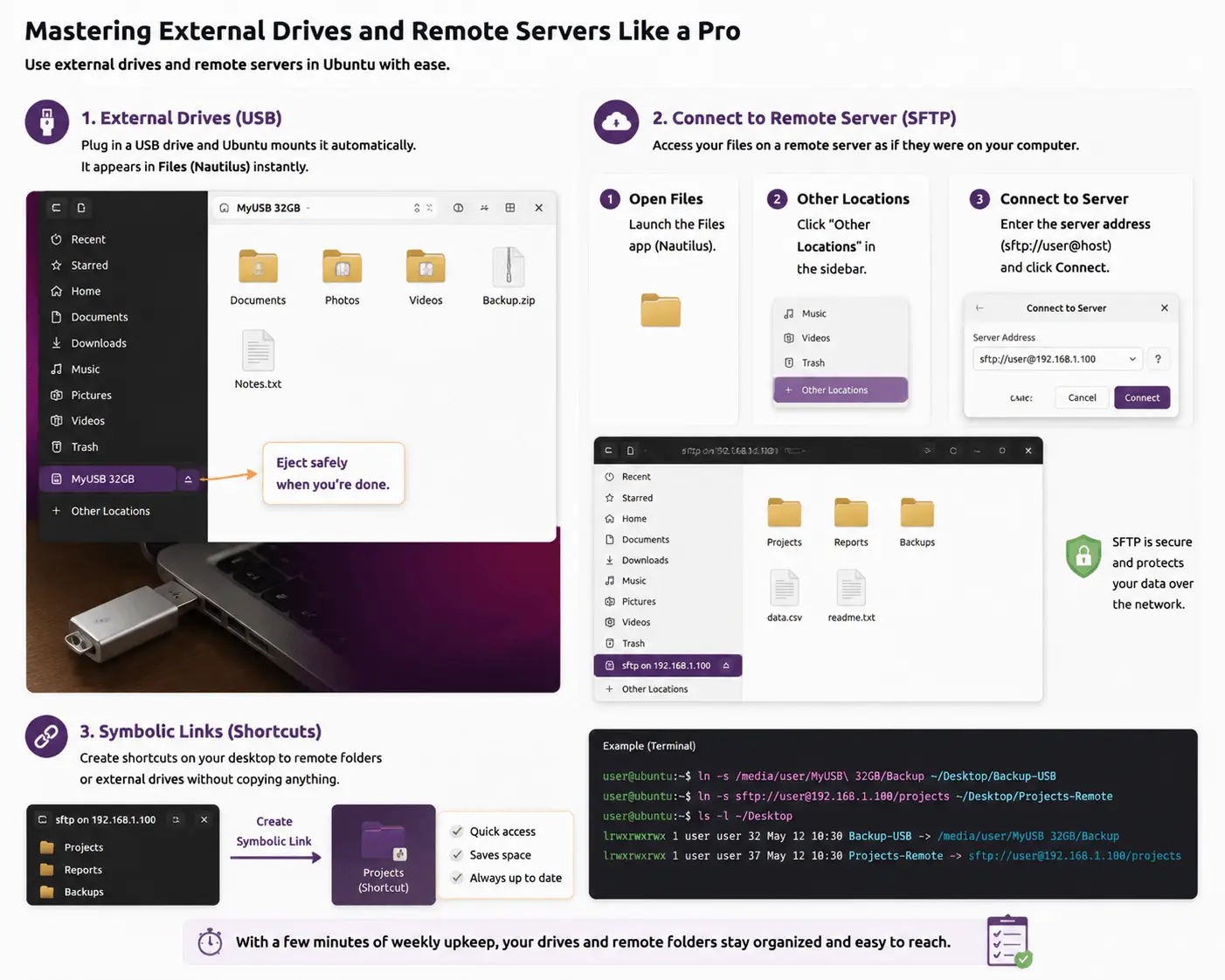
Mastering External Drives and Remote Servers Like a Pro
Expanding your storage doesn’t have to be confusing. Plug in a USB drive, and Ubuntu quickly “mounts” it in the background, basically making it ready to use right away. The default Files app (Nautilus) makes this super easy: your drive shows up instantly in the left sidebar, complete with a small eject button so you can safely remove it.
Sometimes, your files aren’t even on your computer they’re on a remote server. You can connect using SFTP, it’s like having a secure, long-distance USB cable to your files. Here’s how:
- Open the Files app.
- Click Other Locations in the sidebar.
- Just type the server address into the Connect to Server field, and you’re good to go.
Symbolic links are your best friend. They create desktop shortcuts to distant files without actually copying them. With just a few minutes of weekly upkeep, you can keep all your drives and remote folders best organized and easy to reach.
A Quick 5-Minute Routine to Keep Your Ubuntu Tidy
Just spend five minutes a week opening Disk Usage Analyzer and see what’s taking up space. You’ll catch hidden junk before it slows your system down, and it really makes your computer feel lighter.
Once you’re comfortable, you might start playing with other file managers or learn little tricks like renaming lots of files at once. But even if you don’t, just knowing what’s on your system, and where it is, gives a real sense of control. No more digging around or wondering where your files went. You’re the one in charge, and it really gives you peace of mind. For many users, Ubuntu Clean Files Blocks makes weekly maintenance even more efficient.