Special Offer




How to Block Static IP Users on MikroTik Routers [Step-by-Step]



Want to block static IP users on MikroTik routers? Don’t worry, it’s easier than it sounds. I’ve been working with MikroTik for a while, and one of the things I love is how flexible it is. You can turn any regular computer into a stable MikroTik server, and its firewall is strong enough to keep your network safe.
Static IPs can sometimes sneak around your rules, causing headaches. In this guide, I’ll show you exactly how to block them step by step, so your network stays secure. If you want a ready-to-go MikroTik VPS without dealing with hardware, Eldernode has some solid packages you can check out too.
What is Static IP?
Alright… so a static IP is basically an address that never changes. Like, ever. You set it one, and it stays fixed. Unlike the dynamic ones, which your network just hands out and can switch around anytime you reconnect, those are the ones that move all the time.
Honestly, these static IPs can be a bit sneaky. I remember one time someone used one and kind of bypassed my rules, I had to dig into the MikroTik firewall to sort it out. The good news? MikroTik makes it doable, you just have to know what you’re looking for.
So yeah… static IPs stay put, dynamic ones don’t, and knowing which is which will save you some headaches when you start setting up your network rules.
Blocking Static IP Users on MikroTik Routers
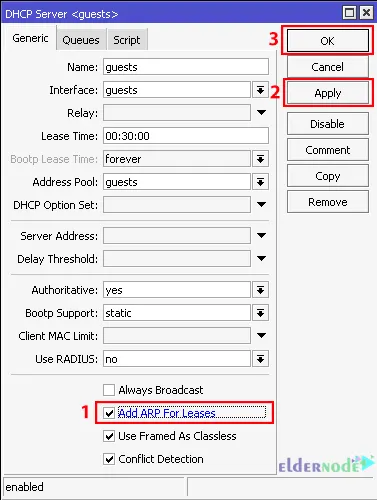
Firstly, go to Winbox and double click on your IP, and choose DHCP server. Then you should check the Add ARP For Lease’s box:
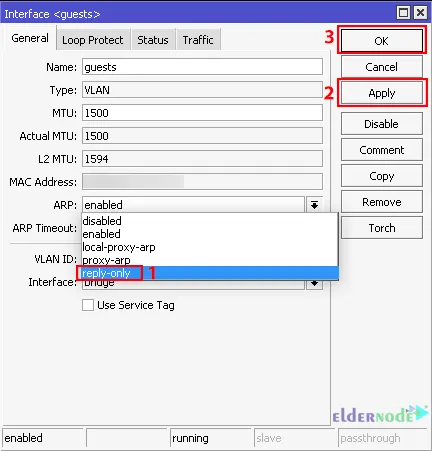
Now all you have to do is go back to Winbox and navigate to the Interfaces section. Double-click on the interface that you run the DHCP server on. It can be a bridge or a VLAN. Lastly, in the ARP section from the drop-down menu, choose reply-only and click on Apply:
That’s all about blocking the Static IP users on Mikrotik Routers!
Quick Tip: Blocking Static IPs
Okay, here’s the trick I use: head to your interface ARP settings, switch it to reply-only, and make sure it’s the same one your DHCP server is running on. Try it with one device first, see if it gets blocked. Works? Then you can expand. If not, just clear the ARP cache and try again. Done.
Troubleshooting: Quick Fixes I Use
Man… sometimes these static IPs can be sneaky. I remember one morning a device just kept bypassing my rules, turned out I forgot to set the ARP to reply-only on the right interface. It took me a few minutes to understand.
Here’s what I usually do: block one IP first, check if it actually stops the device, and only then move on to others. If it still slips through, I clear the ARP cache or reboot that interface. Oh, and don’t block your printers or servers by mistake, learned that the hard way!
Done. Simple, quick, and it works.
Conclusion
So… that’s how I usually block static IP users on my MikroTik router. Honestly, it took me a couple of tries to get it right, but once you set it up, it just works. Your network feels cleaner, and you don’t have random devices messing with your rules anymore.
If you try it out, don’t stress if something looks confusing at first, just follow the steps slowly. And hey, if you stumble on something weird or have your own trick, leave a comment. I really like seeing how others tackle this stuff.