Special Offer




How to Installing R Packages in Linux Outside of R



Sometimes you just don’t want to open R every time you need a package. Been there, done that. On Linux, there’s actually a way of installing R packages in Linux outside of R, and honestly, it can save you a ton of time.
If you’ve wrestled with dependencies, weird errors, or library paths, you know the frustration. Doing it from the command line or via your Linux package manager gives you a lot more control. You can batch-install packages, handle tricky dependencies, and just get stuff working without fussing around inside R.
I’m going to show you how to do this step by step. We’ll cover using R CMD INSTALL, package managers like apt or yum, and even manual installation from source if you need that extra flexibility. Along the way, I’ll drop tips for handling dependencies and common issues, stuff I wish I knew when I first started.
By the end, you’ll be able to get any R package up and running on your Linux system without opening R, which is great whether you’re tinkering for fun, scripting a server setup, or managing a bigger project. Trust me, it just makes your workflow way smoother.
Understanding R Packages and Linux Environments
I’ve been working with R on Linux for years, and one thing that trips people up is packages. Each package is basically a toolbox: it’s got functions, data, whatever you need to get stuff done. If you don’t know how they work, you’ll waste a lot of time.
Most of these packages live on CRAN. Think of it like the main library for R stuff. Usually, installing is easy. But Linux adds its own twist. Different distributions, different tools, different quirks, you’ve got to know your way around a package manager or two.
For example, on Ubuntu or Debian, you’ll mostly use apt. On Red Hat, CentOS, or Fedora, you’re looking at yum or dnf. A few things always pop up:
- Making sure your R version actually matches the package you want.
- If libraries like libcurl or libxml2 aren’t installed, you’ll hit errors, happens all the time.
- Knowing where your R libraries live on the filesystem so R can actually find your packages.
Why Install R Packages Outside of R?
Sometimes opening R just to install packages is overkill. If you just do it from the Linux command line:
- Lets you install multiple packages at once.
- Works smoothly with Linux tools you already use.
- Makes handling dependencies way easier.
Perfect for scripts, servers, or when you need to set up several machines quickly. Quick, clean, and under your control.
Preparing Your Linux System for R Package Installation
Before you start, make sure your Linux system won’t freak out. Here’s what I always do:
Update your system – run your package manager so everything’s current. Outdated software = headaches.
Check your R version – having the latest version helps avoid weird compatibility issues.
Install development tools – compilers like gcc are often needed because not every package comes pre-compiled.
Do these three, and trust me, you’ll avoid a lot of headaches later.
Methods to Install R Packages Outside of R
Okay, let’s keep it simple. There are a few ways I usually go about installing R packages without opening R:
R CMD INSTALL: Grab the package from source and run it. Gives you full control. I use this route when I want to do things my own way.
Package Managers: like apt, yum, or dnf are real lifesavers, they handle dependencies for you.. Quick and easy.
Manual from Source: Download the tarball from CRAN and compile it yourself.
Using R CMD INSTALL
Okay, quick tip from experience: if you just want a package installed and don’t want to mess around in R, R CMD INSTALL is your friend.
This is usually how I handle it:
Grab the package with wget or curl, yeah, just like downloading a file.
Run:
R CMD INSTALL -l /your/library/path package.tar.gz
…and boom, it’s in the right place. The -l bit just tells R where to look later, so you don’t have to move stuff around.
Honestly, it’s the simplest way when you’re on Linux and don’t need the R console open. I use it all the time, especially for quick installs or when scripting multiple machines.
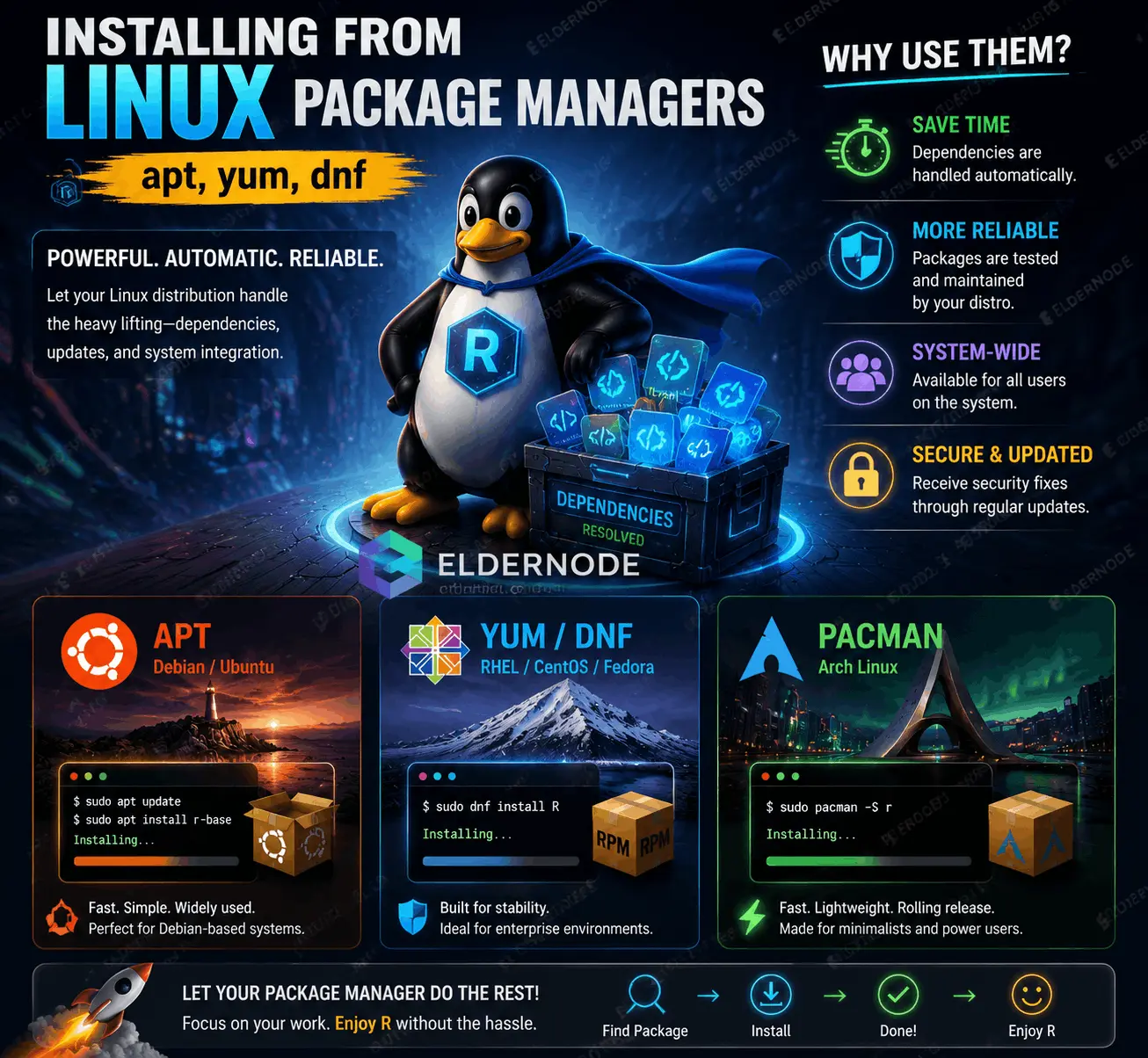
Installing from Linux Package Managers (apt, yum, dnf)
Alright, quick and dirty: most Linux distros let you install R and its packages using your package manager. This is usually the easiest way because it handles dependencies for you.
Debian/Ubuntu:
sudo apt-get install r-cran-<package_name>
Fedora/Red Hat:
sudo dnf install r-cran-<package_name>
CentOS:
sudo yum install r-cran-<package_name>
Type the command, let the package manager do its thing, and you’re done, no fussing with source files or paths.
Manual Installation from Source
Okay, real talk: sometimes you just need a specific version or want to tweak things. That’s when I go manual.
Download the tarball from CRAN with wget or curl. Check the file, don’t skip this.
Extract it:
tar -xvzf package.tar.gz
Go inside the folder and run:
R CMD INSTALL package.tar.gz
Takes a bit longer, but you’re in total control. I do this whenever I need something exact or custom, worth the extra steps.
Managing Dependencies and Library Paths
Some R packages need a bunch of other stuff, like libcurl or libxml2. Miss one and your install blows up. Happens to me all the time.
If you’re on apt or yum, no worries, they usually take care of most dependencies. But if not, check first, or you’ll waste time.
Also, think about where your packages live. I always set R_LIBS_USER so R knows exactly where to find them. Keeps things neat and stops weird “package not found” errors later.
Quick notes I keep in mind:
Dependencies first, make sure they’re there.
Set R_LIBS_USER for custom paths.
Keep your library folders tidy.
Do this, and installing outside R stops being a headache.
Troubleshooting Common Issues
Here’s what I actually do when stuff breaks:
- Check dependencies. Missing one?
- Check paths. Typos or wrong folders will bite you.
- Permissions. Yeah, R can be picky about where it writes.
Do these three, and you avoid most of the nonsense.
Conclusion
Installing R packages outside R on Linux isn’t always smooth, but it’s worth it. You get to decide where things go, handle dependencies yourself, and skip opening R all the time.
Here’s what I do most of the time: R CMD INSTALL when I want full control. Package managers for quick installs. Manual install if I need a specific version.
Main thing: check dependencies, set your library paths, and use trusted sources. Do this, and most headaches vanish. In the end… you save time, avoid errors, and your R setup works the way you actually want.