Special Offer




How to Reset Root Password on Almalinux



AlmaLinux is a RedHat-based Linux distribution used for servers as well as desktops. Some users may forget their AlmaLinux root user password after a while. In this case, the only way to recover the root password is to reset it. In this article, we are going to teach you How to Reset Root Password on Almalinux. You can visit the packages available in Eldernode if you wish to purchase a Linux VPS server.
Prerequisites to Reset Root Password on Almalinux
In this section, we want to show you how to Reset the Root Password on Almalinux. The first step to do this is to restart AlmaLinux. When the boot menu appears, you must press the “e” key on your keyboard. As you can see in the image below, this opens the Grub boot editing interface:
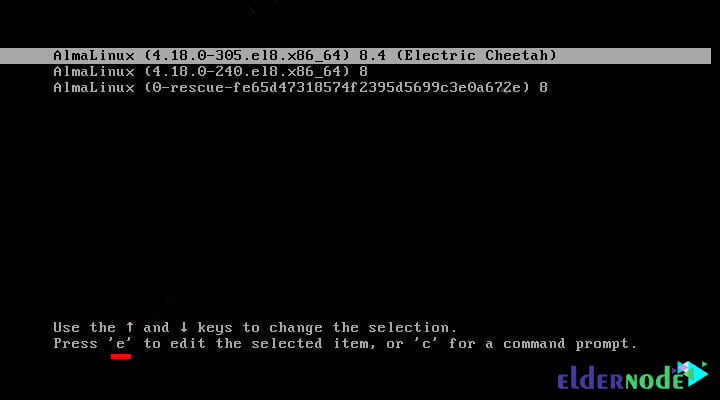
In the next step, you need to use the arrow keys. Then you have to add the following line after /swap and before initrd. One thing to keep in mind is that if an rhg line is quiet, delete it right after /swap.
- rd.break enforcing= 0

After completing the above steps, you can now press Ctrl+X to start the startup process. By doing this, you can start the Emergency mode scripting Shell.
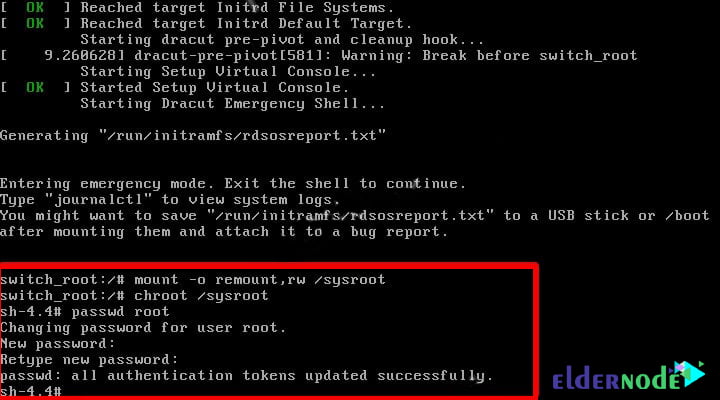
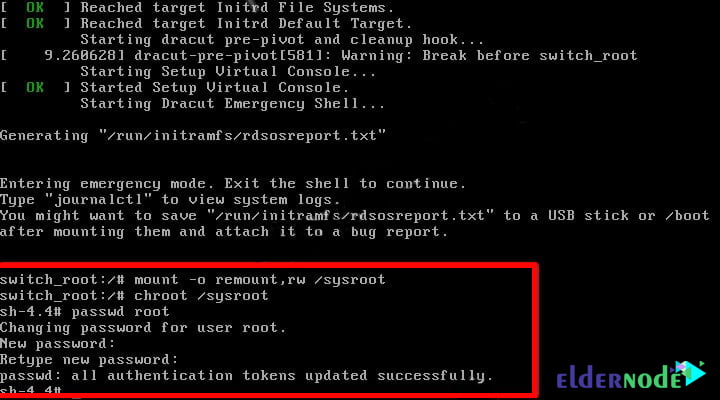
Now, let’s give ourselves the permissions we need. To make the system writable so we can actually save your new password, go ahead and run this command:
mount -o remount,rw /sysroot
You should now be able to access the Sysroot file in a restricted environment using the following command:
chroot /sysroot
Reset Root Password on Almalinux
In the previous section, we made the necessary prerequisites to change the root password. Now you can easily reset the password by running the following command:
passwd root
The system will now ask you for a new password. The point to note is that nothing is displayed on the screen when typing the password. You must specify a strong password. This password must be at least 8 digits long, otherwise, it warns that the password is weak. Finally, press the Enter key when done.
Exit Sysroot using the following command:
exit
As you saw a while ago, we changed access from read-only to read/write. Now you need to reset it before leaving the system:
mount -o remount,ro /sysroot
You can exit the current Switch root session and restart the system using the following command:
exit
How to Login root with a new Password
Log in with your new username and password as you view the AlmaLinux sign-in page. Note that after resetting the password, it is best to use the following command to clean the /etc/shadow system passwords that store the system password in an encrypted format. Doing so will remove any remaining input:
restorecon /etc/shadow
A quick heads-up for Cloud Server users:
Just a friendly reminder that you won’t be able to perform these steps via standard SSH, as your network connection will drop during the process. You’ll need to access your server’s Virtual Console (VNC) through your server management panel to make these changes. Make sure you have that console window open before you get started!
Tested and Trusted:
We’ve run this process countless times in our own lab, and it’s our go-to solution for password recovery. Our team has thoroughly tested this method across all major RHEL-based versions, including AlmaLinux 8, 9 and 10. It’s a safe, tried-and-true procedure, so feel free to follow these steps with total confidence, your system files are in safe hands.
Conclusion
If you are locked in the AlmaLinux instance and have lost access to the root account, you will need to boot into single-user mode and reset the root password. In this article, we tried to teach you How to Reset Root Password on Almalinux.