Special Offer




How to Update Immich an Server: Safe Upgrade Steps



Hosting your own photo and video backup setup is super rewarding, and Immich has quickly become the go-to choice for anyone serious about privacy. If you want those improvements, it’s important to update Immich Server regularly as new updates keep rolling in, think better facial recognition, cool new features, and essential security patches.
But if you’re wondering how to update your Immich server safely without losing any of your memories, you need to be careful. The key is following solid self-hosted maintenance habits.
In this guide, I’ll show you, how to update Immich step by step, covering backups, Docker/Compose, upgrades, and troubleshooting. Whether it’s your first time or you’ve done this a dozen times, you’ll walk away confident your next update won’t break a thing.
Phase 1: Pre-Update Preparation
Before you touch anything, step back for a sec. I’ve seen people just pull the new Docker image and boom, nothing starts, panic mode. Immich updates can be smooth, but only if you prep a little.
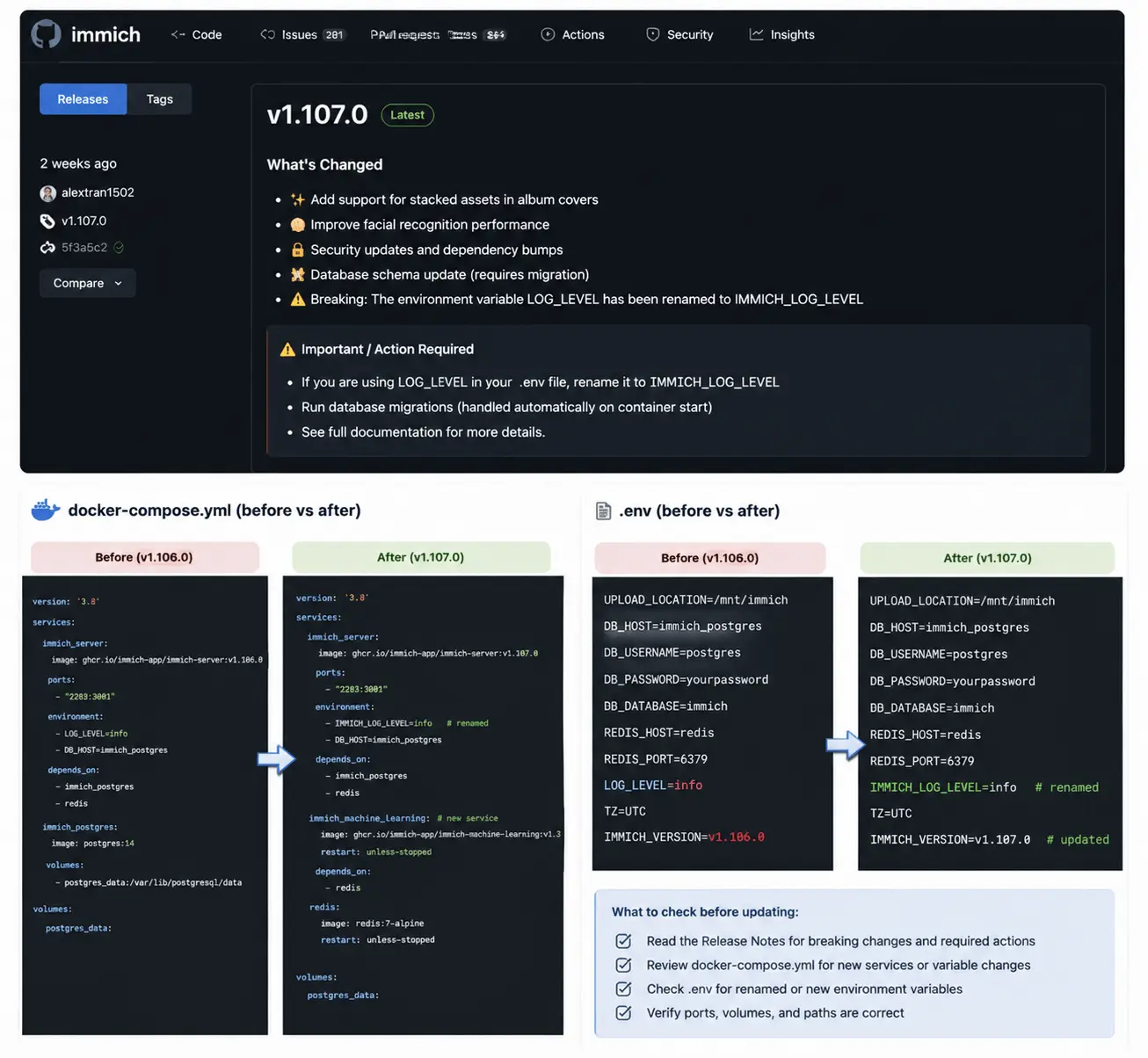
Check what’s new
Open the changelog. Yeah, it feels boring, but read it. The devs usually say, “Hey, do this manually” or “this thing is gone now.” Miss that, and your server could refuse to start.
Look at your config
Now peek at your docker-compose.yml and .env. Sometimes a port changed, sometimes you need a new service. Fix those first. Trust me, doing it after the update is a headache.
Phase 2: Back Up Your Data
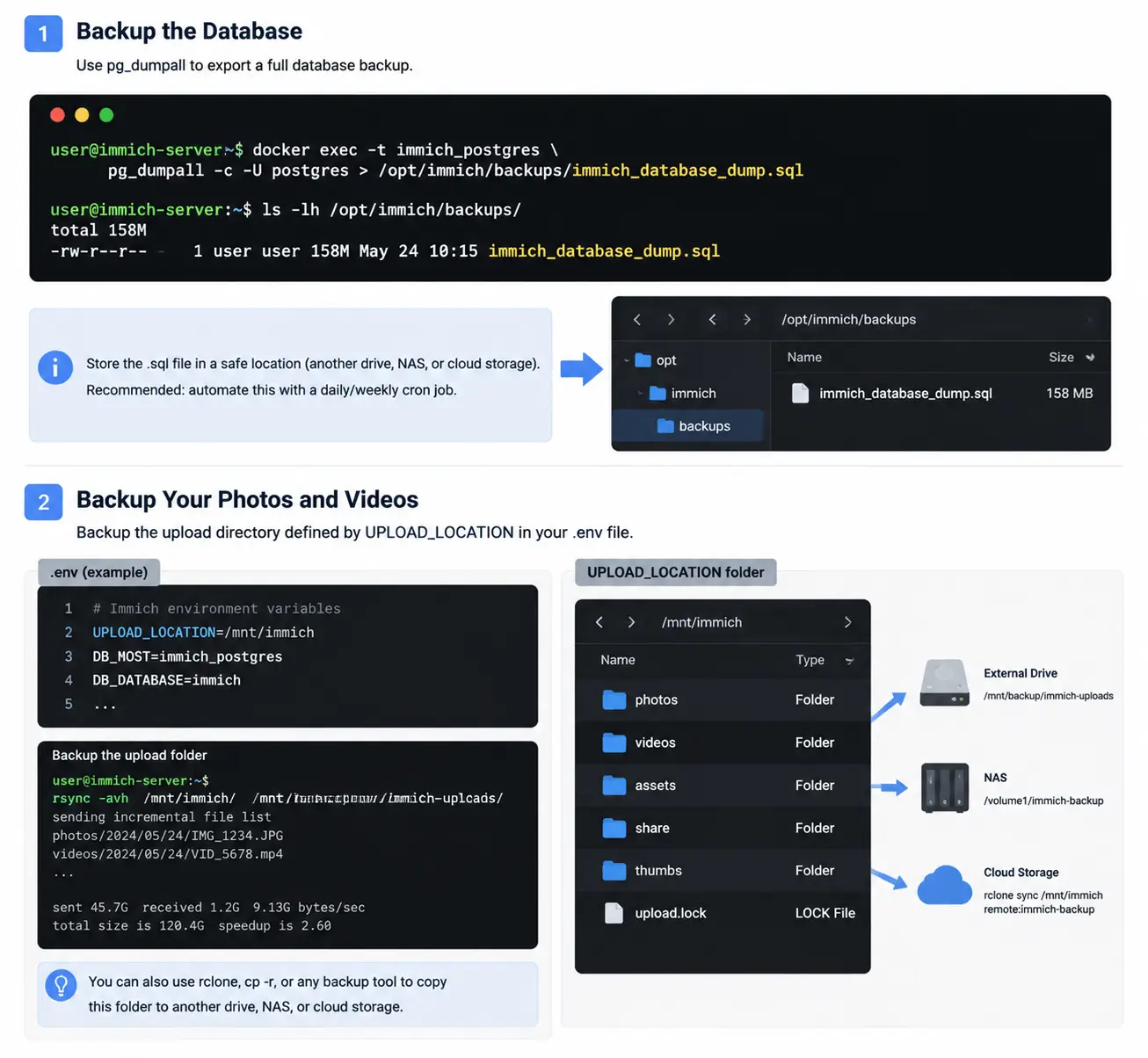
Alright, before touching Docker, make sure you have a proper backup. Immich has two main things you care about:
Database: that’s your albums, metadata, facial recognition info. Don’t rely on default Docker volumes alone. Dump it with:
docker exec -t immich_postgres pg_dumpall -c -U postgres > immich_database_dump.sql
Keep this .sql somewhere safe. If you want to avoid future panic, set up a daily or weekly cron job.
Photos and videos: your database doesn’t store these, your upload folder does. Copy UPLOAD_LOCATION to another drive, NAS, or cloud bucket. Tools like rsync or rclone make this simple.
Do this before updating, skipping it is asking for trouble.
Phase 3: Executing the Update
Alright, backups are done, configs are good. Let’s get this updated.
First, go to the folder where your docker-compose.yml lives.
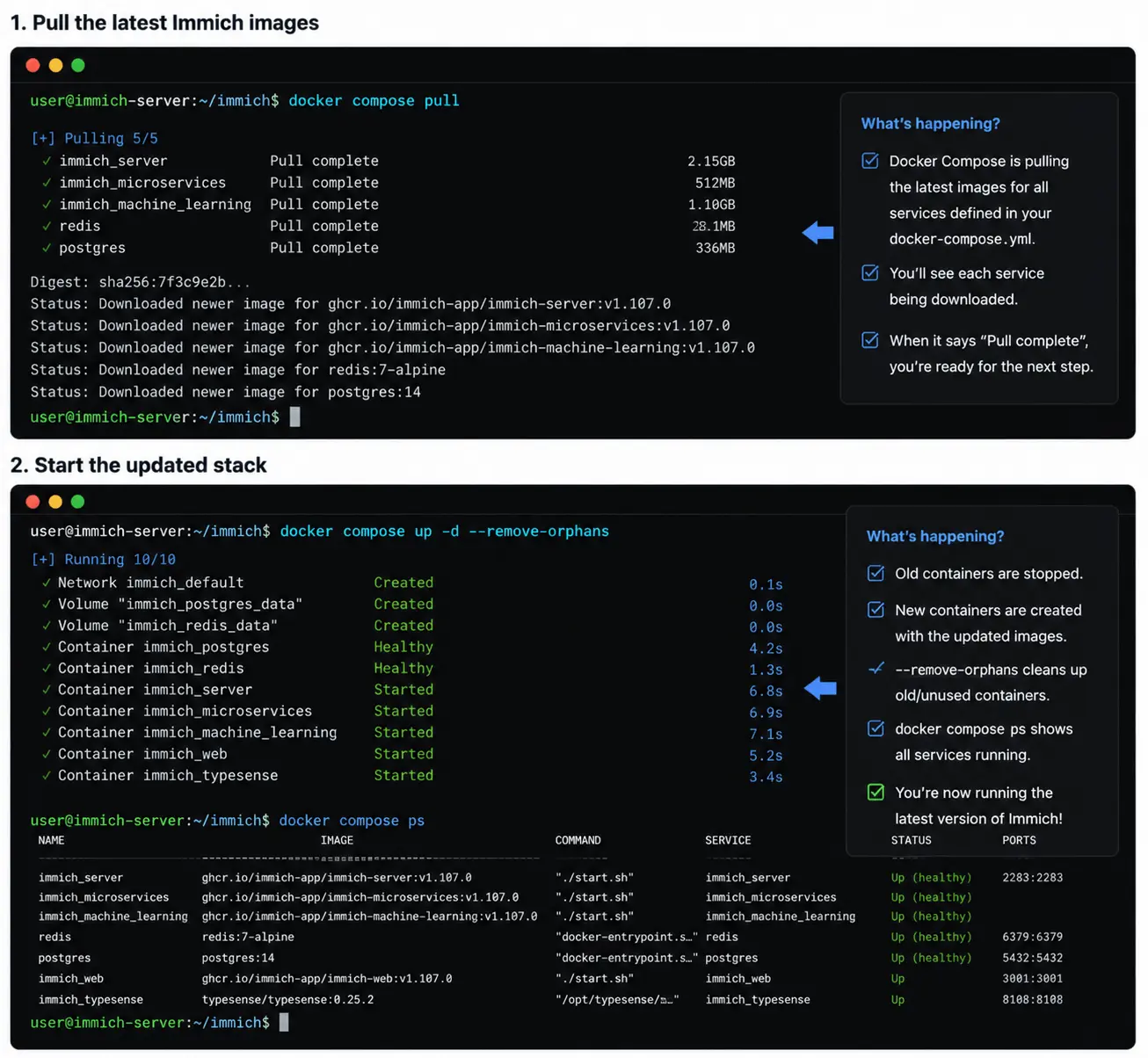
Now, pull the new images. Just type:
docker compose pull
This grabs the newest versions, server, database, and the ML worker. Wait a bit, let it finish. No rushing.
Once that’s done, spin everything up with:
docker compose up -d --remove-orphans
Docker will stop the old containers, start the new ones, and clean up leftovers. In a few moments, you’re back online with the latest Immich version. Easy.
Phase 4: Post-Update Checks
Don’t just jump into the web interface right away. Give the server a minute or two, it’s usually running background database migrations, so things need a bit of breathing room.
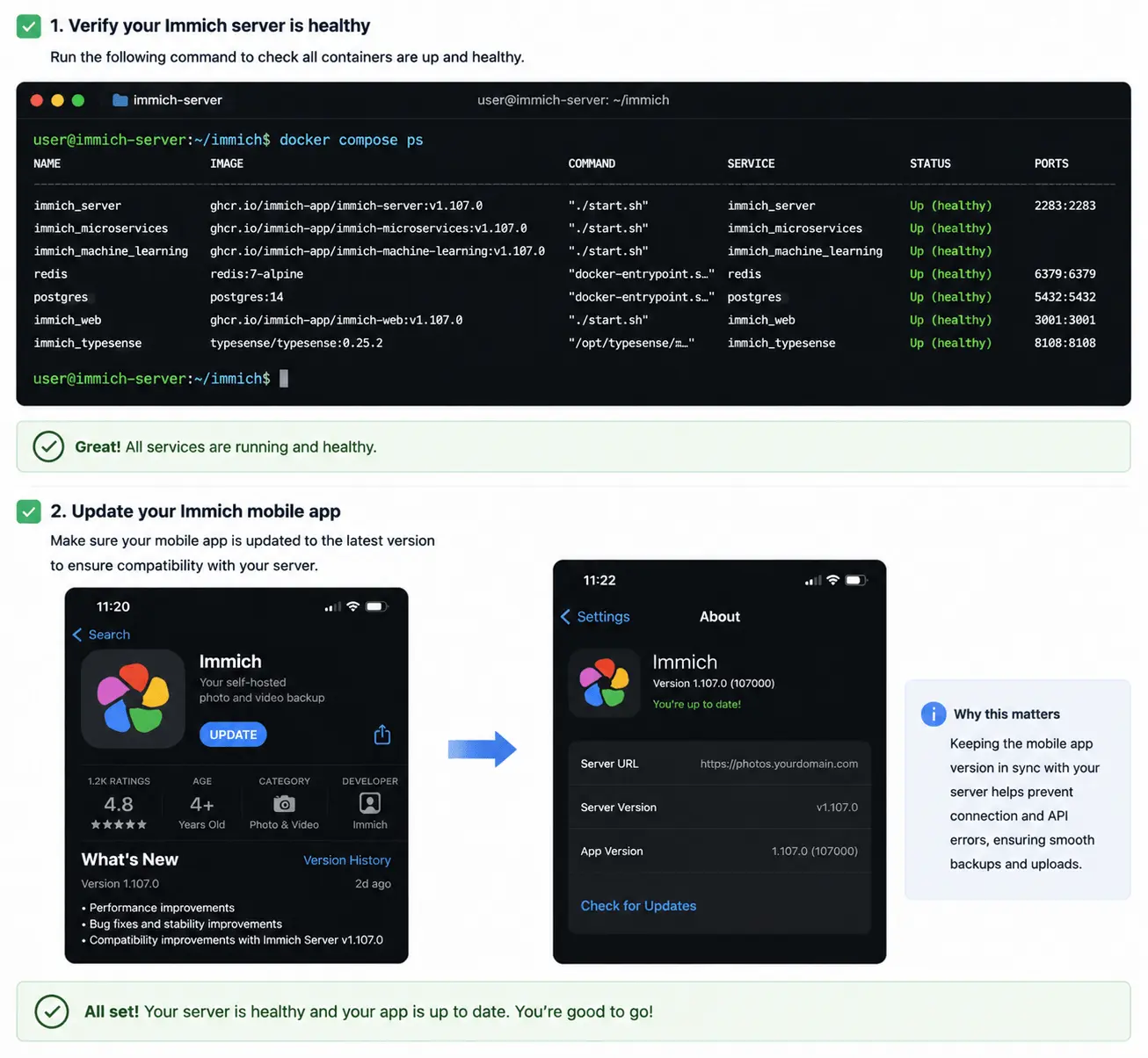
Check the system health
Run:
docker compose ps
You want to see all your containers as Up or Healthy. If one is stuck restarting, at least now you know exactly where to dig in.
Sync your devices
A lot of people forget this: your mobile app needs to match the server version closely. Go to the App Store or Google Play, update the Immich app, and you’ll avoid connection errors. This keeps backups smooth and painless.
Phase 5: Troubleshooting Common Upgrade Issues
Alright, even with backups, stuff can still fail. Here’s what I do when things break.
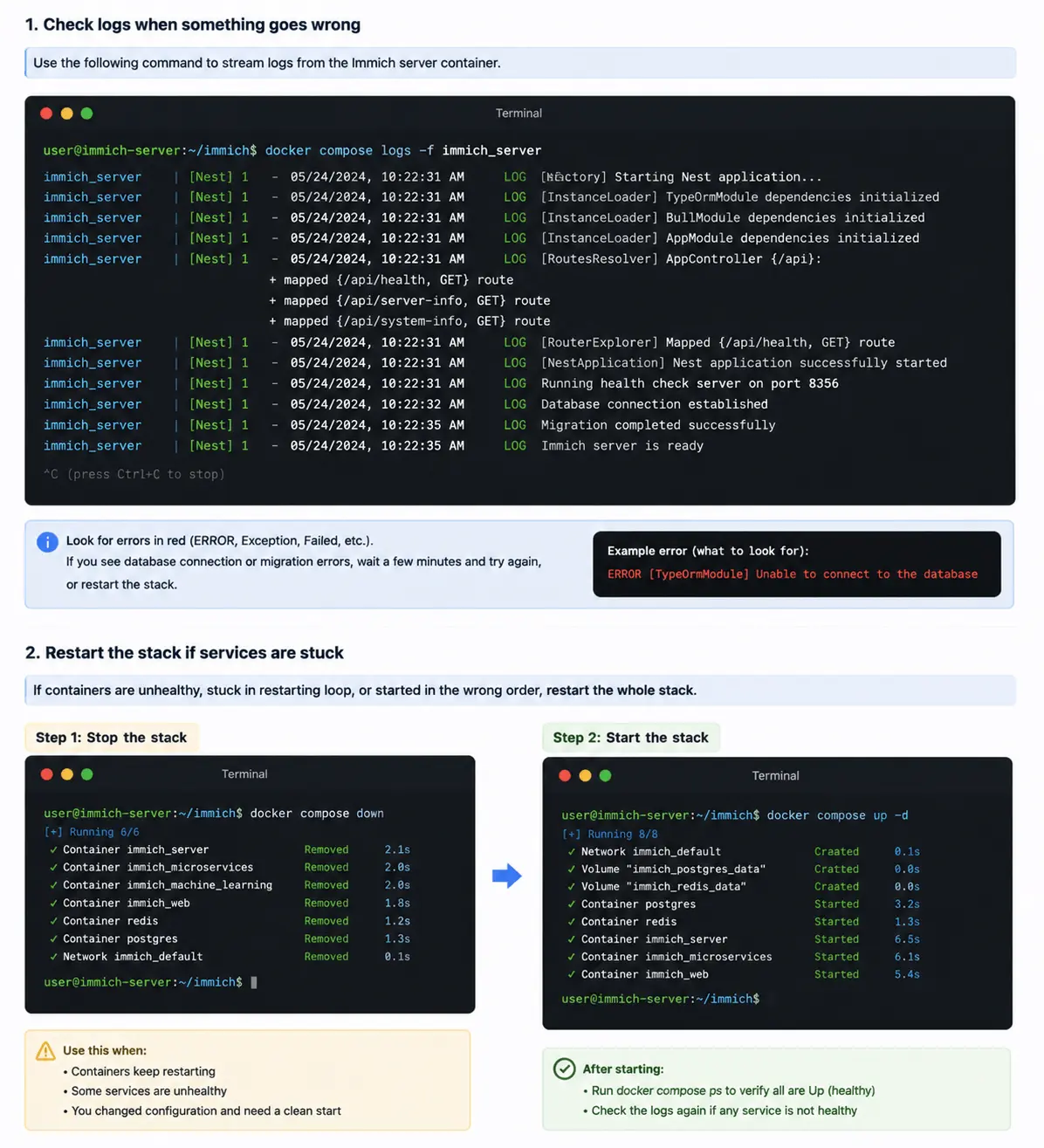
Server keeps crashing?
Check the logs:
docker compose logs -f immich_server
Most of the time, Postgres is just slow. Wait a couple minutes, or restart the server container after it’s fully up.
App giving API errors?
Probably a version mismatch. Clear your browser cache and update the mobile app. That usually fixes it.
Thumbnails not generating, facial recognition failing?
Containers might have started in the wrong order. I just bring the whole stack down and back up:
docker compose down
docker compose up -d
New version broke something?
Rollback is simple:
- Edit .env → set IMMICH_VERSION back to the old version.
-
docker compose down
- Restore your database backup
-
docker compose up -d
That’s it. Don’t panic, most problems are this simple.
Final Thoughts
Running your own Immich server takes a little care, but the control and privacy you get are totally worth it. Read the release notes, back up your database and uploads, and know how Docker/Compose handles your containers, that’s all it takes to keep things running smoothly.
Stick to these practices, and your server will stay fast, safe, and ready for all your photos and videos for years. Honestly, keep this checklist handy every time you update, it’ll save you a lot of headaches.